Summary: This write-up will guide you to an efficient way to extract attachments from OLM file. If you have OLM file and want to export its attachments, then this blog is for you. Read teh complete post and extract email attachments from Mac OLM file with ease.
Want to extract attachments from OLM file? Then you can manually download the attachments from every email. However, it will become a lengthy process. To make the extraction process easy you can try the automated tool.
Before we move further let’s get to know about the OLM file and the reason for attachment extraction.
What is OLM File & Need to Extract OLM File Attachments
OLM is a Mac Outlook database file that saves mailbox data. This file can store email messages, contacts, calendars, journals, and other components of user accounts.
Sometimes there are emails with large attachments that affect the performance of the email client. To avoid such a situation, it is better to save all the attachments of the OLM file. In some scenarios, the user wants to save certain certain attachments that are important and need to be handled with care. So please extract those attachments and save them in a single text file. Since all attachments are kept in a separate file, they will be easy to access and can be transferred to another system.
How to Extract All Attachments from OLM File?
As we already mentioned, there is no direct way to save OLM attachments in bulk at once. To perform this extraction you can use the automated tool, Email Attachment Extractor tool. This tool will extract attachments from OLM files without deleting emails. This utility is specially designed to save multiple attachments from the Mac Outlook OLM files in a single attempt without data loss. It also offers some advanced features like advanced email search options, selective extraction of email attachments, preservation of attachment properties, bulk extraction and many more.

Steps to Extract Attachments from OLM file instantly –
- Download SysConverter for OLM tool on your system and then launch it.
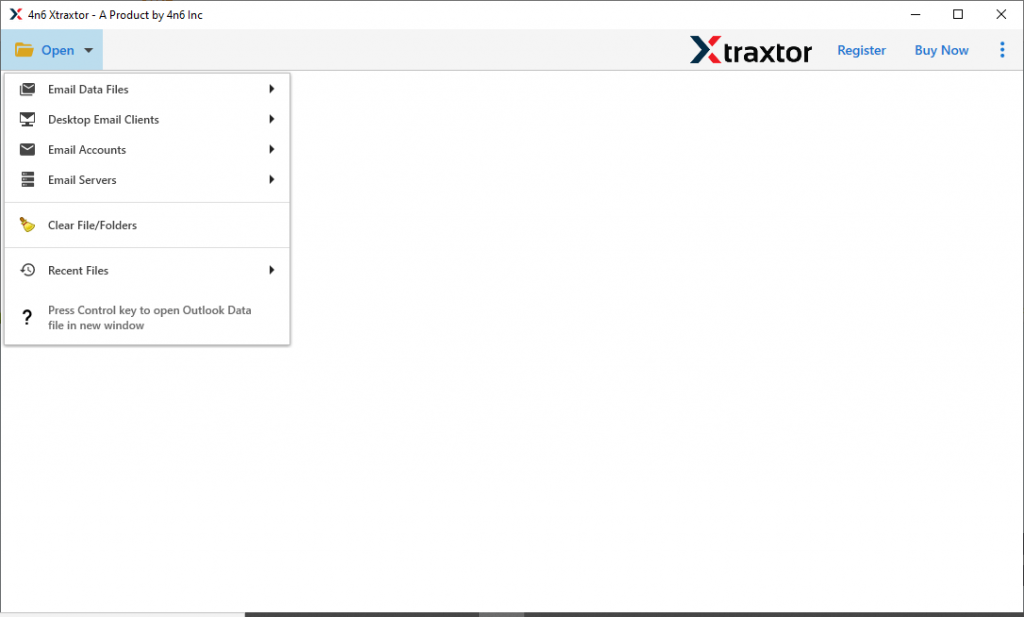
- Then click on the Open and select from the drop-down button.
 <l/i>
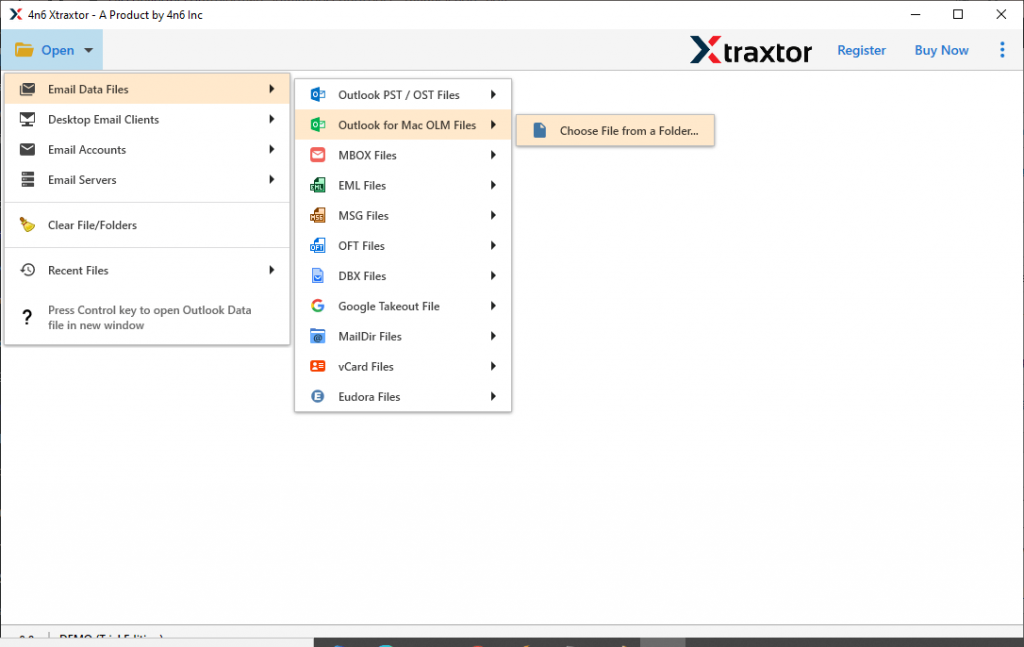
<l/i> - After that, Email Data File >> OLM File >> Select File or Folder.
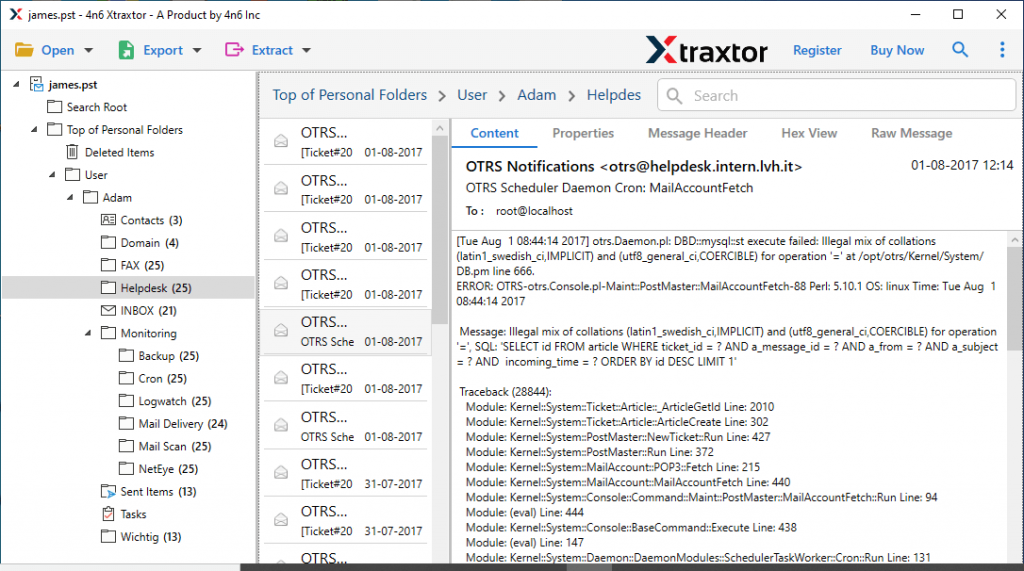
- You will find your emails here. Read them and select the folder from which you want to extract attachments.
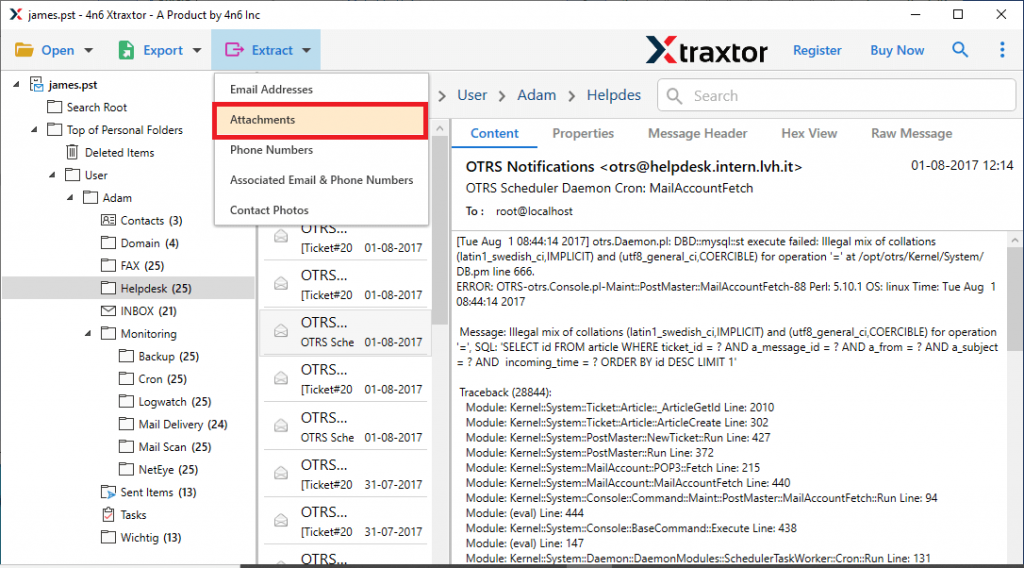
- Now after email folder selection, click on the Extract and choose Attachments from the list.
- At last, select the saving location and click on the Save button. If you want to extract a specific attachment, then put its extension here.
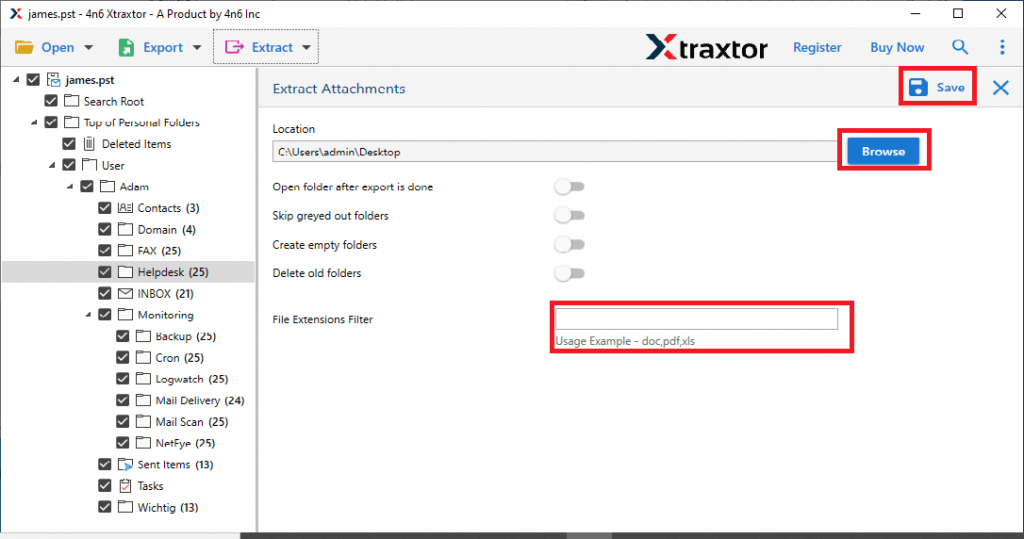
Here complete the process and you extract attachments from OLM file in a single text file at the selected location.
Why Need OLM Attachment Extractor
Some of the reasons to choose this utility to extract Mac Outlook OLM file attachments.
- Save Selective Email Attachment: After OLM file load, this tool shows them on its interface. Here you can read them and decide which attachments you need to extract. It is helpful when you have unlimited emails and want to save certain email attachments.
- Extract Attachments in Bulk: This OLM Attachment Extractor offer an option to select the folder that has multiple .olm files. It will help you perform the extraction process on a large scale without any data loss and glitches.
- Simple User Interface: While keeping the non-technical user in mind, this utility is designed with a simple working style. You can easily perform the extraction process without any assistance.
- Windows Compatibility: The OLM Email Attachment Extractor is supported by all versions of Windows. It can be easily operated on Windows 11, 10, 8, Vista, XP, and other previous versions.
Conclusion
While we are discussing a safe and reliable way to save OLM attachments in bulk. With this tool, it will be easy to save attachments of any particular date range, particular attachments using an attachment extension filter, selective email attachments and many more. You can use the software and test the extraction process yourself.