Here in this post, we will learn the two workable solutions to export Gmail to PST file along with attachments. Read teh complete post and export all your Gmail folders to PST file.
Without any further delay, let’s move ahead and complete the Gmail to PST export process.
How to Export Gmail to PST Format?
To perform the export process manually you need the Outlook email client install on your system. If not, then you need to download it. After that follow the given instructions –
Step 1. Firstly Configure your Gmail account to the Outlook application.
Step 2. When you completely setup your email client with Gmail, then proceed further.
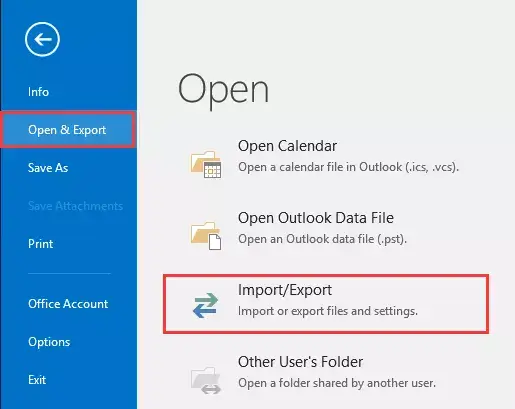
Step 3. Clcik on File >> Open & Export >> Import/Export.
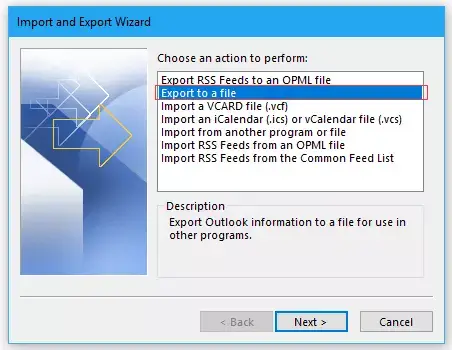
Step 4. Choose “Export to a file” from the given list and click on Next.
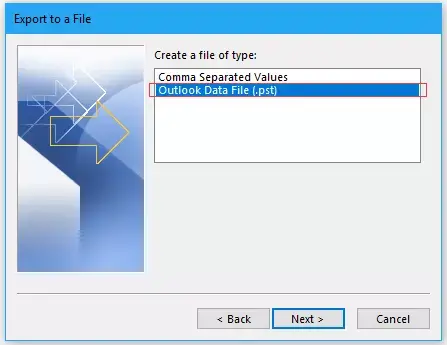
Step 5. Select Outlook Data file (.pst) as a file type to be created.
Step 6. Now select the Gmail account that you need to export.
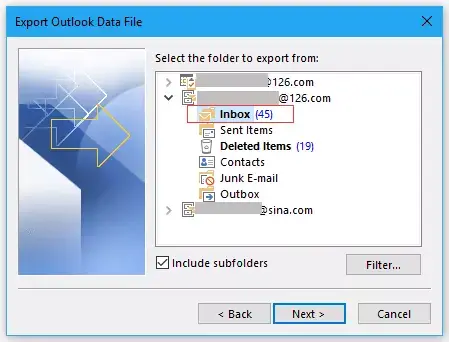
Here you manually export Gmail to PST format with the help of the Outlook email client. However, by using the native method you can only export the inbox folder from your Gmail account. It will not let you save the entire mailbox data. If you want to backup your entire Gmail data, then we recommend you to use the third-party solution.
How to Export Gmail Emails to PST Without Outlook?
To avoid the limitations of the manual method, you can use the SysConverter Gmail Backup Tool for easy and secure export. This tool directly export your Gmail to PST format within a few simple clicks. If you have thousands of emails in your mailbox, then this tool swiftly saves your data without altering it.
Download the free version of the software and convert Gmail to PST file.

Steps to Export Gmail to PST
Step 1. Download and Run the automated tool on your system.
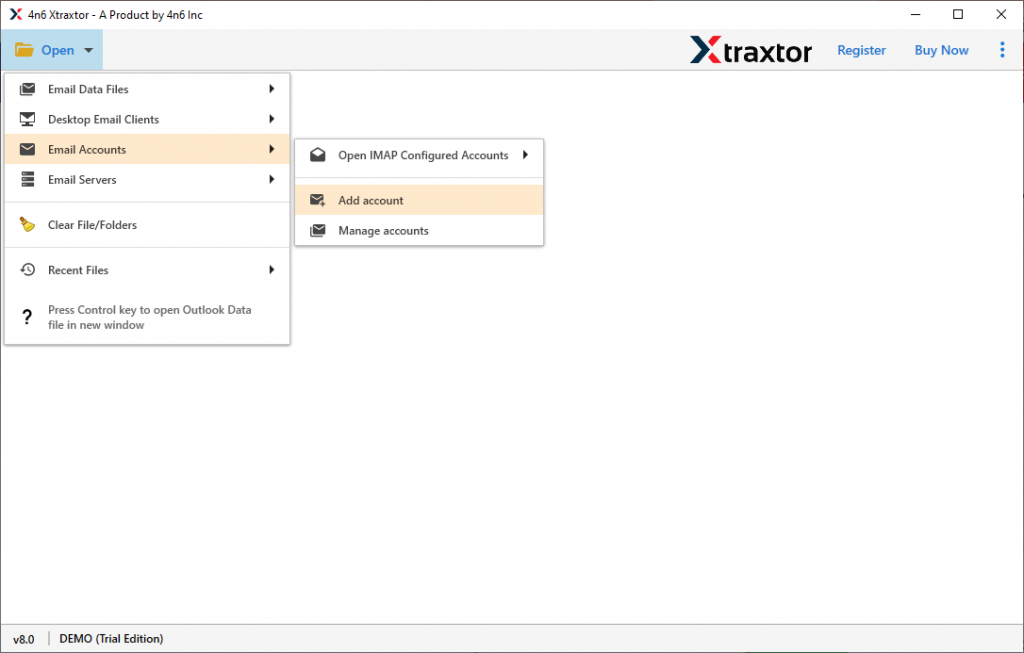
Step 2. Select Open >> Email Accounts>> Add Account.
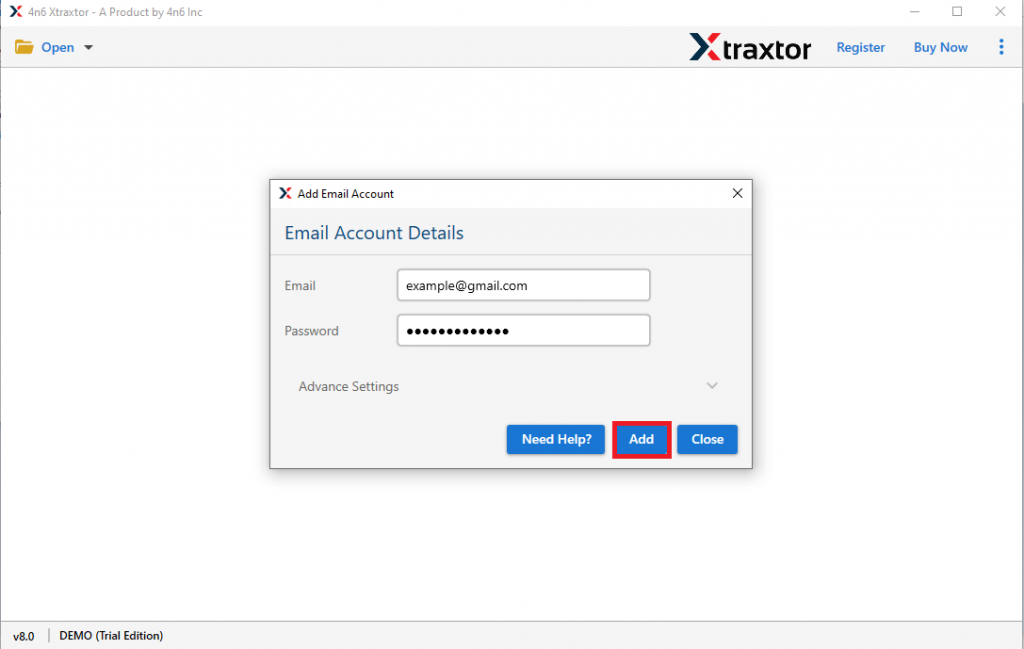
Step 3. In the new window, enter your Gmail email id and password and click on Add button.
(Note: Create App Password and use it instead of your Gmail password.)
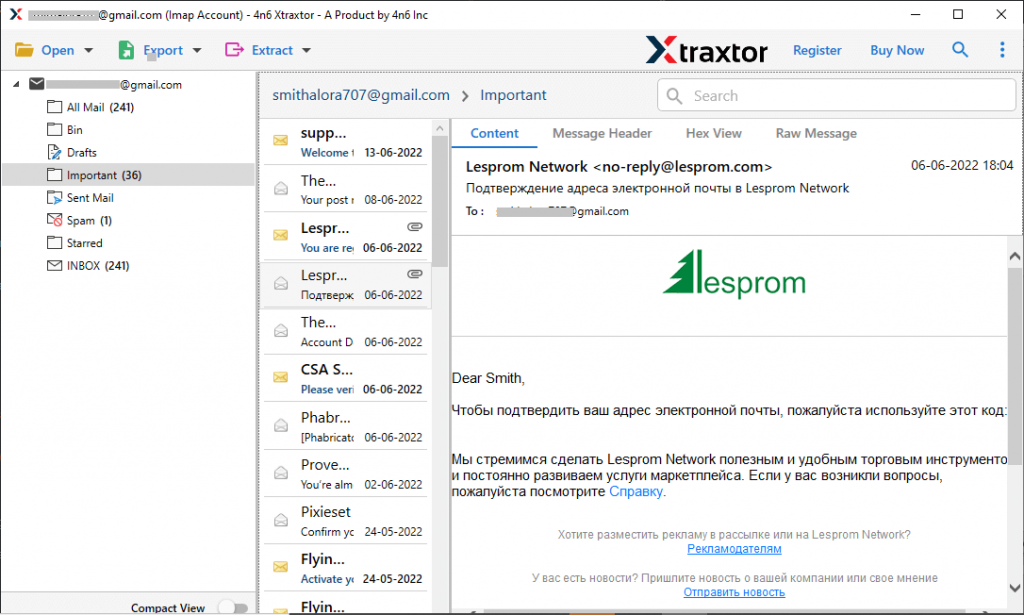
Step 4. Here you can view your Gmail emails and read them before exporting them.
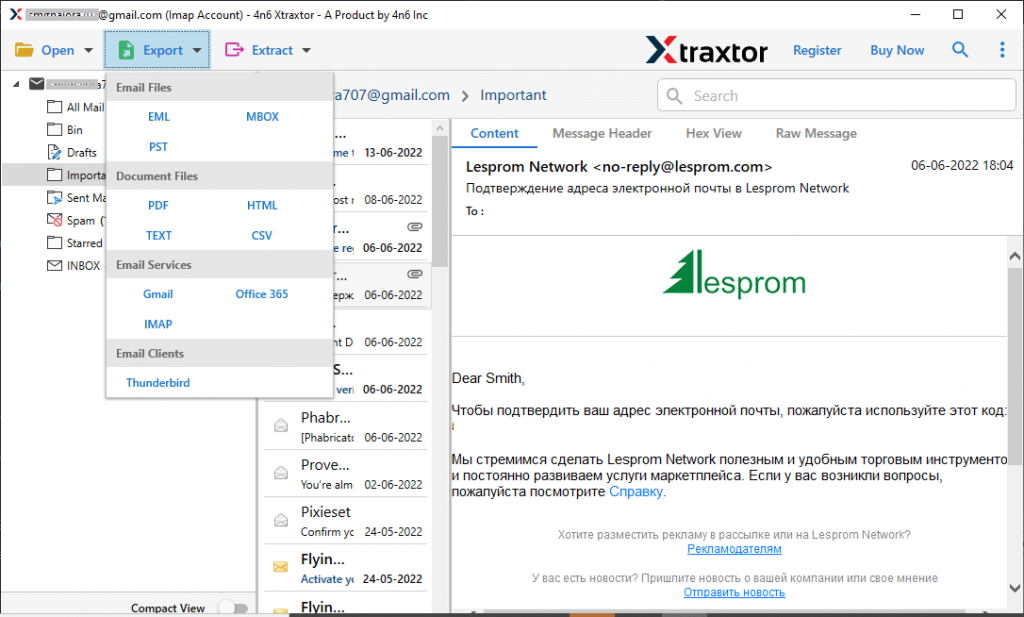
Step 5. After that, click on Export and choose the PST option.
Step 6. Now you can select the email folder that you want to export to .pst format.
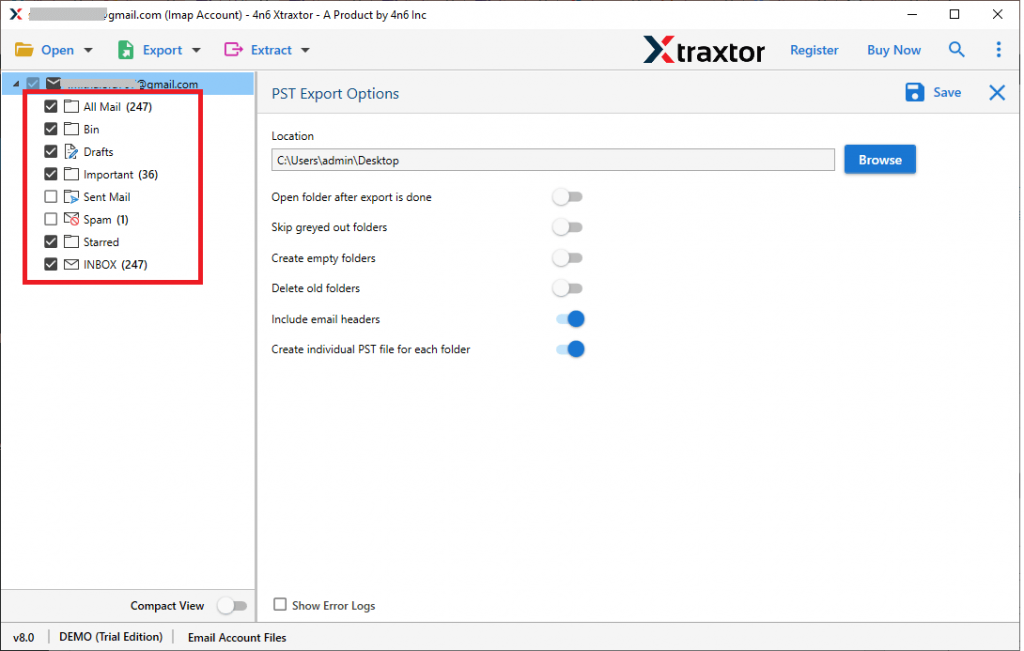
Step 7. At last, browse the saving location to save exported data file and hit on the Save button.

Finish! Here you export Gmail to PST format using the backup tool. There are many advanced features that make this utility a unique one and the first choice for the users that want to save Gmail emails to PST format.
Benefits Of Using Gmail to PST Export Tool
This utility has many outstanding features that make the exporting process easy and efficient. Some of them mention below –
- Preserver Mailbox Hierarchy: The tool export Gmail emails to PST without affecting its formatting. It will maintain the email folder or sub-folder structure and hierarchy during the export process.
- Email Filter Options: To make the backup process specific and effective, this utility offers various email filter options such as – to, from, cc, bcc, subject, name, content, date range, time, and, many more to choose from.
- Transfer Gmail Emails to Cloud: This software can migrate Gmail to Zoho Mail, Office 365, iCloud, another Gamil account, and many more. All the saving options will be present in a single interface.
- Directly Export Emails From Gmail Account: The tool will instantly export Gmail to Office 365 Gmail, Yahoo Mail, and many other webmail accounts along with the attachments.
- Upholds Email Properties: During Gmail to PST export process, this tool maintains email key elements. This software export Gmail emails along with their properties – to, from, cc, bcc, subject, inline image, hyperlinks, attachments, signatures, etc.
- Windows-Based Utility: This Gmail Backup tool support all Windows OS version without any hassle. One can install and run this tool on Windows 11, 10, 8, 7, and all other previous versions.
Conclusion
To secure your Gmail data, the user wants to export Gmail to PST format. Since there is no manual solution to perform the import process. Moreover, with this tool, you can instantly convert Gmail emails to PST format without any data loss and alterations. It also offers a demo version of the software so that you can demo the export process.