Email migration is a common task who switch between email clients. If you are among those, then this article is for you. Read the complete post and export email from Eudora to Outlook profile.
Table of Content
- Manually Export Eudora Emails to Outlook
- Transfer Eudora Emails to Outlook Instantly
- Steps to Migrate Eudora to Outlook
- Prominent features of SysConverter
- Conclusion
How do I export email from Eudora to Outlook? You can import Eudora Mail to Microsoft Outlook using Outlook Express. Firstly you need to export Eudora Mail to Outlook Express and then import to Outlook. However, it is not a reliable approach to export data, therefore you can use the automated tool to perform efficient Eudora to Outlook migration.
Why do Users Prefer Outlook over Eudora?
There are various reasons why users want to export email from Eudora to Outlook application. Some of the common reasons are –
- Outlook is integrated with the Microsoft Office suite. That means, you can access other applications such as – Word, Excel, PowerPoint, One Drive, Shared Mailbox and many others.
- With Outlook, you can also get the calendar and scheduling event facility.
- Outlook has powerful search capabilities and customizable filters.
- It has advanced security and spam filtering features, malware protection and encryption options.
- Outlook is integrated with Microsoft cloud services that include Office 365 and OneDrive. This allows its users to access their emails on any device connected to the internet.
Now without any further delay, let’s move ahead and know the best ways to export emails from Eudora to Outlook profile.
How to Manually Import Eudora Mail to Outlook?
You can manually perform the export process, using Outlook Expres. To know more about it, follow the given instructions –
- Install and launch Outlook Express on your system.
- Now select File >> Import >> Messages and choose Eudora from the given list.
- Then browse the selected Eudora data and then click on the Next button.
- Choose the email folder you want to export and click on the Finish button.
- Now open your Outlook application.
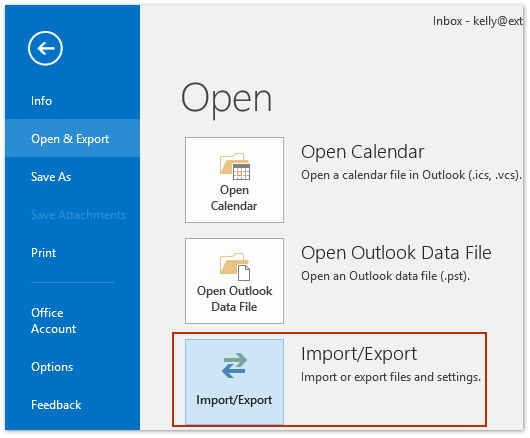
- Then move to File >> Open&Export >> Import/Export.
- Select Import Internet Mail and Addresses and hit on the Next button.
- Now select Outlook Express 4.x, 5.x and hit on the OK button.
Here you export email from Eudora to Outlook manually.
Limitations of Manual Approach
- A lengthy and time-consuming process.
- Need to install Outlook Express on your system.
- It only exports Eudora emails, not attachments.
- No filter options to export specific emails.
How to Directly Migrate Emails from Eudora to Outlook?
Eudora Converter is an efficient and secure way to export email from Eudora to Outlook account without any hassle. This tool automatically detects your configured Eudora profile and export your data into PST file. After that, it can be easily imported into Outlook account. Additionally, using this tool you can also import Eudora Mail to Thunderbird and other email clients.

Steps to Export Email from Eudora to Outlook with Attachments
- Launch the SysConverter software on your system
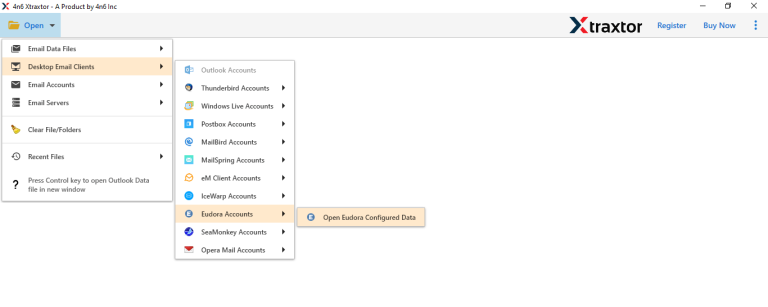
- Then, select Open >> Desktop Email Account >> Eudora Account >> Configured Account.
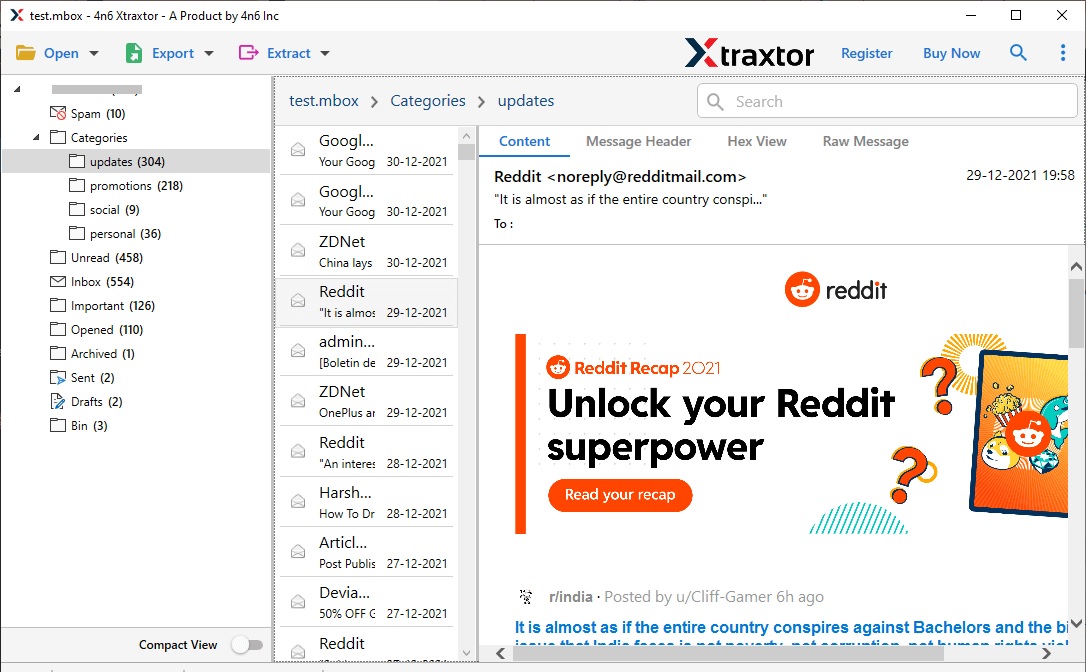
- Here you can view your emails before exporting them.
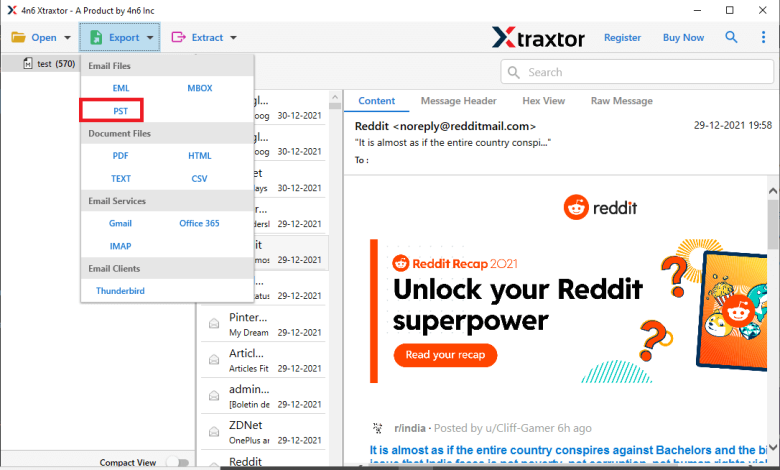
- Click on Export and choose PST format.
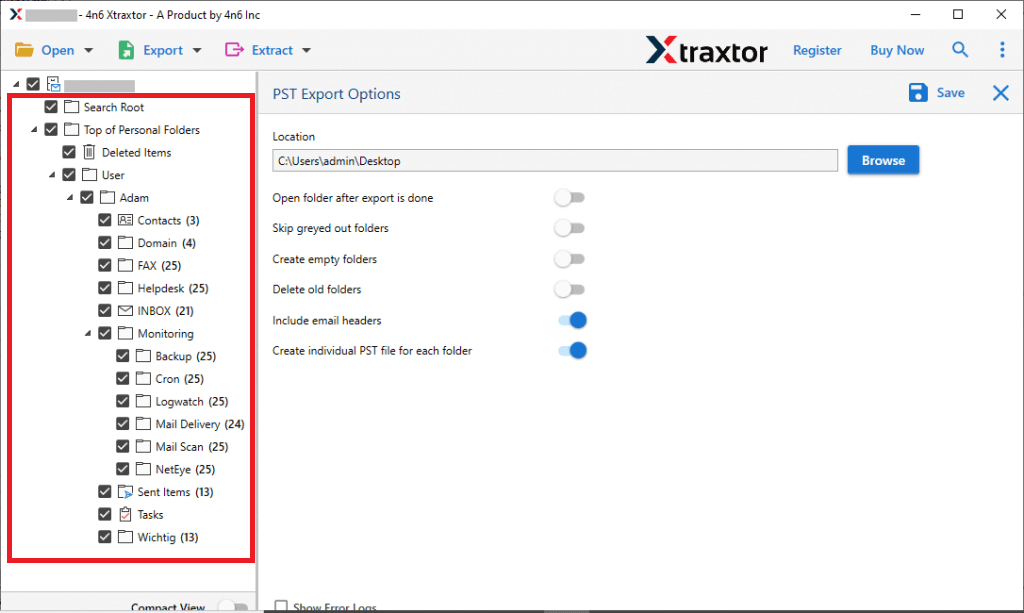
- Here you can select the email folders you want to migrate.
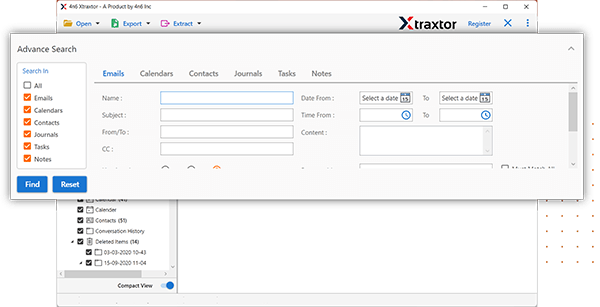
- Apply the filter options for selective export.
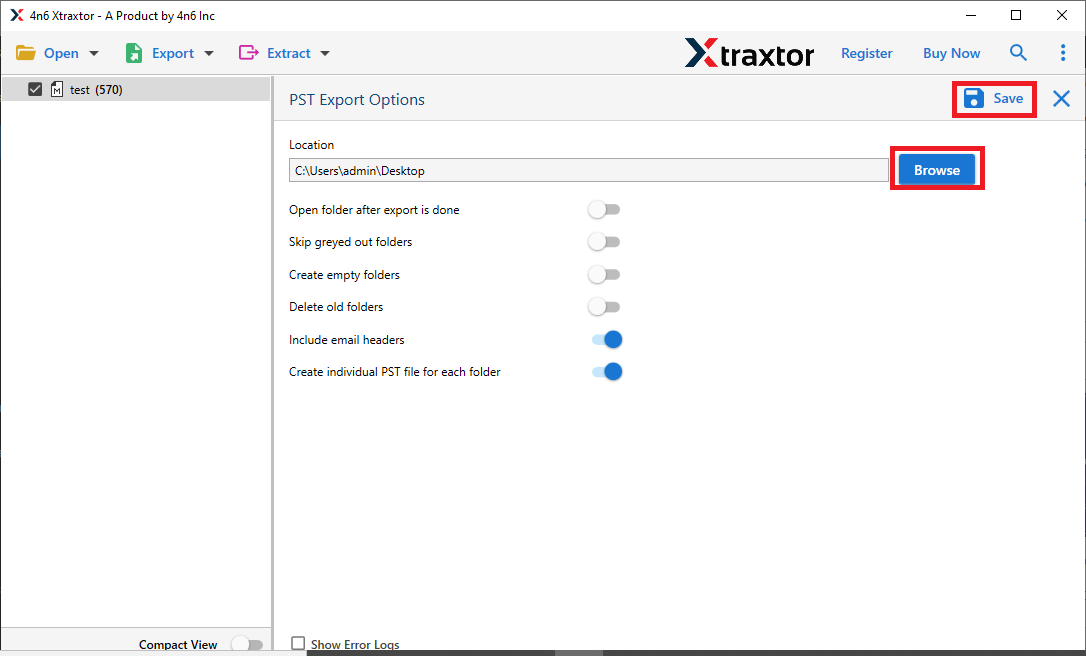
- Browse the location to save the exported data file and hit the Save button.
- Using Outlook Import/Export features import PST to Outlook account.
Done! Here complete the Eudora to Outlook migration process without any hassle.
Why Use Sysconverter to Export Eudora Mail to Outlook?
Several standout attributes render this tool both effective and secure for the export process. Among these some of the features are:
- Directly transfer Eudora Mail to Outlook without any hassle.
- Advance filter options – to, from, cc, bcc, name, date, time, etc.
- Automatically detect the configured Eudora profile from your system.
- Allow to view your emails before exporting them.
- Convert Eudora Mail to PST, PDF, CSV and other file formats.
- Maintain email folder and sub-folder hierarchy and structure.
- Allow to migrate Eudora Mail to Gmail, Office 365, Yahoo and many other webmail accounts.
- Compatible with Windows 11, 10, 7, Vista, XP and all other previous OS versions.
- Retain email attributes and key elements while exporting the data.
- Download the trial version of the software to know the working of the software.
Conclusion
Here in this post, we discuss two solutions to export emails from Eudora to Outlook. You can manually perform the migration process, however, with it there are various limitations. Therefore we recommend opting for an automated tool that will instantly import Eudora Mail to Outlook profile in a few simple clicks.