Blog Overview: How to convert Thunderbird emails to CSV format? This is a common request from users who want to save their emails in .csv format. This seems like an easy task, but it is not. Read this article and learn the easy way for Thunderbird to CSV conversion.
Along with many email clients, Thunderbird is used by many users since it is a freeware desktop application. However, the problem occurs when the emails in the mailbox increase and take up most of the disk space.
In this case, it’s best to store all mailbox data in a file format that can save your data in a structural format. To do this, it is recommended to convert Thunderbird emails to CSV format.
Why export Thunderbird emails to CSV Format
CSV or Comma Separated Values is a file format that stores data in a comma-separated spreadsheet format. It’s easy to open a .csv file in MS Excel, Libera Office, Google Spreadsheet and many more applications. CSV is a universal file format that can be transferred from one system to another over the network. Nowadays most users want to save their emails, contacts, journals, calendars and other mailbox information in .csv format because it is easy to open without the need for any external application
How to Convert Thunderbird Emails to CSV with Attachments
Here in this blog, we will discuss two different methods to save email from the Thunderbird account in .csv format.
#1. Manual Approach via Thunderbird
#2. Automated Solution via Thunderbird Converter
Let’s discuss both of these methods one by one manner with visual description.
Method 1: Save Thunderbird Emails in CSV using Import/Export Tool
Note: Before you use this method, you need to install Import/Export Add-on in your Thunderbird interface. If you have already installed it, then move to the steps mentioned below.
Steps to convert Thunderbird emails to CSV format manually
Follow these steps to export emails from the Thunderbird account to Comma Separated Value (.csv) format.
Step 1. Open Thunderbird email client on your system.
Step 2. Right-Click on the folder, you want to export and click on Import/Export Tool.

Step 3. Select Export all files in the folder >> Spreadsheet (CSV).

Step 4. Choose the location to save the .csv file and click on the Next button.

Complete the process of Thunderbird to CSV conversion here. However, this method is not an ideal approach to convert Thunderbird emails to .csv format in bulk. For batch export, it is recommended to use the professional tool mentioned in the next section
Method 2: Export Multiple Thunderbird Emails to CSV format Instantly
To perform batch email conversion, use Thunderbird Converter, an expert solution preferred by many companies. This is an all-in-one solution that intelligently converts emails from Thunderbird account to Excel without any data loss and modification. This tool ensures that the mailbox folder or subfolder structure is preserved during the conversion. Also, the integrity of email data is preserved as an exact copy of Thunderbird emails is saved in .csv format.

Steps to convert Thunderbird emails to CSV format in a single attempt
Follow the given below steps to export emails from Thunderbird to Excel format with complete data.
Step1. Install and run this tool on your Windows system.
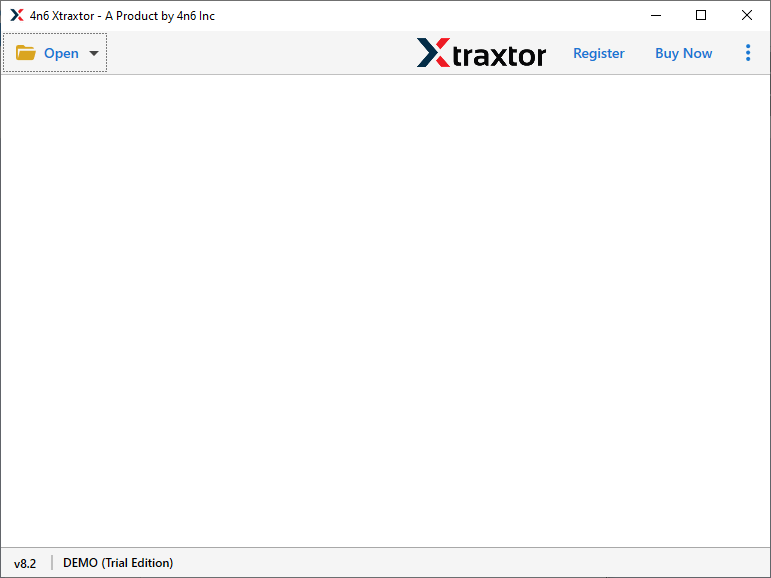
Step 2. Click on the Open option to start the conversion process.
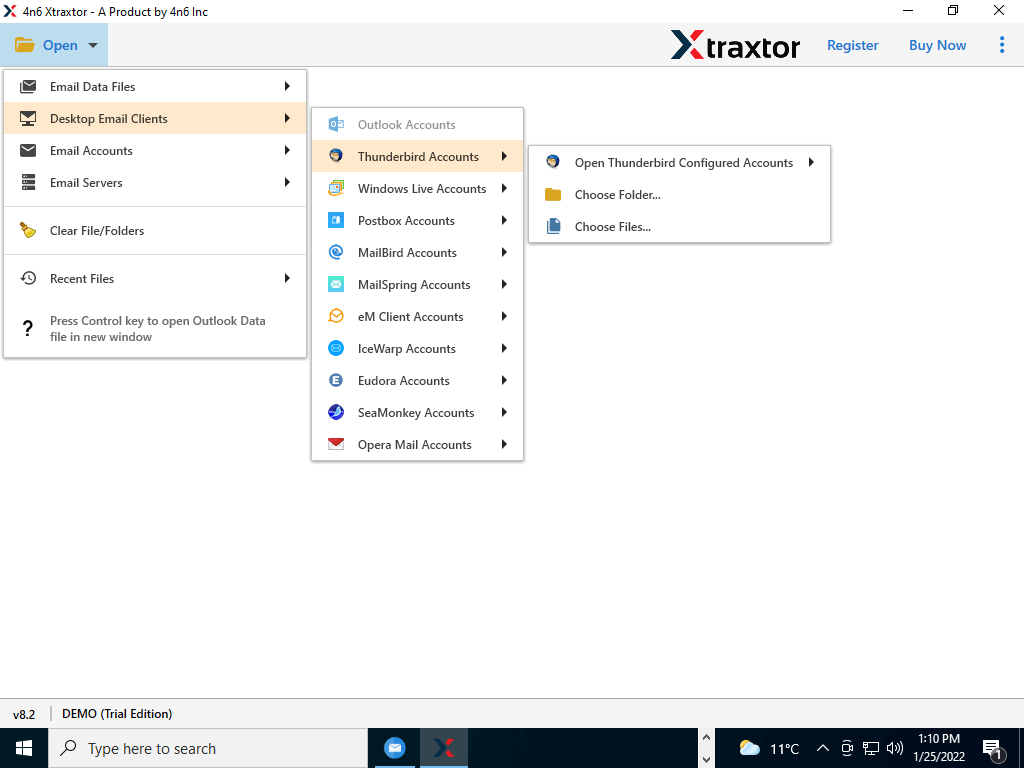
Step 3. After that mouse click on Desktop Email Client >> Thunderbird Accounts >> Choose from given options.
Step 4. A preview of all your Thunderbird emails will be presented here. You can select the folder you want to export.

Step 5. Click on the Export button and choose CSV format.

Step 6. In this last step, choose the location to save the .csv file and at last hit on the Save button.

Why Thunderbird Converter
This tool has many outstanding features, some of them mention here,
- Batch Conversion of Thunderbird Emails
With this tool, you can easily export multiple Thunderbird emails to CSV format without data loss. You just need to add a folder containing various emails from the Thunderbird mailbox. Also, make sure all email data is converted and saved in .csv format like the original. - Selective Email Conversion
This software has an advanced search option that offers a selective email conversion feature. With this utility, users can apply email filter by date range, to, from, subject, cc, bcc and more. This feature saves users time and effort by avoiding unwanted conversions. - Extract Information
This Thunderbird Converter allows users to save some selected information from the Thunderbird mailbox. With it, you can extract email addresses, phone numbers, attachments and related email addresses and phone numbers into a separate text file. - Multiple Option to Export Thunderbird Emails
This software offers various options to save Thunderbird emails. This tool allows you to export emails from Thunderbird to CSV format in a single attempt. Along with it, users can convert Thunderbird emails to PST, HTML, EML and other file formats. Most importantly, all these options are present in a single interface to save your time and effort. - Preserve Mailbox Structure
When converting Thunderbird mailbox data, this tool ensures that the entire folder and subfolder hierarchy is preserved. This allows users to get an exact copy of their original mailbox data, so it can be easy to find emails in the .csv file after conversion. - Windows Compatibility
This tool is designed to run on any Windows OS version. Users can install and use this software on Windows 11, 10, 8, XP, Vista and other earlier versions without encountering any glitches.
Conclusion
Most Thunderbird users want to save their Thunderbird emails in an Excel spreadsheet. Therefore, regarding their query, we are discussing two different methods to convert Thunderbird emails to CSV format. You can choose any of the above methods according to your needs. In addition, you can use the Trial version of this software and see how this tool works and check its efficiency and accuracy.