Summary: Are you also looking for an expert solution to save contacts from Outlook MSG files in vCard format. If so, your search ends here. In this article, we are going to explain the best method to convert MSG to vCard format easily. So stay with us and get to know the complete conversion process. So let’s proceed with this write-up, but before that let’s get to know why there is a need to do file conversion.
Queries related to MSG to vCard Conversion
“I have MSG files with some important contact information that I need to email my boss. Now I want to convert these Outlook contacts to vCard format so that they can be easily transferred via email. Please suggest a method for me to complete this process without affecting other email properties? ”
“How can I save contacts from MSG file created by Outlook 2016 to VCF format instantly?”
What is the vCard file and its usages?
vCard is a standard format used to store or transfer contact information. VCard files can be easily accessed on computers, mobile devices, the web, etc. This format is in plain text format, so it can be easily opened and examined in any text editor such as Notepad, gEdit, TextEdit and other editors.
A professional approach – MSG to vCard Converter
File conversion is becoming a common practice among users. One such process is MSG to vCard conversion. There are many solutions, but it is difficult to decide which is best for our needs. One such tool that efficiently and accurately exports MSG to vCard is called MSG Converter. This tool expertly converts MSG to vCard and other file formats displayed in the software interface.

Steps To Convert MSG to vCard using Automated Approach
Follow the below-mentioned steps to save contacts from the Outlook MSG file into vCard format.
Step 1. Download and Launch the software on the system.
Step 2. Click on the Open option shown on the software interface.

Step 3. Here, Select Email Data File >> Select MSG File >> Select Files or Folders.

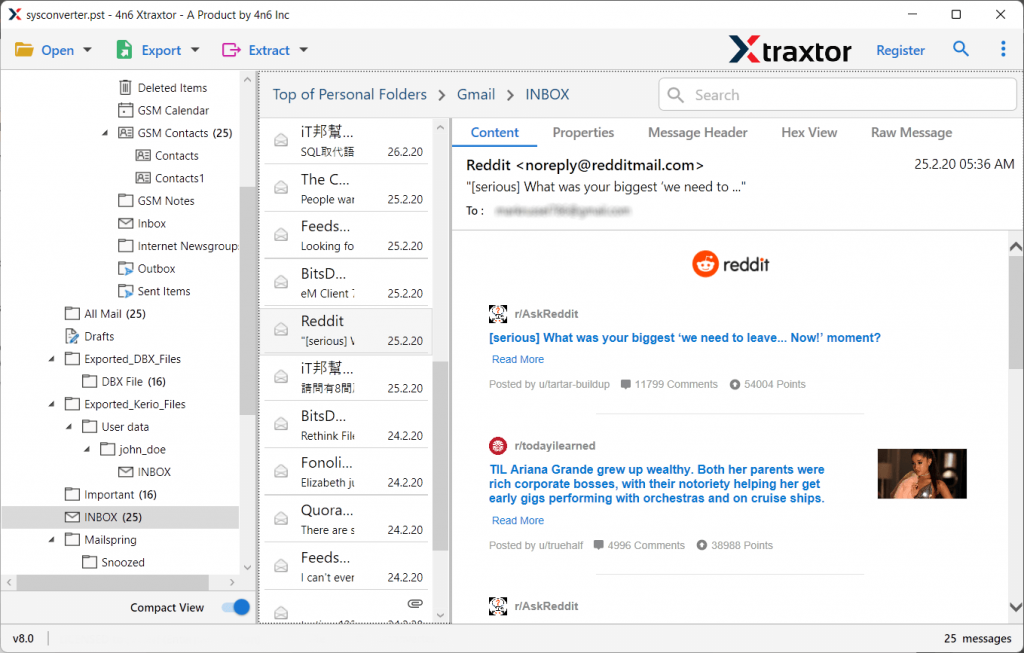
Step 4. This tool will display all the messages that exist in the .msg file for viewing / reading messages.
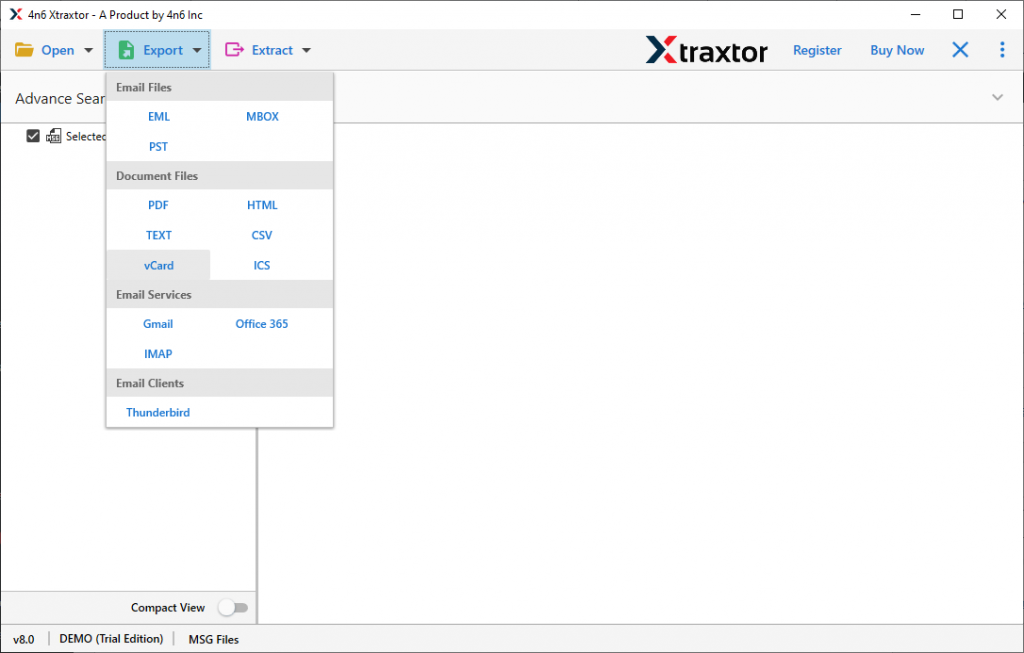
Step 5. After this, select the Export drop-down option and click on the vCard option.
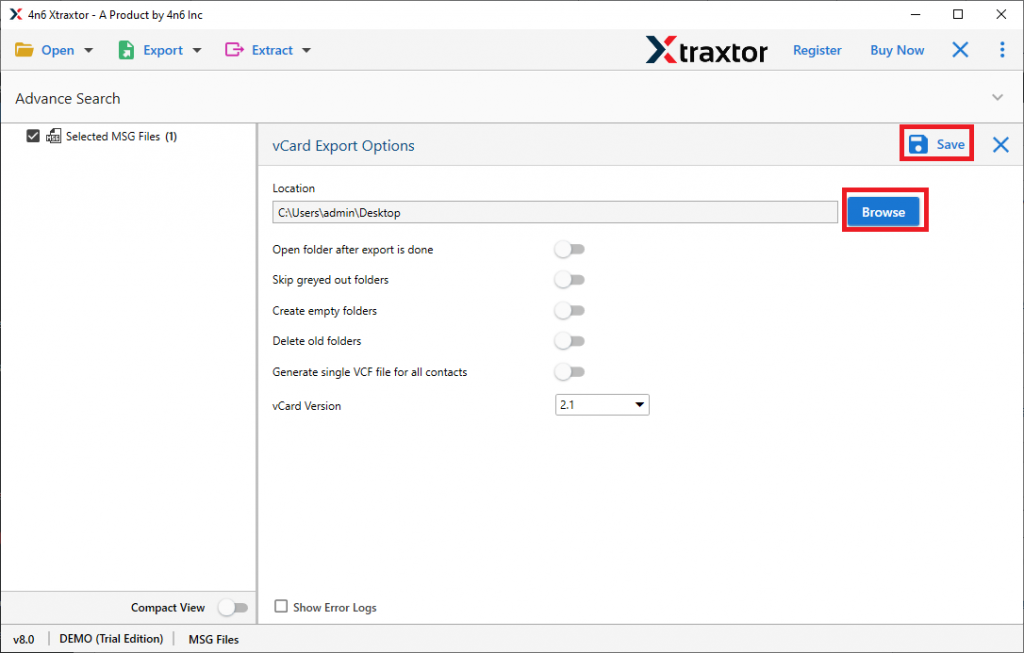
Step 6. After following the above steps, in the last browse the targeted location and click on the Save button.
You have successfully convert MSG to vCard format using this utility. This tool can easily export multiple contacts from Outlook MSG files into vCard format in a few simple clicks. There are some amazing features that this software possesses that makes it a standalone utility among other tools. Some of them are mentioned in the next section.
Outstanding Features of MSG to vCard Converter
-
-
- Export Multiple MSG to Single vCard File
This utility provides an option to merge all contacts from the MSG file into a single vCard file. This option helps the user if they want to transfer the vCard file then it is easy to send a single file instead of the entire contact file. - Dual Outlook Message Selection Mode
The MSG to vCard Converter offers the user two different options to select a .msg file for the conversion process. You can either upload a single MSG file or select a folder that contains multiple MSG files depending on your needs. - Convert Multiple MSG File
This tool has an advanced feature to convert MSG files instantly. It also ensures that your data is protected during the conversion process. This tool efficiently exports bulk contacts from MSG files to vCard format without causing any interference. - Email Filter Option
There are several email filtering options offered by this converter. Users can choose from specific options and convert MSG to different file formats and avoid unwanted conversions. Various email filter options are email, calendar, contacts, journals, tasks and notes. - Extract Email Information
This tool allows the user to extract certain information from MSG files. The user can get email addresses, phone numbers, attachments, contact photos and related email addresses and phone numbers in a separate file. - Create vCard File in Different Versions
With this converter, users can create a contact file in different versions. The user can use this utility to create versions 2.1, 2.0, 3.0 and 4.0 of vCard files.
- Export Multiple MSG to Single vCard File
-
Conclusion
In this blog, we discuss the best approach to securely export MSG to vCard instantly. With this tool, the user can create a single contact file of multiple Outlook contacts in a matter of seconds. You can try the demo version of this software and convert MSG to vCard yourself.
Frequently Asked Questions
Question 1. Can this software export MSG to vCard format in a single contact file?
Answer. Yes, this tool can create a single vCard file from an MSG file without any error.
Question 2. Can I convert selected contacts from MSG files using your software?
Answer. Yes, you can easily export selected contacts from the .msg file by just applying the contact filters offer by this utility.
Question 3. Is it possible to create a vCard file in the 3.0 version using this utility?
Answer. Yes, this tool can create vCard files in different versions such as 2.1, 3.0 and 4.0.