Summary: In this blog write up we will share two methods to perform the eM Client to EML export process. Read the complete blog and convert eM Clent emails to EML format with ease.
There are several reasons that make eM Client a widely used email client. It is an easy to use interface to manage emails, contacts, tasks and much more data.
However, there may be a situation where the user wants to convert emails from eM Client to EML format. The reasons may vary from user to user.
In response to this user query, we describe two different methods to save eM Client emails to EML format. YTo knows them to read the next section of this blog.
Methods to Convert eM Client Emails to EML Format
There are two approaches to export eM Client to EML format. Both are tested by experts on the basics of reliability and accuracy.
#1. Manually Export eM Client Emails to EML
#2. Automated Way to Save eM Client Emails as EML Format
LEt’s discuss both the methods one after one with pictorial description.
Method 1: eM Client to EML Conversion Using Manual Approach
eM Client offers an export option to save mailbox data in .eml format. Let’s check out the process of this exporting process. Follow the given instructions,
Step 1. Open the eM Client interface on your system.
Step 2. After that, click on the Menu and select from the drop-down list.
Step 3. Go to File and select the Export option.

Step 4. Select “Export to .eml file” from the given Export options.

Step 5. Choose the folder to be converted and click on the Next button.

Step 6. Here select the destination directory and mouse-click on the Finish button.
Here you manually export emails from eM Clients to EML format. However this manual method saves your mailbox data, but there is no guarantee of data integrity and in extreme cases, you may lose your crucial data. Along with that, there is no filter option for selective email conversion.
Method 2: Convert eM Client Emails to EML with no Data Loss
Using eM Client Converter, you can easily save mailbox emails in .eml format with accuracy and integrity. This tool smartly convert emails from all email account that are configured with the eM client into EML format. To do so simply use this tool and it automatically detects the configured email account and export its emails efficiently.
Along with that, if you only have a data file on your system, then this utility also gives an option to select the data file and export its data into .eml or other file formats. Using this tool you can also convert eM Client emails to MBOX, PDF, CSV, PST, HTML, and many more.

Steps to Export eM Client Emails in EML Format Using Automated Tool
Follow the instruction to safely save emails from eM Client accounts in EML format without losing a single bit of data.
Step 1. Download and launch this software on your machines.
Step2. After that click on the Open button and choose the required field.

Step 3. Now select Desktop Email Client >> eM Client Account >> Seelct Required field.
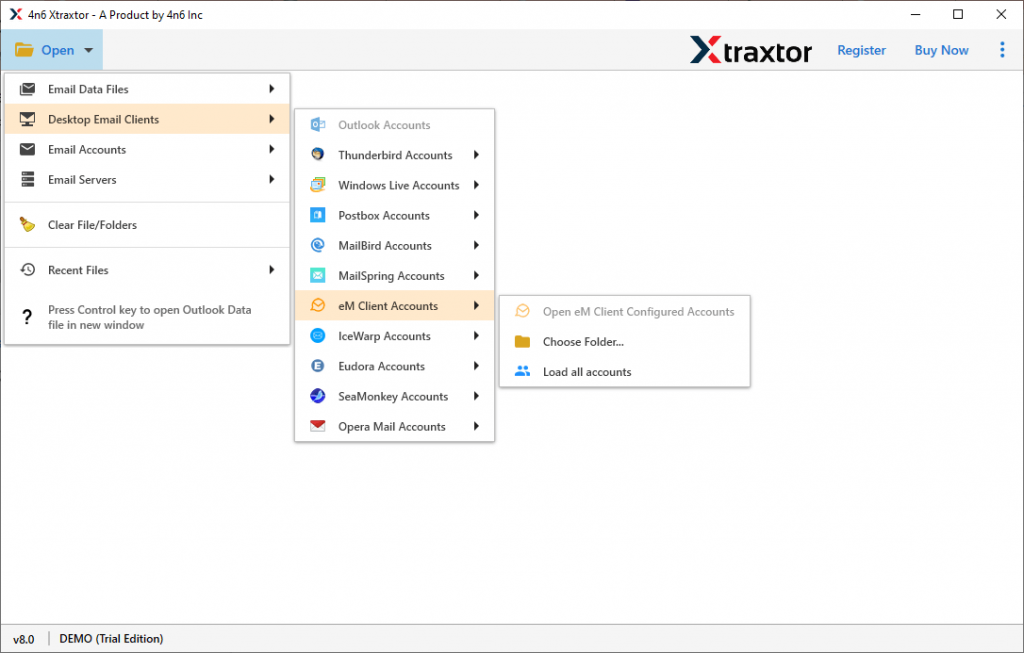
Step 4. Here you can view your emails and decide which one is needed to convert.

Step 5. Click on the Export and choose EML as a saving option.

Step 6. At last, browse the destination location and hit on the Save button.

All Done! All your emails are exported on EML files with proper email format and structure.
Why Choose eM Client to EML Converter
There can be various reasons to use this tool, some of them mention here. Take a look at them.
- Directly Export eM Client Emails: This smart tool automatically detects the configure eM Client account from your system. After that upload mailbox emails into its interface from eM Client to EML conversion.
- Maintain Mailbox Structure: While using this eM client to EML Converter, the user will get the resultant converted data file in an exact format as the original. This tool holds a mailbox folder or sub-folder structure when convert eM Client to EML format.
- Multiple eM Client Email Conversion: This tool offer an option where the user can select the folder of multiple eM Client data files. Users can upload the entire folder and export its emails into EML files.
- Windows Compatibility: The eM Client to EML Converter can easily install and run on any Windows OS version. Users can operate this tool on Windows 11, 10, 8, Vista, XP, and all other versions without any issue.
Conclusion – How to Convert eM Client to EML
Here in this blog, we cover the process of converting emails from eM Client to EML format. We mention two different methods to perform this operation. The first is manually and the other is the use of automated software. You can choose either of these two methods and export eM Client to EML without data loss.