Converting emails from one platform to another is a frequent task. One such conversion is eM Client to CSV format. Today in this blog write up we will discuss the procedure to Convert eM Client Emails to CSV.
CSV, or Comma Separated Value, is a file format that saves data in a tabular form separated by commas. It can be easily opened in any free or paid application such as MS Excel, Libre Office, Google Spreadsheet and many more. As it is a universal file format that saves data in rows and columns, most of the users prefer this format to save their data.
Unfortunately, there is no manual solution to export emails from eM Client to CSV format. However, you can use an automated tool that is designed for this conversion. One such tool is mentioned in the next section.
How to Convert eM Client Emails to CSV Format
eM Client Converter is a straightway method to export eM Client to excel format. This tool batch convert eM Client to CSV format without losing a single bit of data. Along with that, this software has an advanced search option for selective mailbox email conversion based on date range, to, from, subject, cc, bcc, and many more.
Apart from that, it is also able to export eM Client emails to Office 365, Gmail, Thunderbird, Yahoo, and other IMAP or POP3 servers in a few simple clicks. This tool has an option to extract email addresses, phone numbers, attachments, etc information in a separate text file.

Steps to Convert eM Client to CSV Format using Professional Tool
Follow the given instructions to save emails from the eM Client account to CSV format.
Step 1. Install and run this software on your machines.
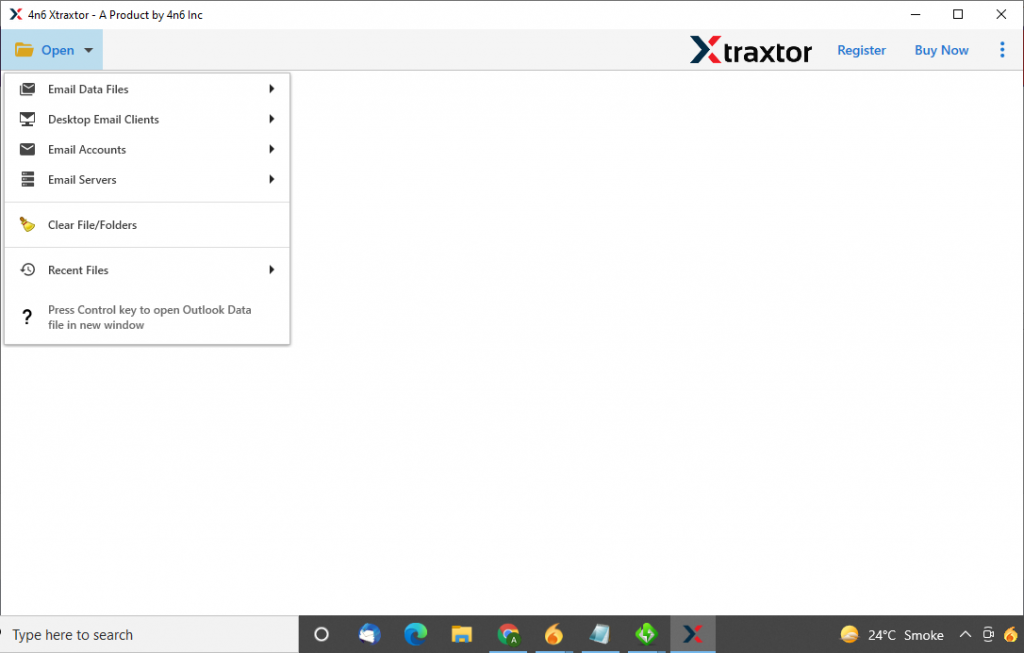
Step 2. After that click on the Open button and choose the required options.
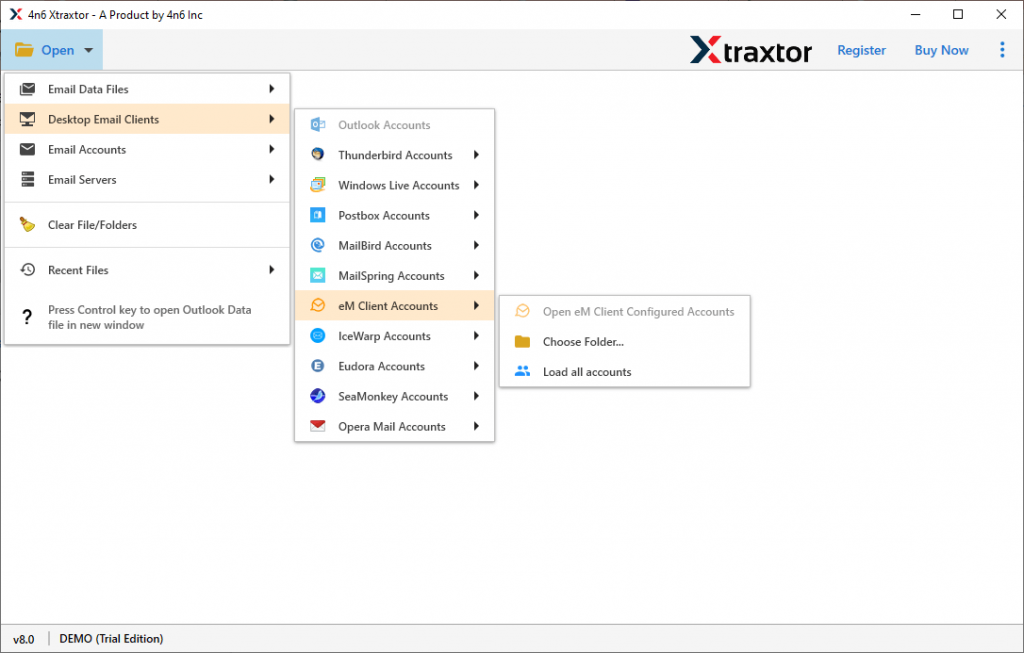
Step 3. Here select Desktop Email Client >> eM Client account >> Choose from options.
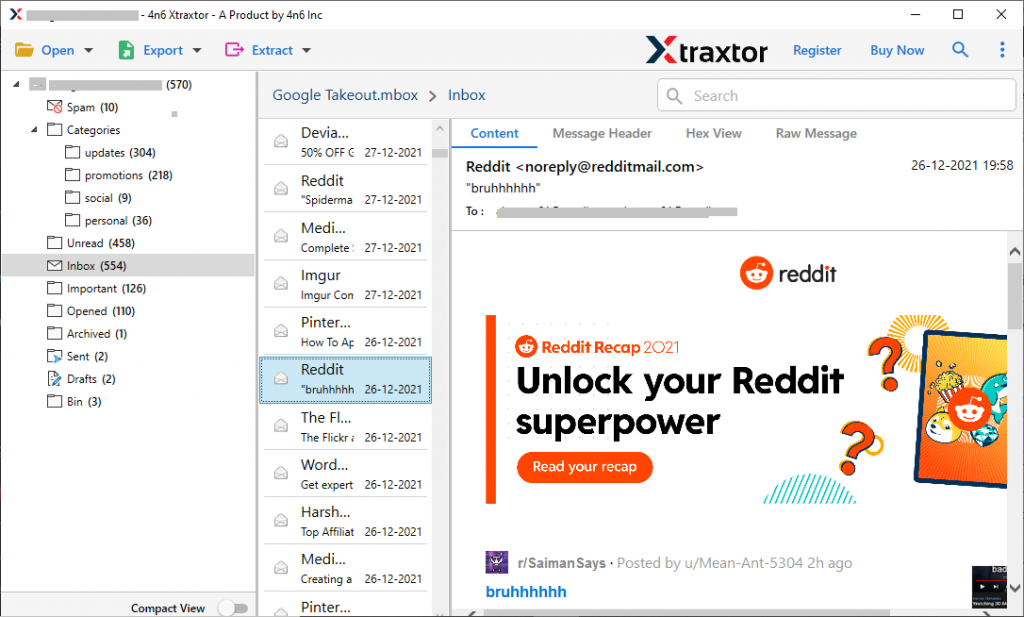
Step 4. You can view/read emails and decide which one you want to convert.
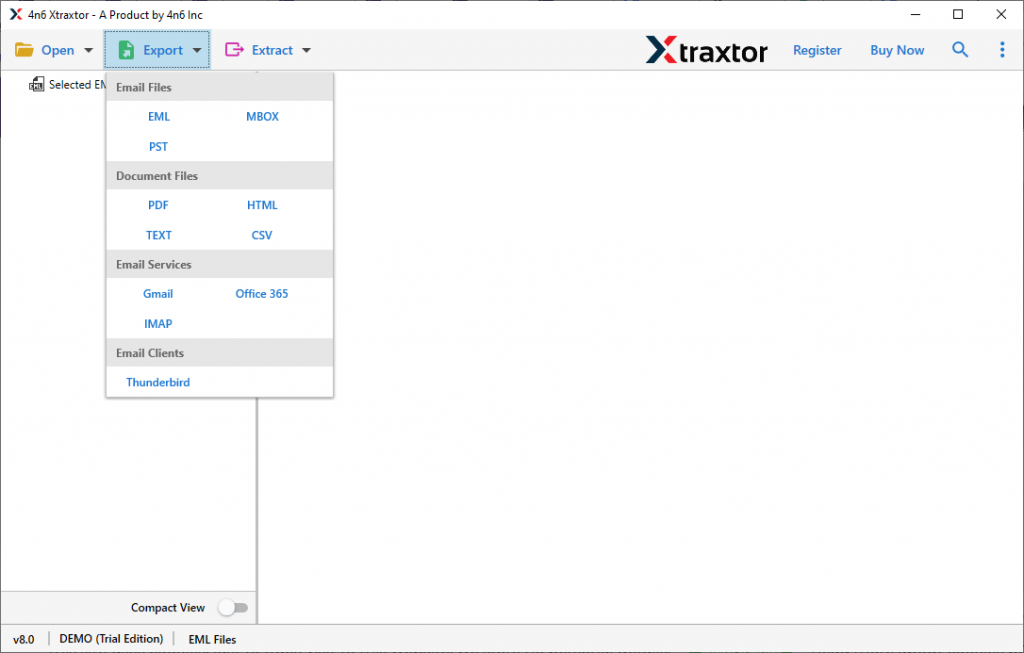
Step 5. Now click on the Export and opt for CSV format.
Step 6. At last, browse the saving location and hit on the Save button.
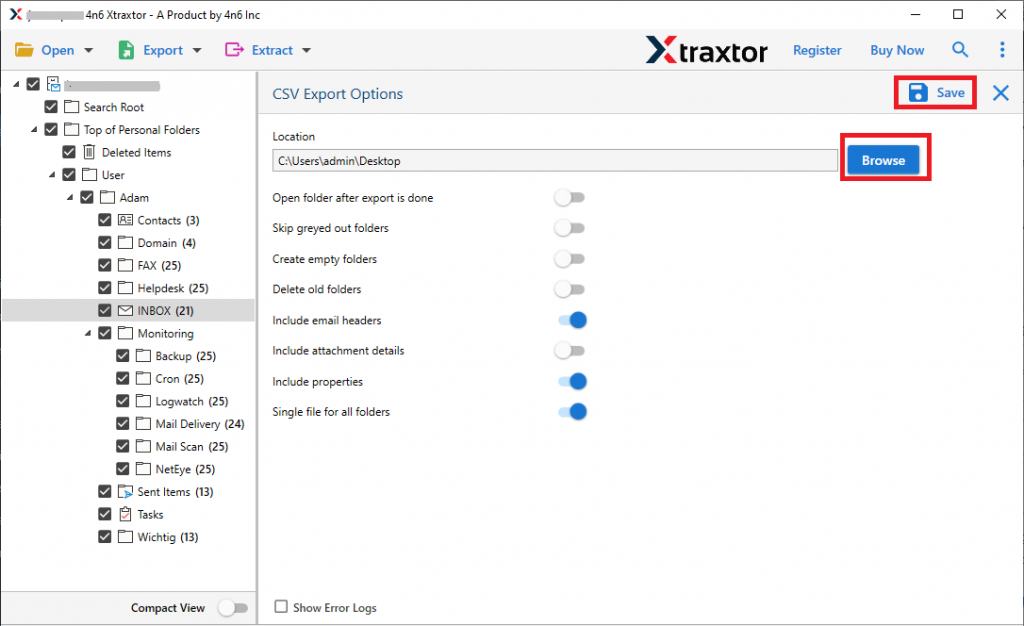
Here completes the eM Client to CSV conversion process. Now you can open this converted file on any application that supports this file format.
Key Features of eM Client to CSV Converter
Some of the outstanding features of this automated tool are mention here, just look at them and convert eM Client emails to CSV format.
- Batch of emails from Convert eM Client
This utility offers three ways to export emails from eM Client.
Open the configured eM client account: It intelligently detects the configured email client and uploads your email to its interface to convert it to CSV format.
Choose Folder – If you have a folder of email data files, you can choose this option and convert multiple email files in one try.
Upload All Accounts: It also upload emails from all accounts that are set up with this desktop client and convert them instantly with no data loss. - Multiple savings option
This tool offers a variety of export options for saving eM Client emails. Using this user can not only save the email in CSV format but also convert eM Client emails to PST, PDF, MBOX, HTML and other file formats. All these options are present in a single interface. - Selective email conversion
Users can easily export specific emails from all mailbox data. With this tool, you can export selected folders and emails that are needed and avoid unwanted conversion processes. - Extract email data
With this utility, the user can save mailbox information in a separate text file. It will extract email addresses, phone numbers, associated email addresses and phone numbers, and attachments.
Conclusion
In this post, we discuss the step-by-step process to convert emails from eM Client to CSV format. With this automated tool, you can easily save multiple emails from eM Client account without data loss or modification. You can try the demo version of this software and save your email in CSV format.