If you want to save Yahoo emails to external hard drive, then make sure to read this article to the end. In this write-up, we will discuss a workable solution to backup Yahoo emails to hard drive with attachments.
Yahoo is a free web-based email service that is used worldwide. However, sometimes it becomes necessary to backup emails from Yahoo mailbox to see them in offline mode or due to security issues. There can be various reasons to backup Yahoo emails to hard drive based on the user requirement.
Why Need to Copy Yahoo Emails to Hard Drive?
For every user data is vital that they don’t want to lose at any cost. One of the major ways to save important data is o store them in cloud servers. However, there is no assurance that your data will be secure in your servers. Thus it is a must to backup Yahoo emails to hard drive.
Some of the common reasons to copy emails from Yahoo Mail to hard drive –
- To access Yahoo emails you need network connectivity. however, if you save Yahoo emails to external hard drive, then you can read your emails in offline mode.
- Your Yahoo Mail account can be hacked and you will lose your important data. If you backup your mailbox data into hard driver, then you have your crucial information secure.
- Sometimes malware links can corrupt your emails, thus it is ideal to archive Yahoo emails to hard drive.
Now without any further delay, let’s move ahead and know the secure and efficient ways to save Yahoo emails to flash drive and other systems with attachments.
Ways to Backup Yahoo Emails to Hard Drive
You can save your emails from your Yahoo account, in different ways. In this blog section, we will discuss two workable solutions to archive Yahoo emails to hard drive with complete mailbox data.
#1. Manually Download Yahoo Emails to Hard Drive
#2. Automatically Backup Yahoo Emails to External Drive
Let’s discuss both the solutions with step-by-step descriptions and save Yahoo emails with attachments.
Method 1: How to Print Yahoo Email to Hard Drive?
You can save individual emails to hard drive using the Print option in your Yahoo Mail account. Follow the given instructions and copy Yahoo emails to Hard Drive-
- Login to your Yahoo Mail account with login credentials.
- Open the emails you want to save.
- Click on the three dots and click on the Print option.
- Select your hard drive as a saving location and click on the Save button.
Step 4. On the new Window, choose Save as PDF as the destination and click on the Save button.
Here you manually backup emails from Yahoo Mail to hard drive. This native solution will save a single email at a time. You need to perform the process for each email you want to backup in external hard drive.
If you want to download entire mailbox data from Yahoo Mail, then you can opt for the automated tool. In the next section, we will discuss one secure and expert solution.
Method 2: How to Backup Yahoo Emails to Hard Drive?
To save Yahoo emails to hard drive in bulk use SysConverter Email Backup Tool for Windows. Using this tool you will be able to download all emails from Yahoo Mail in a few simple steps. Along with that, this tool offers various filter options to backup specific emails from Yahoo mailbox. This smart tool will also save Yahoo emails to PST, CSV, MBOX, and other various file formats.
Additionally, you can use this tool and migrate Yahoo emails to Office 365, Gmail, Yandex and many other webmail accounts. With a simple graphical interface, any user can perform the backup process without any assistance.

Follow the Instructions to Download Yahoo Emails to Hard Drive –
- Install and launch the SysConverter Email Backup Tool on your Windows OS.
- Select Open >> Email Accounts >> Add Account.
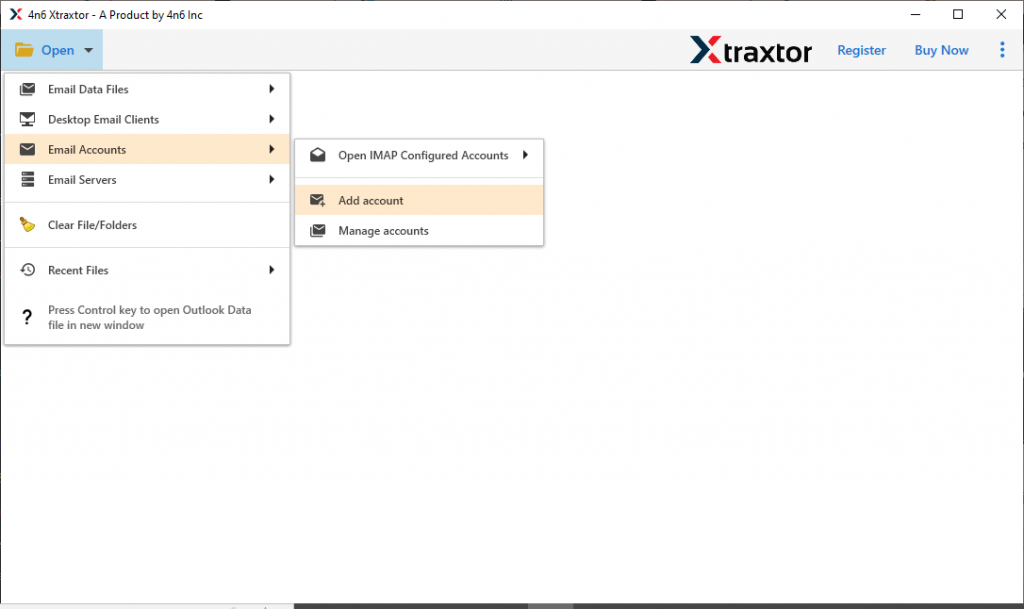
- Enter your Yahoo Mail login details (Use App Password instead of your mail account password) and click on Add button.

- Here you can view your emails and read them before archiving them.

- . Now click on Export and choose the option from the given list (Here we choose PDF format).

- If you want to save selective email folders, then you can choose here.

- At last, browse the targeted location and hit on the Save button.

Finish! Here you backup Yahoo emails to hard drive in bulk without any data loss. Now you can access your Yahoo emails in offline mode.
Why Choose Automated Tool to Backup Yahoo Emails?
Using this too you will get various advanced features, some of them mention here –
Maintain Email Hierarchy: While downloading emails from Yahoo Mail account, there will be no changes in email folders and sub-folders hierarchy. Along with that, the tool download Yahoo email folders to computer with their properties and attributes.
Advance Filter Options: With this utility you will get various filter option that will help you to backup emails from the specific name, subject, date, time, sender (from), has attachments, property id &name, etc.
Yahoo Emails to Cloud-Servers: This smart tool offers an option to transfer Yahoo Mail to Gmail, Office 365 and all other webmail accounts that support IMAP protocol.
Windows-Based Utility: This tool will work on all Windows OS systems without any glitches. You can install and run this tool in Windows 11, 10, 8, Vista, XP and all other previous versions.
Selective Email Backup: This utility also offers an option to select specific email folders and backup the chosen items only. Using this feature, you can avoid unwanted email archives.
Conclusion
In the following article, we mention why it is necessary to backup emails. Along with that, we also discuss two solutions to backup Yahoo emails to hard drive with attachments. You can opt for any of the given solutions and save your Yahoo emails to external hard drive.