This blog will discuss the instant and secure way to back up G Suite emails with complete mailbox data. Read the complete blog and save your G Suite emails to hard drive and other storage devices.
In this digital age technology plays a pivotal role in communication at both personal and business levels. Emails have become the backbone of both business and personal interactions. If you are a G Suite user seeking to download your mailbox data, this article is for you and read till the end.
How to Backup G Suite Emails Manually Using Export Tool?
Well, you can download your G Suite emails by using its feature called Data Export. However, to do that you have – super-admin account access, 30 days old domain, enable 2-step verification and less than 1000 user accounts. Now follow the given instructions-
1. Login to your G Suite account with admin credentials.
2. After that, open Admin Console and click on the “<” button.
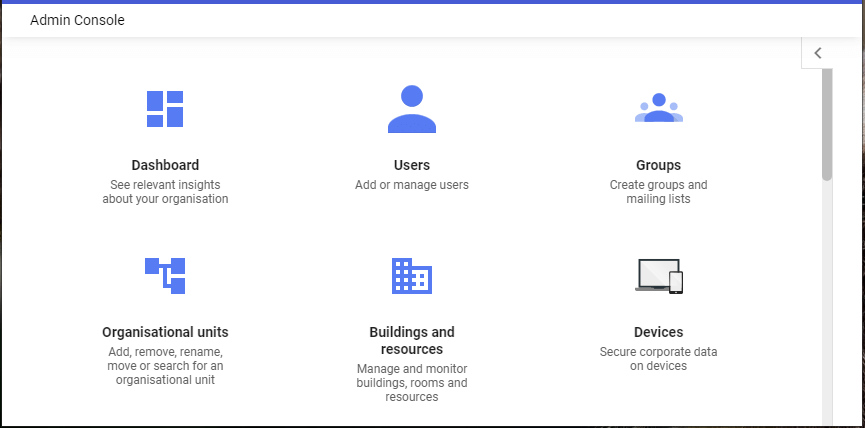
3. Clcik on Tools >> Data Export.
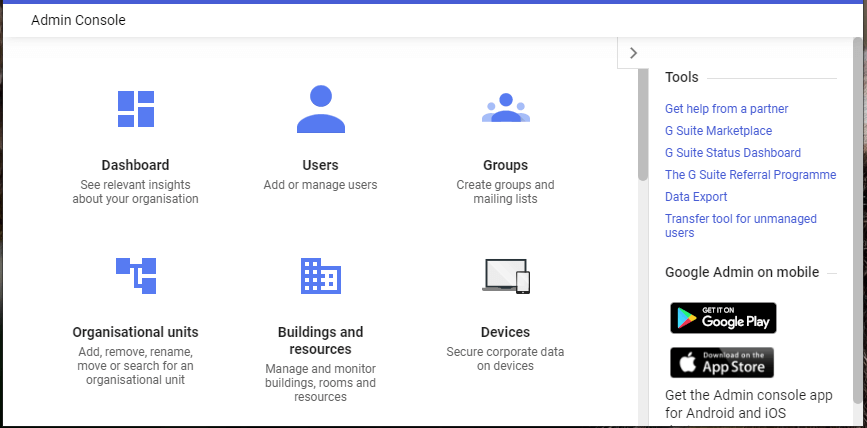
4. At last, clcik on Start Export to start the process.

Google will take 9 days to email you a confirmation link of your export. Click that link and then on Access Archive button. Then, open the individual folder and download your data on your system.
How to Download G Suite Emails to PC Instantly?
Use SysConverter Email Backup Wizard and export complete data from G Suite mailbox to system in a few simple clicks. There are various advance filter options offered by this tool for selective email backup. Using this tool you can also backup G Suite emails in PDF, PST, MBOX and many other file formats.
Additionally, you can also migrate G Suite emails to Yahoo Mail, Office 365 and all other IMAP accounts. It is teh best tool for both technical and non-technical users with its simple user interface. You can use the demo version of the tool to know its complete working and then move to the licenced one.

Steps to Backup G Suite Emails to Computer with Attachments
- Launch the tool on your system.
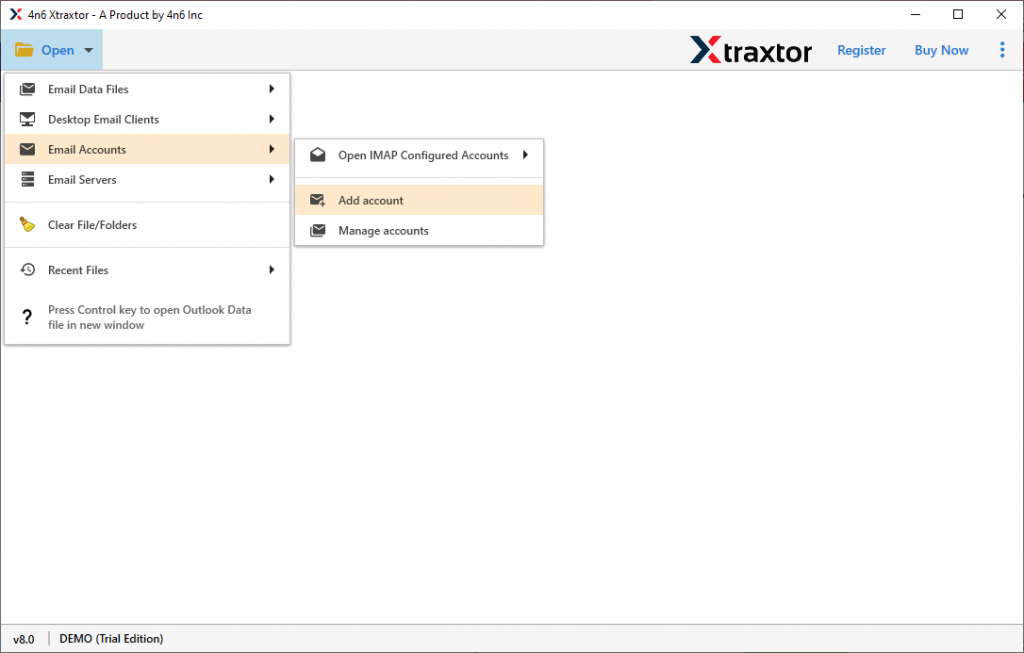
- After that, select Open >> Email Accounts >> Add Account.
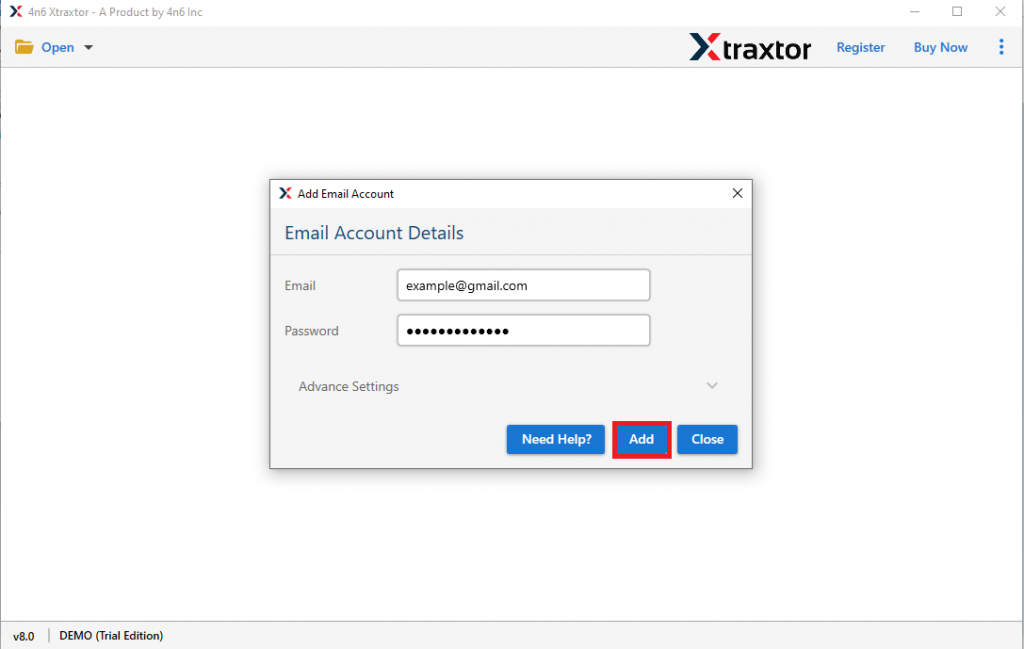
- Enter your G Suite login details and hit on the Add button.
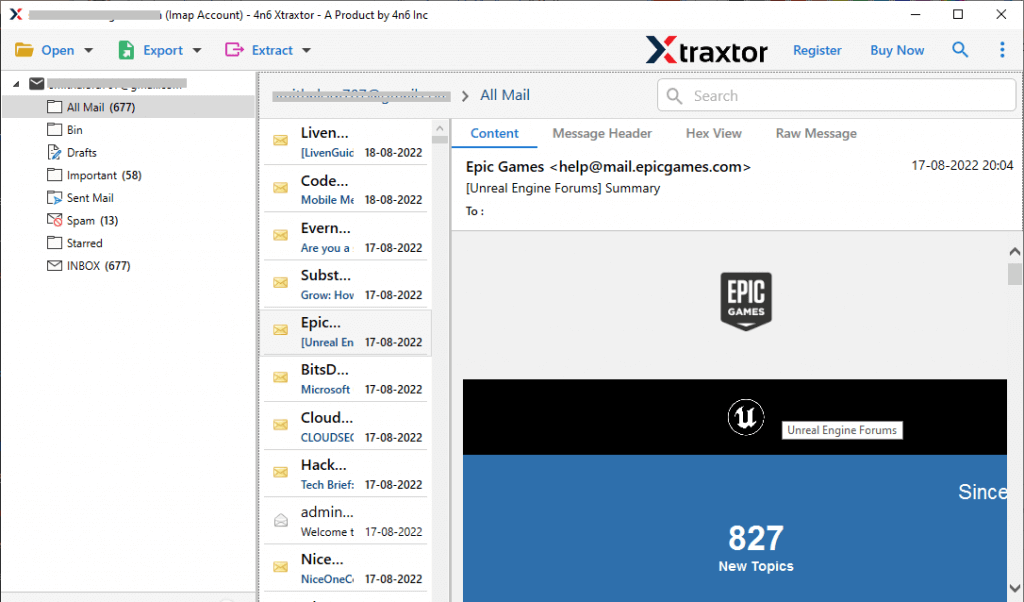
- Here you can view your mailbox data before backing up them.
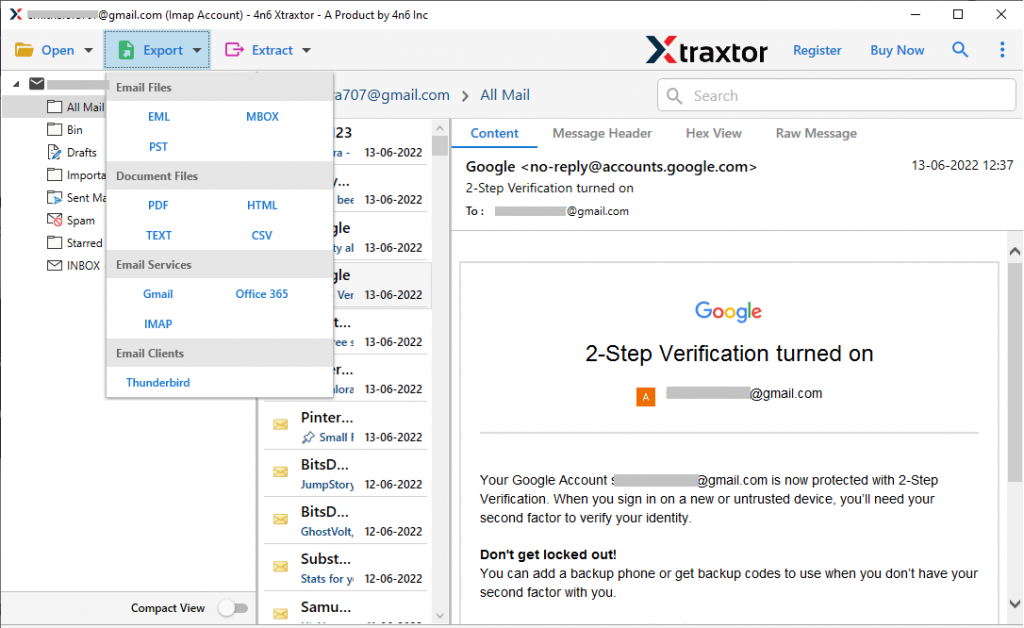
- Now click on Export and choose from the given options.
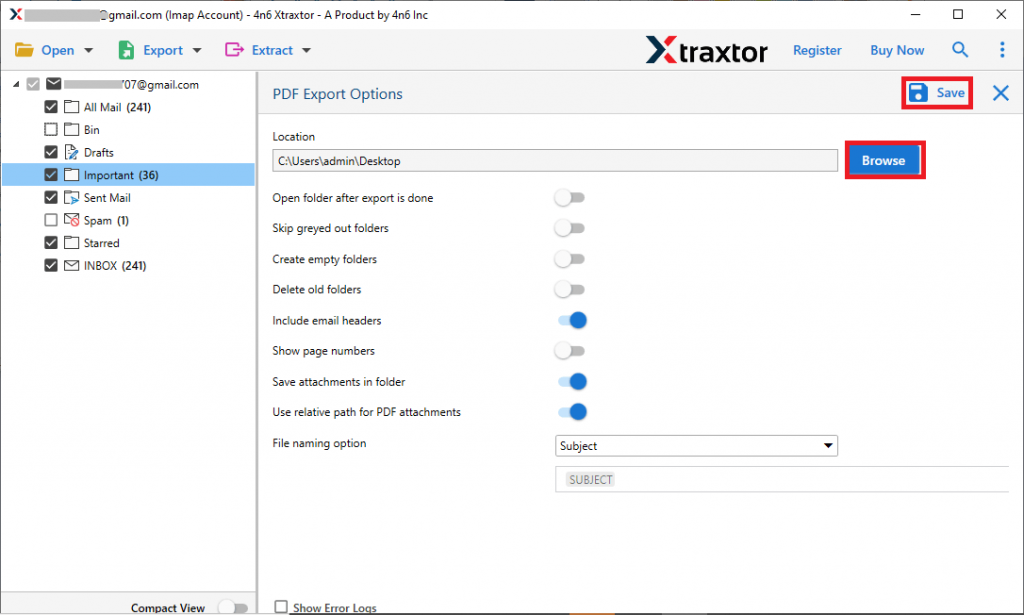
- Browse the location to save downloaded data to your system and hit the Save button.
Done! Here you backup G Suite emails to computer in a few simple clicks.
Why Use G Suite Email Backup Tool?
There are various prominent features offered by this tool, some of them are –
- It will instantly download email from G Suite mailbox in a few simple clicks.
- Allow to export G Suite emails to PST, PDF, CSV and many other file formats.
- Maintain email folder and sub-folder hierarchy and structure.
- Simple and easy-to-use interface for both technical and non-technical users.
- Allow viewing your mailbox data before downloading them.
- Preserve email key elements and attributes throughout the backup process.
- Advanced filter options – to, from, cc, bcc, name, date, time, etc.
- Allow the extraction of data from your mailbox including email addresses, phone numbers, attachments and contact photos.
- Works on Windows 11, 10, 7, Vista, XP and all other previous OS versions.
Conclusion
There are various searches where users want to backup G Suite emails to computer. Here in this blog we address the same user query and offer an instant and secure way to export G Suite emails to PC in a few simple clicks. It is
complete error-free solution that will download your data without any hassle.