This write-up is all about the step-by-step process to backup Zimbra email locally on your system. Here we will discuss free as well as automated ways to backup emails from Zimbra Mail account with attachments.
Now without any further delay. let’s move ahead and know the complete process to download Zimbra email with attachments.
How to Backup Emails from Zimbra to Computer?
You can manually backup Zimbra email to your system. To do that follow the given instructions –
1. Open your Zimbra Client interface and clcik on the Preferences tab.

2. After that, click on the Import/Export option.
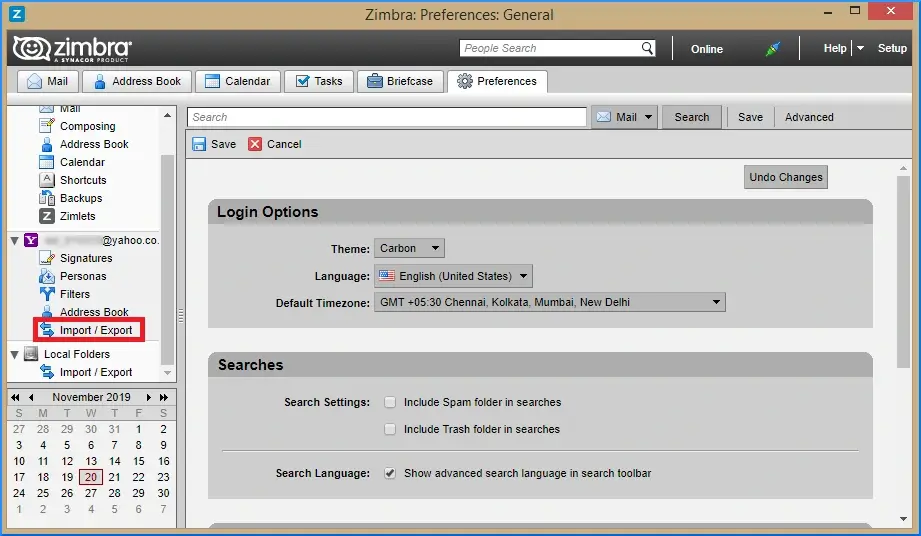
3. Then, choose Source as All folders and click Export.

4. Select the folder you want to download and hit on OK
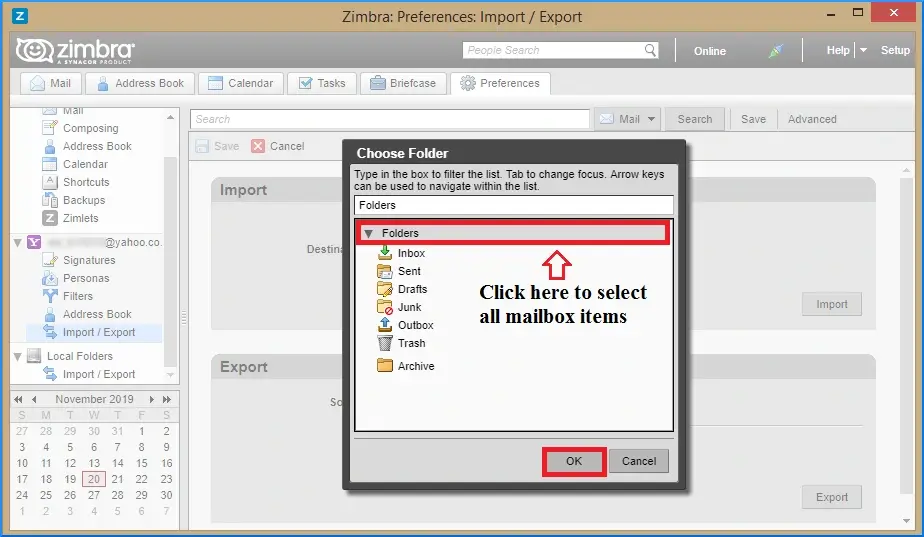
5. At last, click on Export to start the backup process.
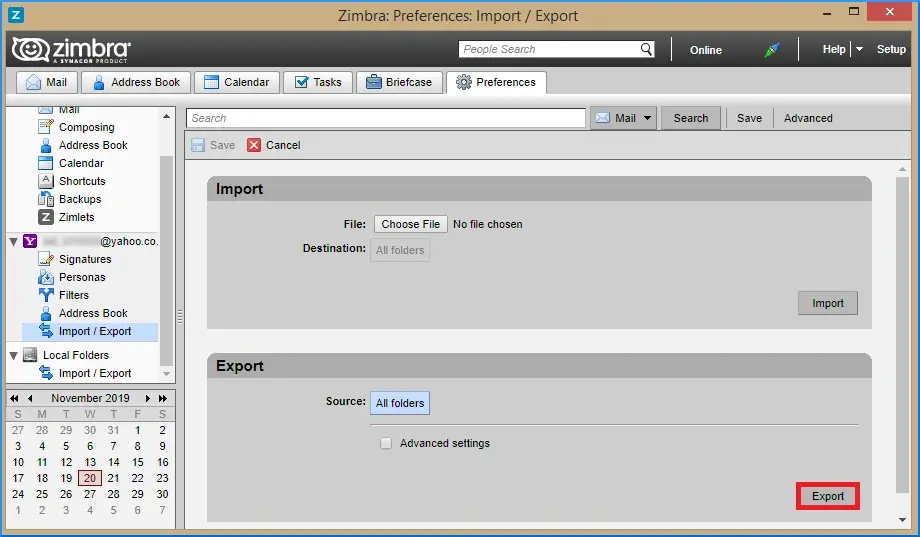
6. Repeat the same process to downlaod all email folders.
Done! Here start the process. After completing the process, you will get a .zip file, unzip it and you will get the .eml files. If you want to download your emails in other file formats, then you can use the automated tool. One such solution we will discuss now.
How to Downlaod Zimbra Server Emails?
Try the Zimbra Converter and complete the downloading with ease. The software is powerful enough to backup emails directly from your account along with attachments. Using this tool you can swiftly export all emails from your Zimbra mail account as well as desktop email client. With this tool, you can download emails directly from Zimbra Server

Steps to Downlaod Zimbra Emails in Bulk
1. Run the software on your sysetm.
2. Select Open >> Email Server >> Zimbra File >> Select File or Folder.
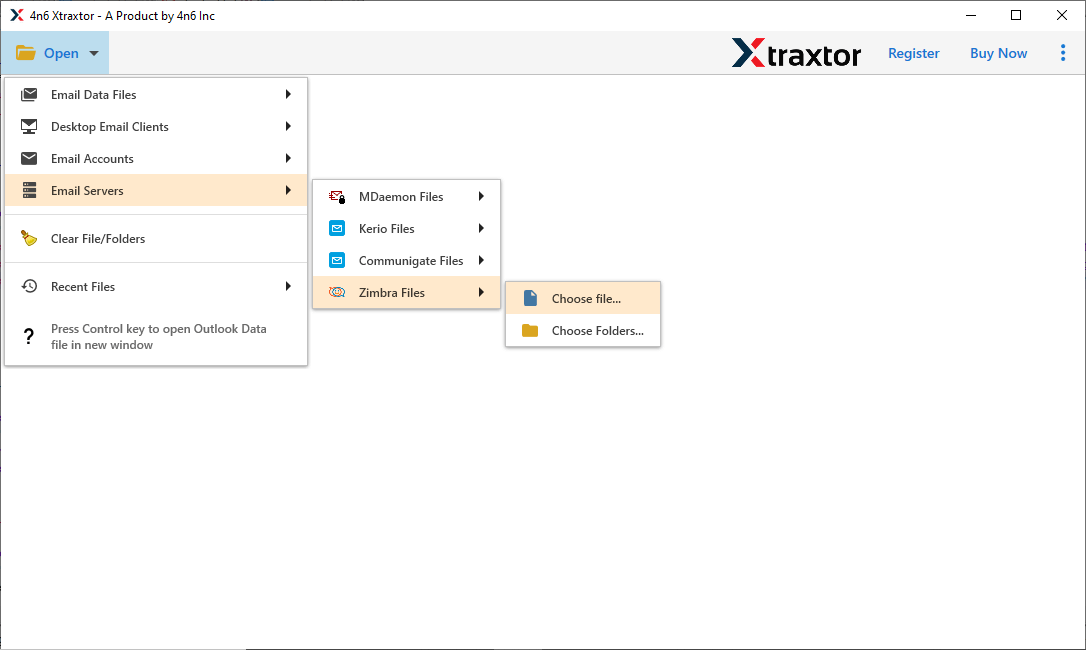
3. Click on Export and choose the saving option.
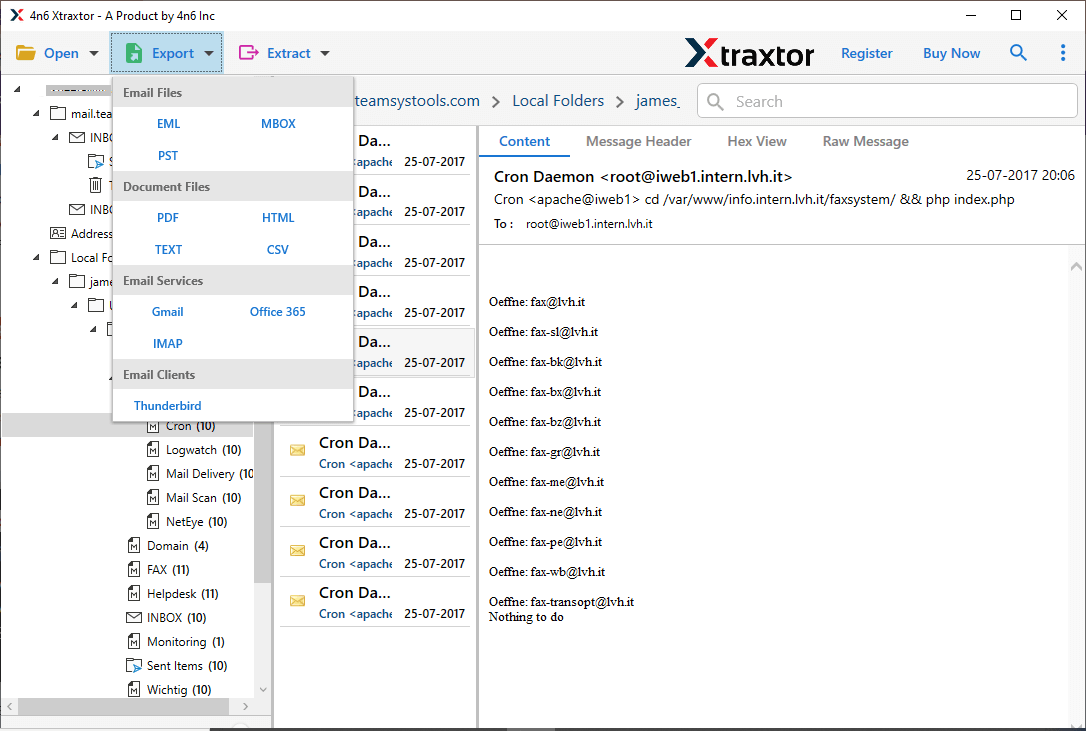
4. Browse the targeted location and hit the Save button.
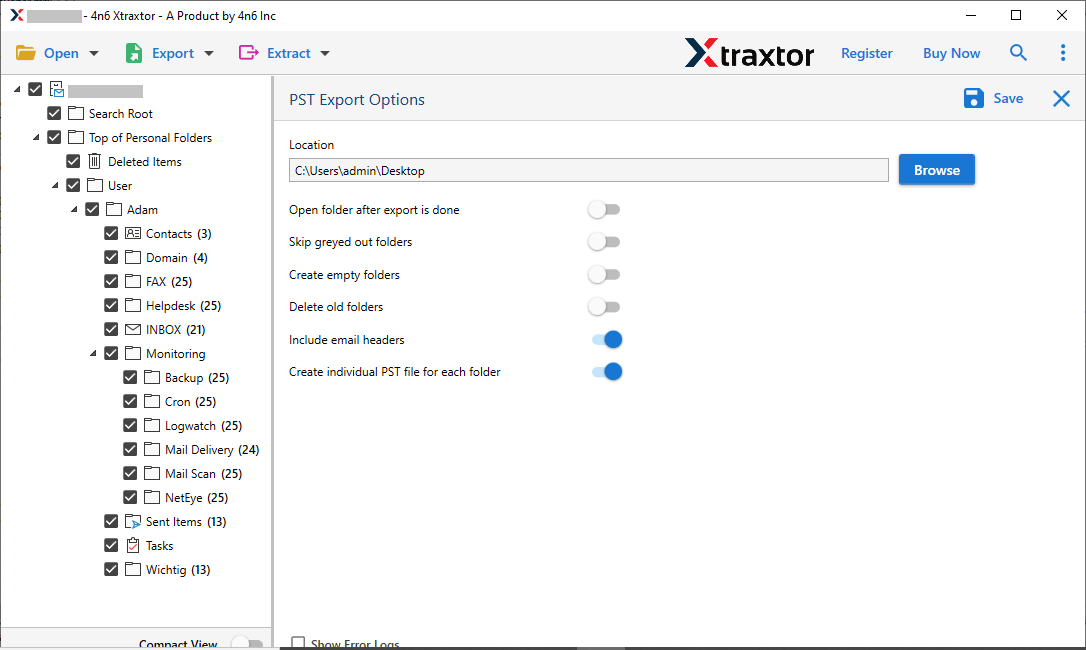
Here you were able to convert Zimbra TGZ file to PST, PDF, MBOX and many other file formats. However, using this tool you can also backup Zimbra emails directly from your webmail account.
Backup Zimbra Mail Server Emails
1. Select Open >> Email Accounts >> Add Account.
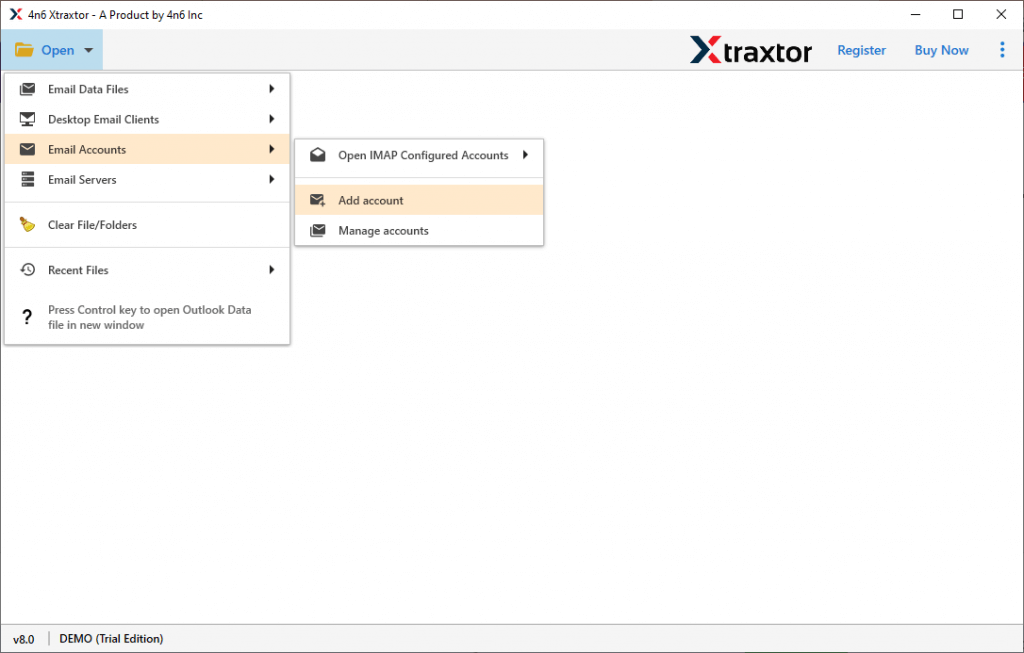
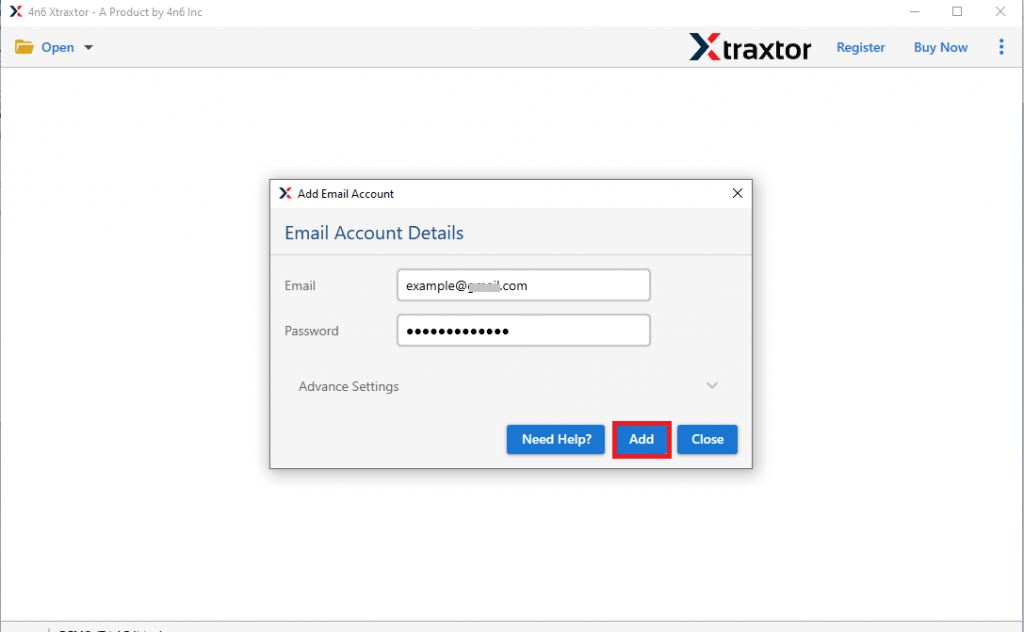
2. Enter your Zimbra Mail login details and click on the Add button.
3. Click on Export and choose from given options.
4. Browse the location and hit the Save button.
Done! Here you download Zimbra mailbox data in a few simple clicks. With this tool, there are various prominent features, some of which includes –
- Maintain email folder and sub-folder hierarchy.
- Retain email key elements and meta-data.
- Advanced email filters to backup selective emails.
- Allow to export Zimbra emails to various file formats.
- Preview option to read emails before downloading them.
- Migrate Zimbra emails to various email accounts as well.
Conclusion
Here in this blog, we discuss different ways to backup Zimbra email. Here we mention the solutions to download emails from Zimbra email client as well as Zimbra Mail Server with ease. We mention step by step guide to backup emails from Zimbra along with attachments. Hope this article will be helpful for you and able to backup your data.