Here in this article, we will dicuss the best way to move Gmail contacts to iCloud mailbox. Read the complete blog and securely transfer Gmail contacts to iCloud account.
If you are planning to switch from Gmail to iCloud and need your contacts to be moved, then this blog is for you. There are many users who want to import Gmail contacts to iCloud account, but don’t know the exact process. Here is the complete guide to transfer Gmail contacts to iCloud effortlessly without any data loss.
Why Need to Move Gmail contacts to iCloud?
Moving contacts from Gmail account to iCloud can be beneficial due to several reasons. Some of the common reasons are –
- Almost all Apple devices are integrated with iCloud webmail services. After transferring Gmail contacts to iCloud you can access them on any device.
- iCloud offers a secure and automated backup solution for your contacts.
- If you want to migrate to an IOS environment, then importing Gmail contacts to iCloud will be beneficial.
- It is a fact that Apple offers advanced security measures, thus many users prefer to tranfer their data to the iCloud interface.
- Many third-party apps and services are connected with Apple devices. Moving your Gmail contacts to iCloud makes it easier to share your information.
How to Transfer Gmail Contacts to iCloud?
To perform the contact transfer, you need to export contacts from your Gmail account in a vCard format. After that, you can import the contacts to iCloud maibox with ease.
Follow the given instructions and move contacts from Gmail account to iCloud –
Export Gmail Contacts
- Login to your Gmail account using your credentials.
- Then, click on the Google App icon and choose Contacts.

- Select all the contacts you want to transfer.

- Then, click on the three dots and choose the Export option.

- Here select the vCard option and click on the Export option.

Here you have Gmail contacts in a vCard file. Now you need to transfer Gmail contacts to iCloud mailbox.
Import vCard File to iCloud Mailbox
- Login to your iCloud email account.
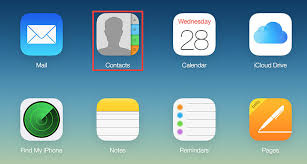
- Then, click on the Contacts icon.
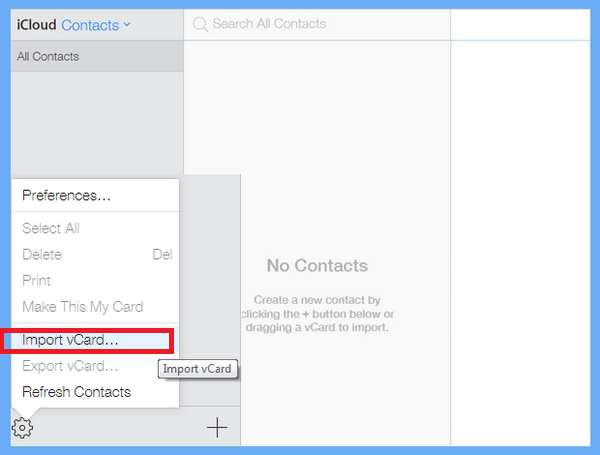
- After that, move your mouse to the Gear icon and Choose the Import vCard option.
- Browse the file you exported from your Gmail account and click on the Open button.
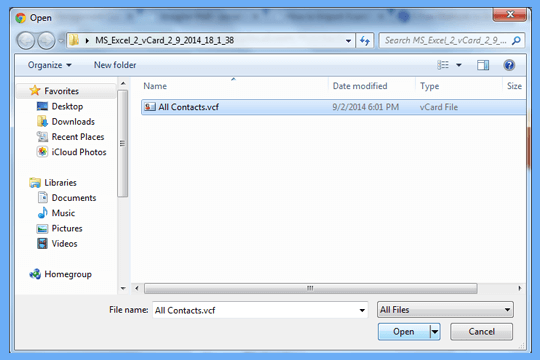
Here start the transfer process. Now you have all your Gmail contacts in iCloud mailbox. You can check out the data, if it is not there then don’t worry it will take a little time to complete.
Bonus Tip: Export Gmail Emails to PC
SysConverter Gmail Backup Wizard is a powerful tool that will instantly save your Gmail emails along with contacts, calendars or other data to the system. With its simple user interface, you can download Gmail emails to hard drive or PC. With its advanced features, you can save Gmail emails without affecting data integrity. It will effortlessly export emails from Gmail account to PST, PDF, CSV and many other file formats. You can use the demo version of the software to know it’s working.

Conclusion
Here in this blog, we describe the step-by-step process to transfer Gmail contacts to iCloud account. You can use the given approach and import your contact details without any hassle. Other that, if you want to backup your complete Gmail mailbox data then you can use the recommended automated tool.