Here this guide explain the complete process to backup Gmail emails to hard drive. If you are looking for a secure and efficient way to backup your emails locally, then this post is for you. Read the complete post and download all emails from Gmail to hard drive.
There is a takeout service that helps in downloading data from multiple Google accounts. Alternatively, there are various automated tools for backup. Let’s learn the manual free and automated approach to export Gmail emails to hard drive.
How to Archive Gmail Emails to Hard Drive?
Here we will take the help of Google Takeout service and backup Gmail emails to hard drive. Follow thegiven instructions –
- Open your Gmail account using your login credentials.
- In a new window open Google Takeout official website.
- After that, a Window will appear. Firstly click on Deselect All and then choose and select only Mail option and click on Next Step.


- After that, choose the File type, frequency and destination.

- Then click on Create Export to start the downloading process.

- After these, you will receive an email in your inbox, It contains a link that has your Gmail backup. Click on the Download your Files option and store Gmail emails on your computer.
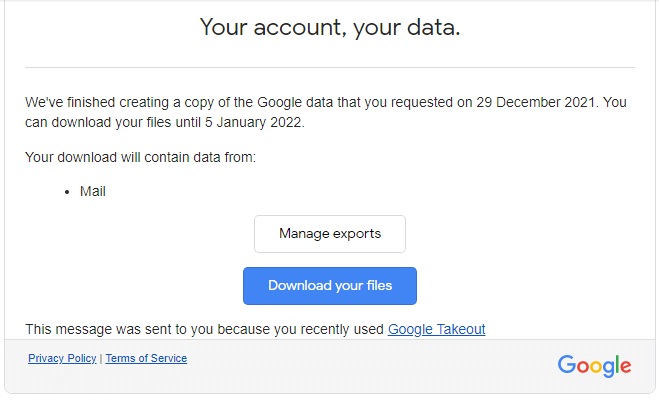
Here you efficiently download all Gmail emails to hard drive in a zip file. After extraction, you will have all your Gmail emails to MBOX file.
How to Export Gmail Emails to Hard Drive Automatically?
Try SysConverter Gmail Backup Tool software on your sysetm. This utility will backup Gmail emails to hard drive with complete mailbox data including attachments. While downloading Gmail emails, this tool will maintain email folder hierarchy and structure. Moreover, you can save your Gmail emails into multiple file formats.
Downlaod the free version of the tool and export Gmail emails without any data loss.

Steps to Backup Gmail Emails to Hard Drive
- Download the software on your Windows OS system.
- After that, select Open >> Email Account >> Add Account.
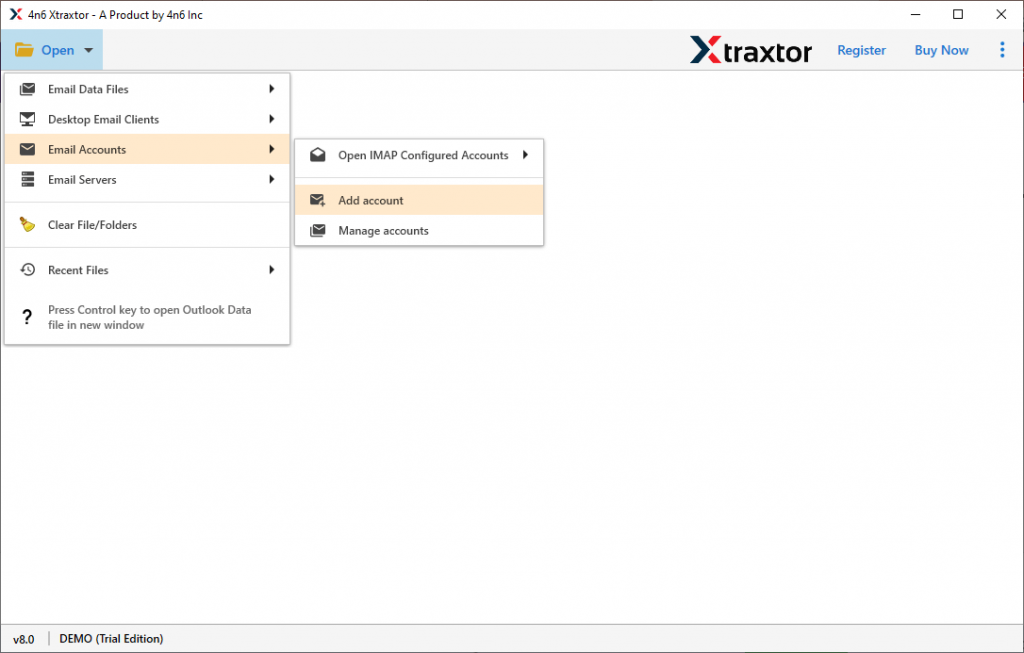
- Enter your Gmail login id and password (use App password) and click on the Add button.

- Here you can view your Gmail emails and read them before archiving them.

- Now click on Export and choose form given option (here we choose PDF).
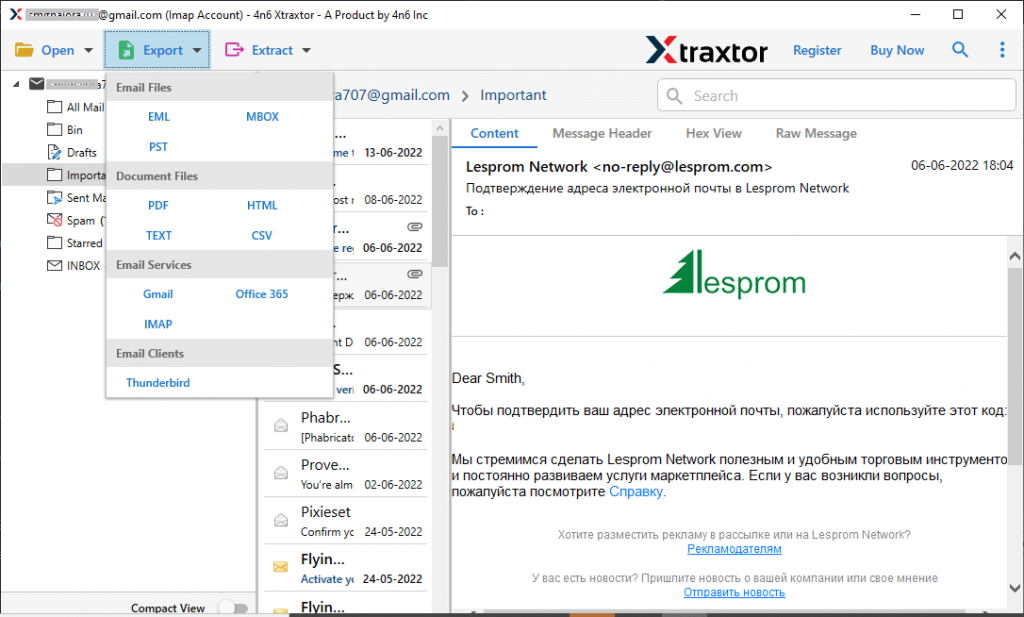
- After choosing the saving option, you will find all the Gmail email folders with a check-box. You can select the email folders that are important and need to be backup.

- At last, browse the destination location and hit on the Save button.

All Done! Here you save Gmail emails to your local hard drive in a few simple steps.
Why Use Gmail Backup Tool?
This automated tool has many outstanding features that make the downloading process specific and efficient.
- Maintain Mailbox Hierarchy: This tool efficiently backup Gmail emails to hard drive without affecting their formatting. The software maintains the email folder or sub-folder hierarchy and structure during the backup process.
- Export Emails to Cloud: The tool also export Gmail emails to iCloud, Yahoo, Zoho Mail, Yandex, and many other webmail accounts. All the saving options will be present in a single interface.
- Email Filter Options: With this software, you can search and backup specific emails from Gmail account into the system. One can apply various filter options such as – to, from, subject, has attachments, name, content, date range, time, and many others to choose from.
- Windows-Based Utility: This easy-to-use tool can be installed and run on any Windows OS system. It can be operated on Windows 11, 10, 8, Vista, XP, and all other previous versions.
Conclusion
It is not difficult to backup Gmail emails to hard drive, but it is important to use a reliable approach for that. In this write up we mention two techniques to export Gmail emails to hard drive with a step-by-step description. Hope this post will be helpful while downloading your Gmail emails.