This article will demonstrate the method to import emails from OST file to AOL webmail account. If you also want to import OST to AOL Mail, then you landed on the correct page. we will discuss the import process in detail with step by step description
Outlook is a widely used email client at both the personal and professional level. Outlook uses OST and PST to store mailbox data. OST files are used by IMAP, Office 365, and Exchange to store and synchronize copies of mailbox data on your system. You can still make changes using Outlook in offline mode, but your changes will take effect when you connect to the Internet.
The OST file helps you access your Outlook emails in offline mode, but you cannot access them outside your Outlook environment. In addition, AOL doesn’t have the option to import email from OST files.
Now you were wondering, How to import OST to AOL Mail? For that, you can add your AOL Mail account to the Outlook application and drag and drop the OST file under your mail ID folder. However, this method works only if Outlook is connected with Exchange or the OST file is created by the same Outlook profile.
Do not worry! There is a direct way to upload your OST file to AOL email account without compromising the integrity of your data. To know about it, read the next section of the blog.
How to Import OST Emails to AOL Mail
To instantly import OST to AOL Mail account, you can use OST Converter software. This third-party solution efficiently upload OS file emails and other data into AOL Mail with no data loss. Along with that, this utility can also import orphan or inaccessible OST file into AOL Mail without facing any glitches.
In addition to it, this utility also import OST to Gmail, Office 365, Windows Live Mail, Google Workspace, and many other webmail accounts. Along with some interesting features such as maintaining mailbox data integrity, email filters, easy to use interface, etc, this tool is the best choice for the efficient OST to AOL Mail import.

Follow the given Steps to Transfer OST File to AOL Mail-
- Download and Install Sysconverter for OST on your Windows OS.
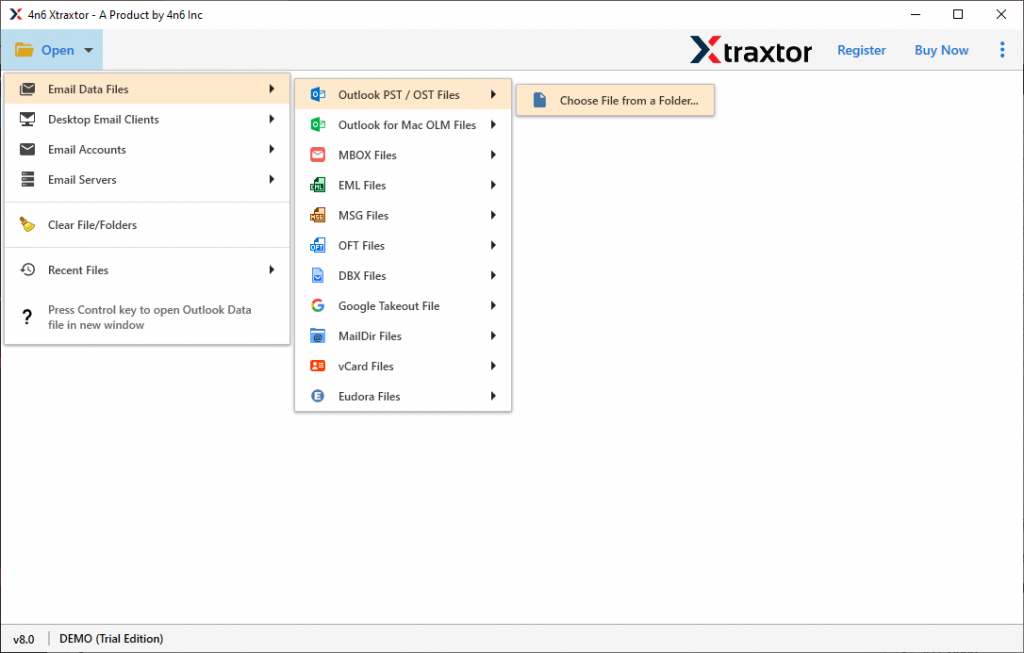
- Select Open >> Email Data File >> OST file >> Select File from Folder.
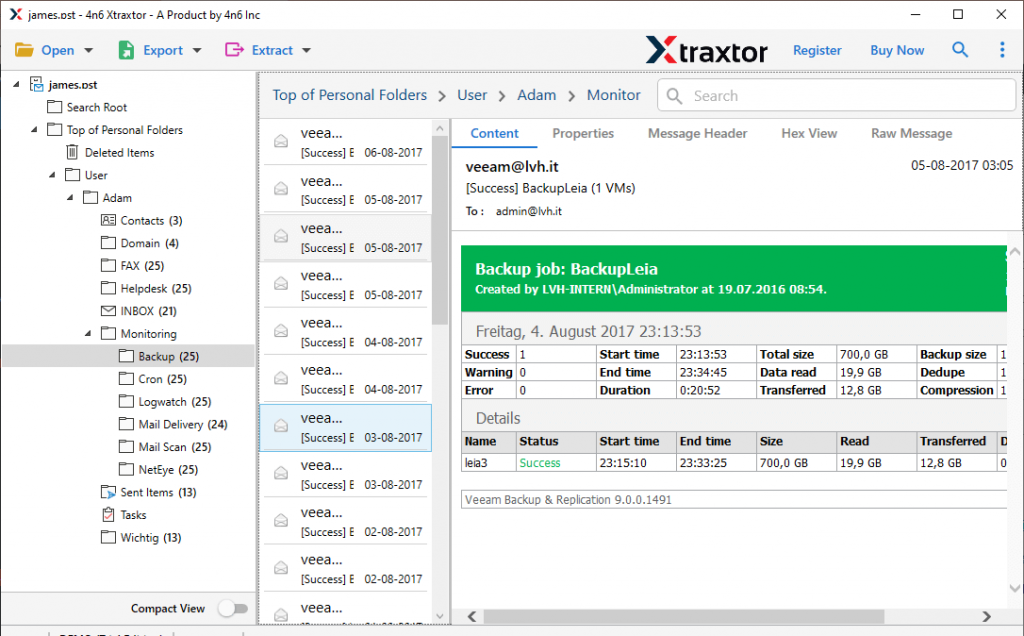
- Here you can read your OST fiel emails and other data.
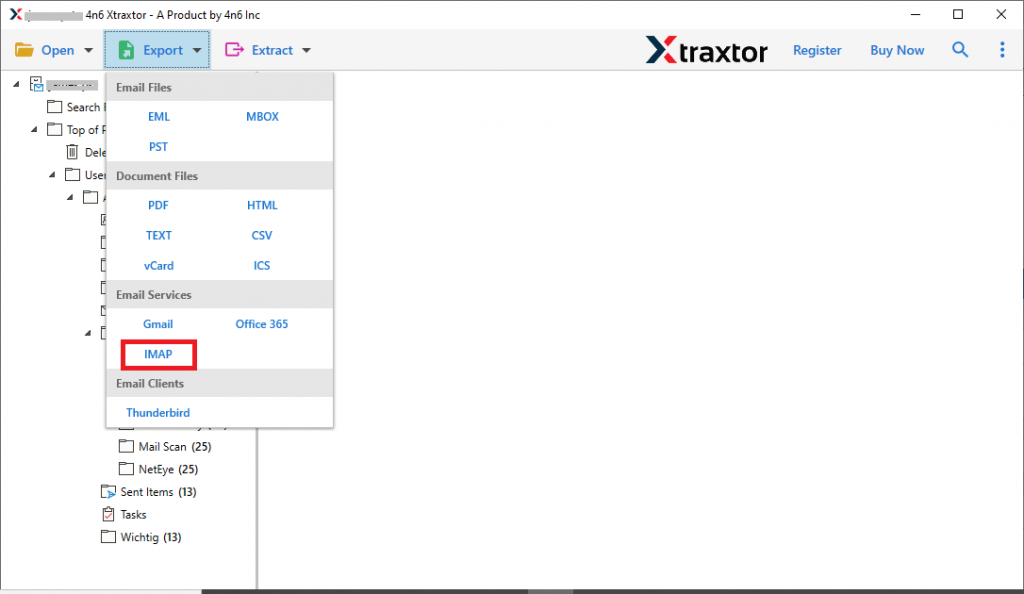
- Now click on Export and choose IMAP from the given options.
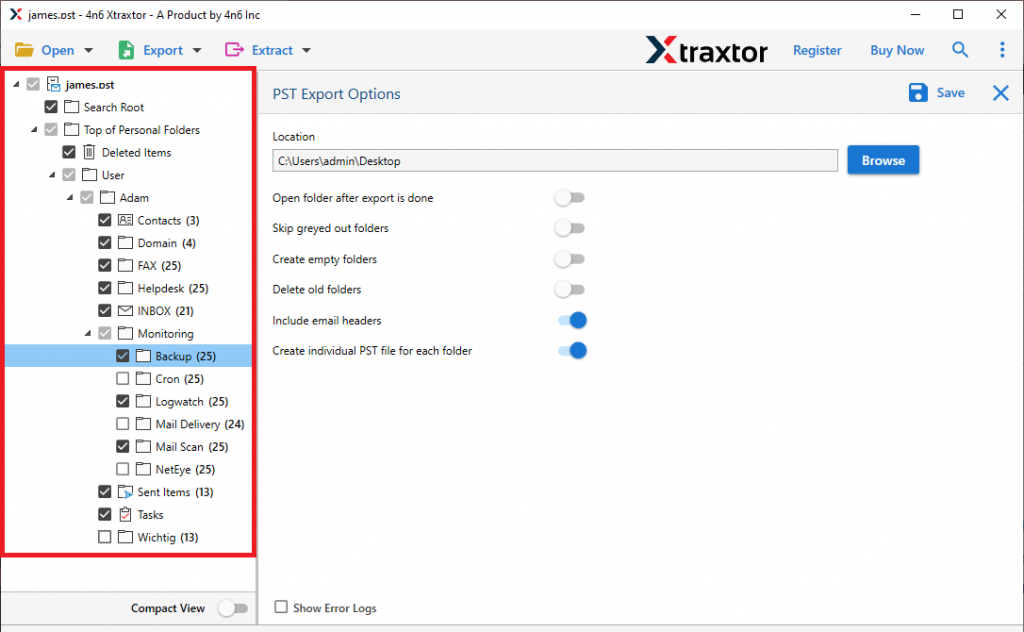
- After that, you can select the email folder you want to import.
- At last, enter your AOL Mail login details and hit on the Save button.
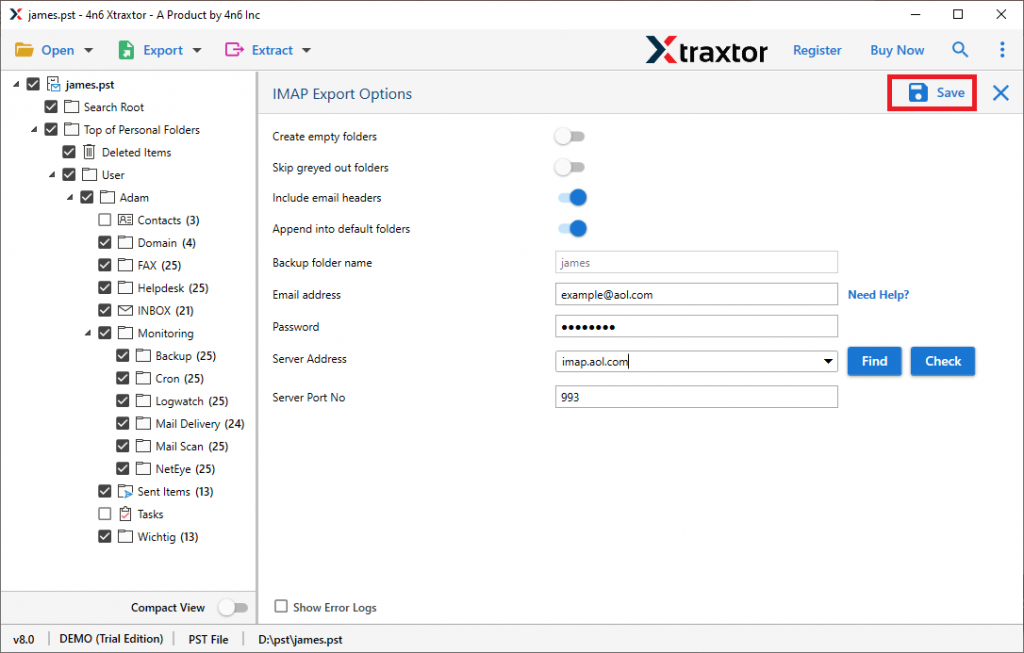
Finish! Here you import OST to AOL Mail in a few simple clicks with complete mailbox data.
Features of OST to AOL Mail Import Tool
The automated tool has many advanced features that make it the best choice for OST file email import.
Email Filter Options: With this utility, there are various filter options to search and import specific emails from OST file. One can apply filters – to, from, subject, name, content, has attachments, property id & name, date range, time, file size, and many more to choose from.
Uphold Mailbox Structure: While importing OST emails to AOL Mail account, this utility maintains folder and sub-folder hierarchy. There will be no change in the formatting of the emails and other components in the imported mailbox.
Move OST to Cloud-Based Mail Accounts: Using this automated software, one can also import OST to Office 365, Exchange, Google Workspace, Yandex, Roundcube and other webmail accounts. This tool will directly upload emails to the mailbox without any data loss.
Easy to Use Tool: With a simple working process and graphical interface, this utility is easy to use by both technical and non-technical users. Novice users can import OST to AOL Mail without any technical assistance with this utility.
Windows Base Utility: This software is designed for Windows users. One can install and run this tool on Windows 11, 10, 8, Vista, XP, and all other previous versions.
Conclusion
When we’re talking-How to Import OST to AOL Email? In that case, there is no manual solution. This article describes an OST converter that will perform the import process in a few simple steps. Users can choose a demo version of the software to learn about the email importing process.