There are plenty of users who want to switch their email client to a webmail account. One such situation is where the user wants to import MSG to Yahoo Mail account. Are you also looking for a solution to open multiple .msg files into Yahoo webmail account?
Unfortunately, there is no direct manual method to perform this import process. In this writes up we will discuss a direct way to save MSG files into Yahoo Mail.
Yahoo is a free webmail service that offers several advanced features. It offers four different email plans, three for personal use and one for business. However, this webmail does not have an option to open .mbox files in its interface.
Before proceeding, let us know the reason for choosing Yahoo Mail to transfer the MBOX file.
Why Yahoo Webmail?
There are various benefits of using a Yahoo Mail account, some of them are mentioned below;
- Most importantly, it is a free app that offers multiple advanced features.
- It is a cloud-based service, which means that anyone can access your email from any system that is connected to the network.
- Yahoo Mail offers a wide range of data storage capacity to store a large amount of data without worry.
This user query explains, how users want a direct way to copy MSG files into a webmail account. In response to this question, we will discuss one instant solution to perform MSG to Yahoo import process.
Direct Way to Import MSG to Yahoo Mail
MSG Converter is an instant and secure approach to import MSG files to Yahoo Mail account in a single attempt. Using this tool users can transfer multiple MSG files into Yahoo Mail without any data loss. Most importantly, With its simple graphical interface, it is easy to use by any type of user and import .msg files into a Yahoo webmail account. Along with that you can also perform selective MSG file to Yahoo import process and avoid unwanted transfers.
With this tool you don’t need to install any additional application to import MSG to Yahoo Mail, this tool is capable of doing it by itself. Now let’s check the working of this tool and save .msg files into Yahoo account.

Steps to Open Multiple MSG Files Into Yahoo Mail
Follow the given instructions and read multiple MSG files in Yahoo webmail account in a single attempt.
Step 1. Install and run this tool on your system.
Step 2. After that, click on the Open drop-down button and follow the next step.
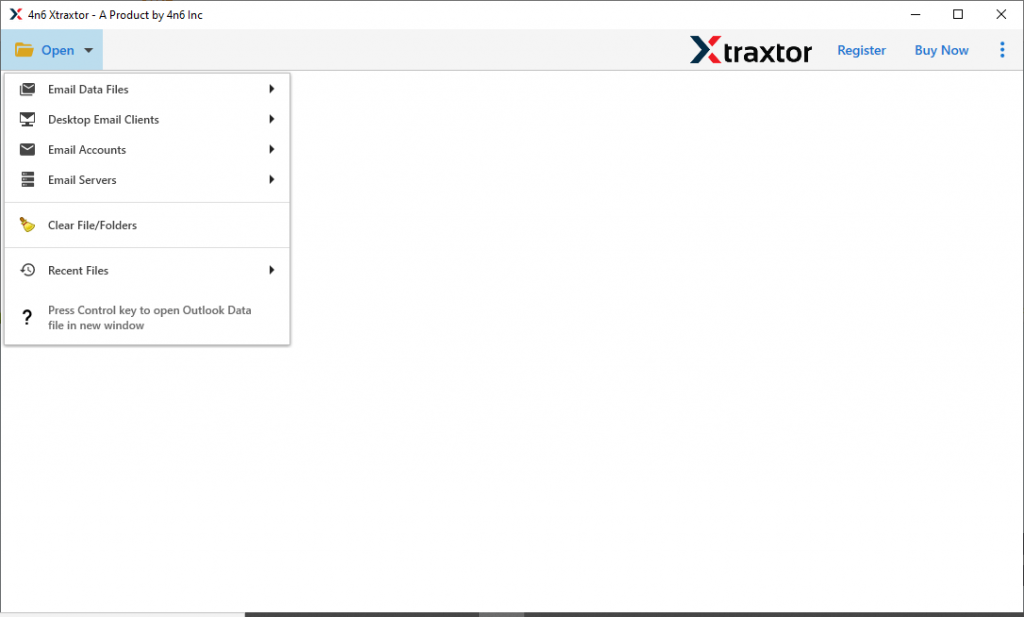
Step 3. Now select Email Data File >> MSG Files >> Select File or Folder.
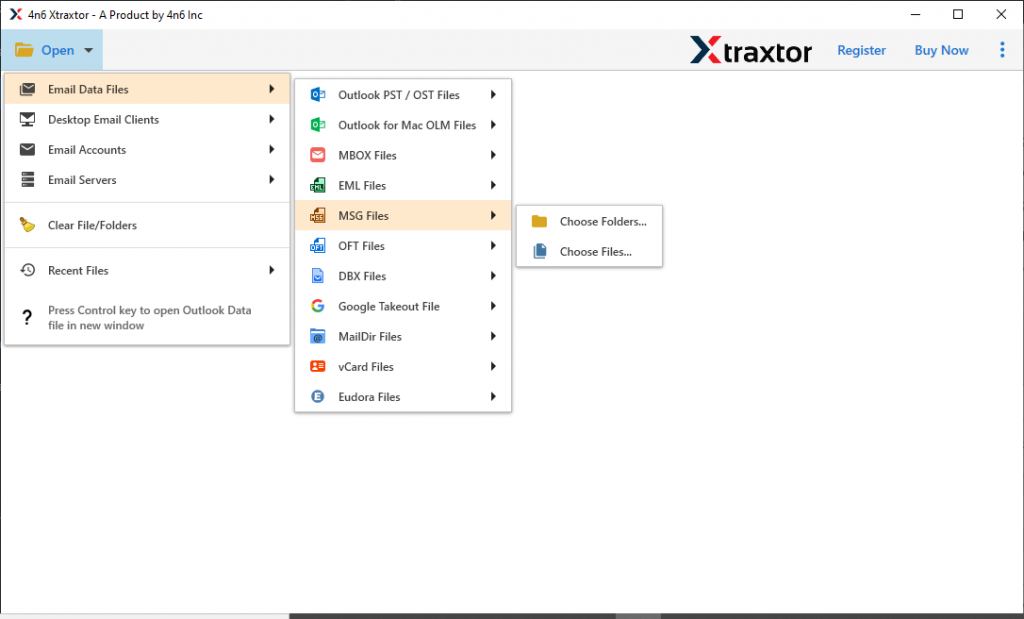
Step 4. Here you can view your messages and select the required one to import.
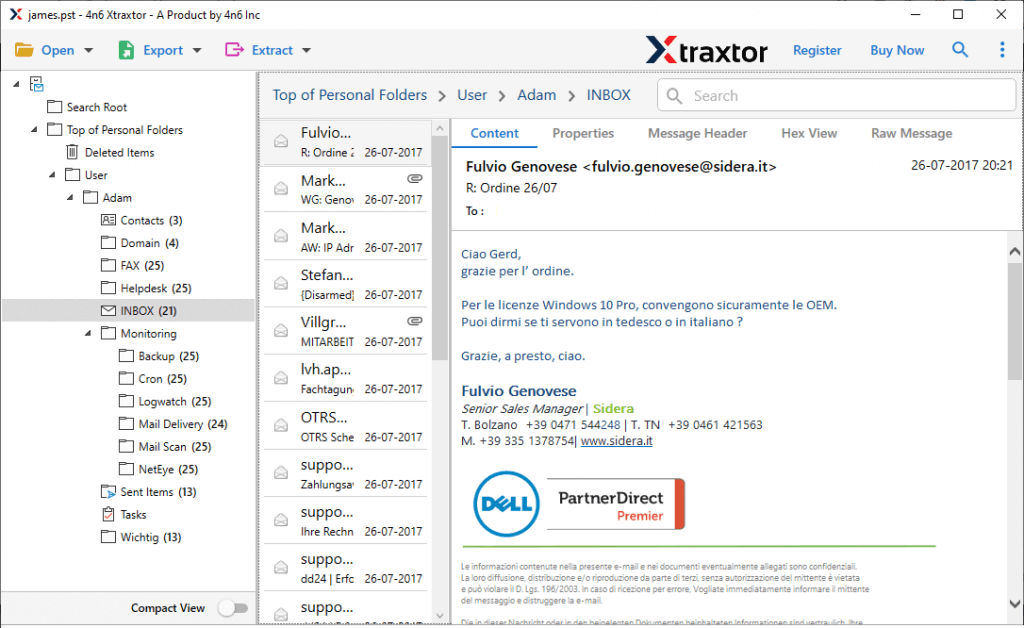
Step 5. Click on the Export and choose the IMAP option.
Step 6. At last, enter your Yahoo mail login details and hit on the save button.
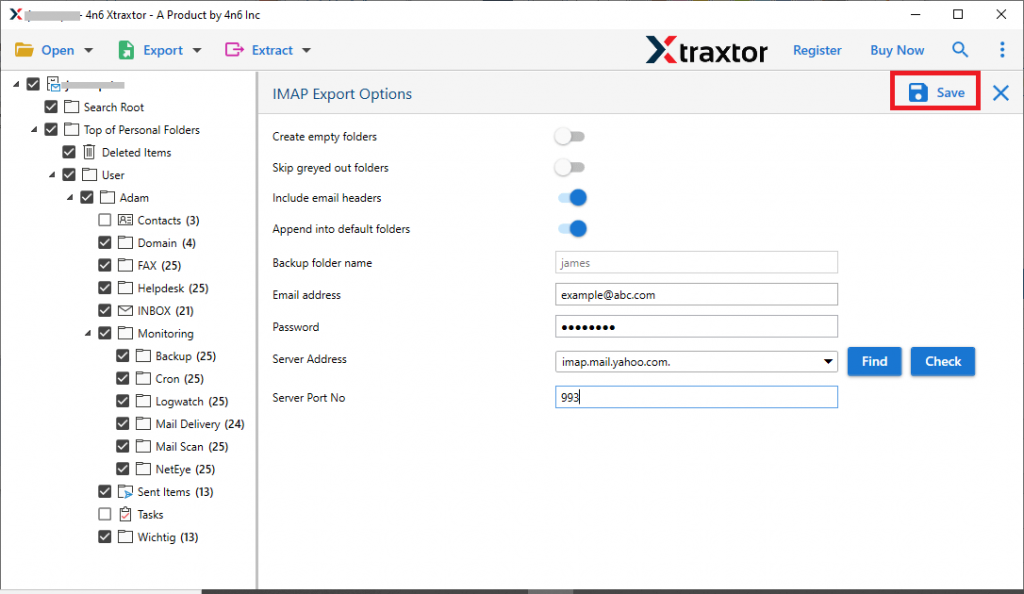
Here you securely import MSG to Yahoo Mail without affecting the data integrity. To verify it check your webmail account and you will find our .msg files.
Why Choose MSG to Yahoo Import Tool
This utility has the most amazing features, some of them mention here. Check them out.
Importing Multiple MSG Files: This tool offers an option to select an entire folder of various MSG files into its interface. In this way, the user can move multiple MSG files into Yahoo mail account without any data loss.
Transfer MSG to Cloud: The MSG to Yahoo Import tool not only transfer messages to the Yahoo account but also import MSG to Gmail, Office 365, Yandex, and all other web-based mail accounts.
Search Option: With this utility, users can find messages from a specific field. It offers filters such as – to, from, subject, date range, time, and many more.
Maintain Message Key Elements: Using this MSG to Yahoo Import tool users will find the imported messages with is key attributes intake. Al the header information, messages and attachments will be same as the original.
Conclusion
In this write up we focus to import MSG to Yahoo Mail account without data loss. To perform this process we suggest an automated tool that can easily move multiple MSG files into Yahoo account without affecting its integrity. Users can use the demo version of this tool and try to open .msg files in Yahoo webmail account with ease.