Switching from one emailing platform to another is a challenging task to perform. One needs to be careful especially if they try to import MSG to Gmail account.
Although there is no direct manual way to open MSG files into Gmail account, there is an indirect way to move .msg to Google mail account.
In this digital era where almost all of the world depends on technology, emails are the key elements of communication. Mostly all the crucial information is stored in emails, thus it is important to save them from hackers.
One such situation arises when users want to import MSG to Gmail account without affecting their data integrity.

Before we discuss the import process, let’s know a little bit about both the terms.
Gmail and MSG Overview
MSG is an Outlook message file that contains individual emails in text format. Save data classification of the header, body text and attachments. This file format
On the other hand, Gmail is a web-based email service that stores your data on a cloud server. The most important thing is that it is a free email service provided by Google. To access Google mails, the user just needs any system that is connected to the Internet. Due to its advanced security, many users want to import MSG to Gmail account.
Till now we know about Gmail and MSG files, let’s discuss to way to open multiple MSG files into Gmail.
Methods to Import MSG Files into Gmail Account
In this write-up up we will discuss two different methods to read .msg files into your Gmail account without data loss. Let’s know what are they.
#1. Direct Way to Move MSG to Gmail Via MSG Converter
#2. Manual Way to Open MSG Files into Gmail Using Outlook
Without further delay, let’s proceed and know the MSG to Gmail import process.
How to Upload MSG to Gmail Account Instantly?
As we already mention there is no direct manual way to read Outlook messages into Gmail, then in that case the alternative solution is using a third-party solution. One such solution is MSG Converter, an all-in-one solution to move multiple MSG files into Gmail interface without losing a single bit of data. Using MSG to Gmail Import tool users can easily move .msg files to Google mail account in a single attempt.
Moreover, this utility offers a dual option to load MSG file – Select File or Folder, in this way users can import MSG to Gmail in bulk. You can also use this tool to import MSG to office 365, Yahoo Mail and other webmail accounts.Along with that, this software can allow you to move selective messages to Gmail and avoid unwanted transfers. Some more features of this tool are – a search option to locate messages of a certain nature, choose the file naming and location, maintain messages key attributes and elements, and many more.
Follow the instructions to Import MSG Files to Gmail with Attachments –
- Install and run SysConverter for MSG tool on your Windows OS system.
- Click on the Open button, and choose for further process.
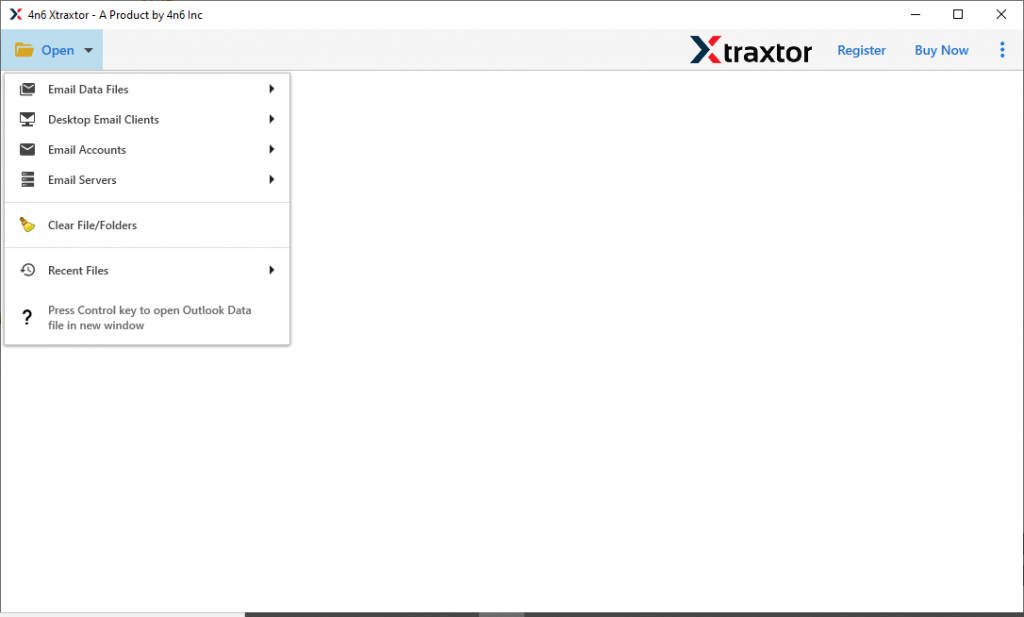
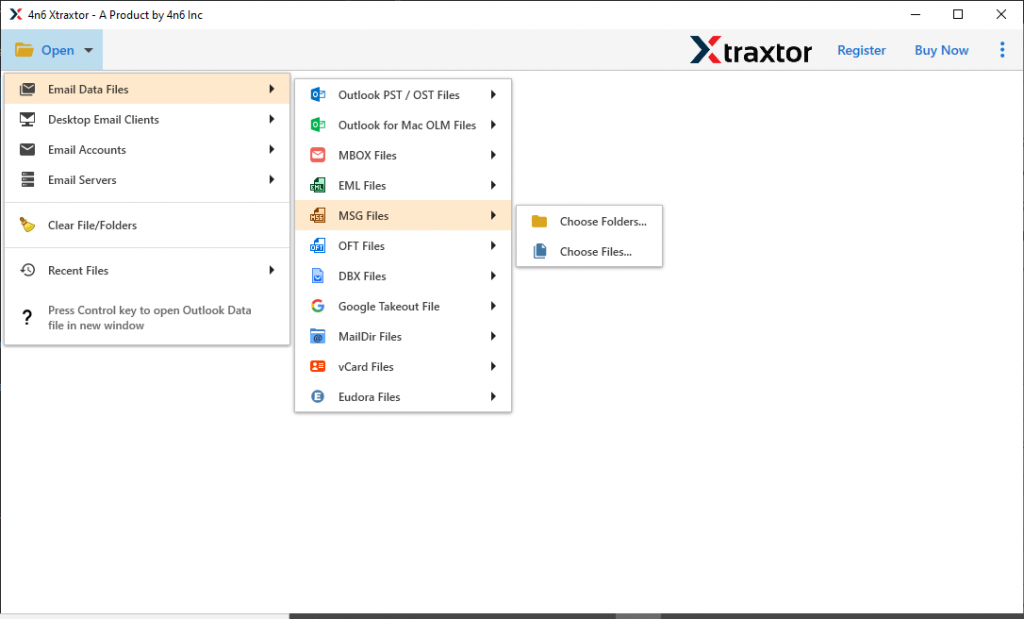
- Now select Email Data File >> MSG Files >> Select File or Folder.
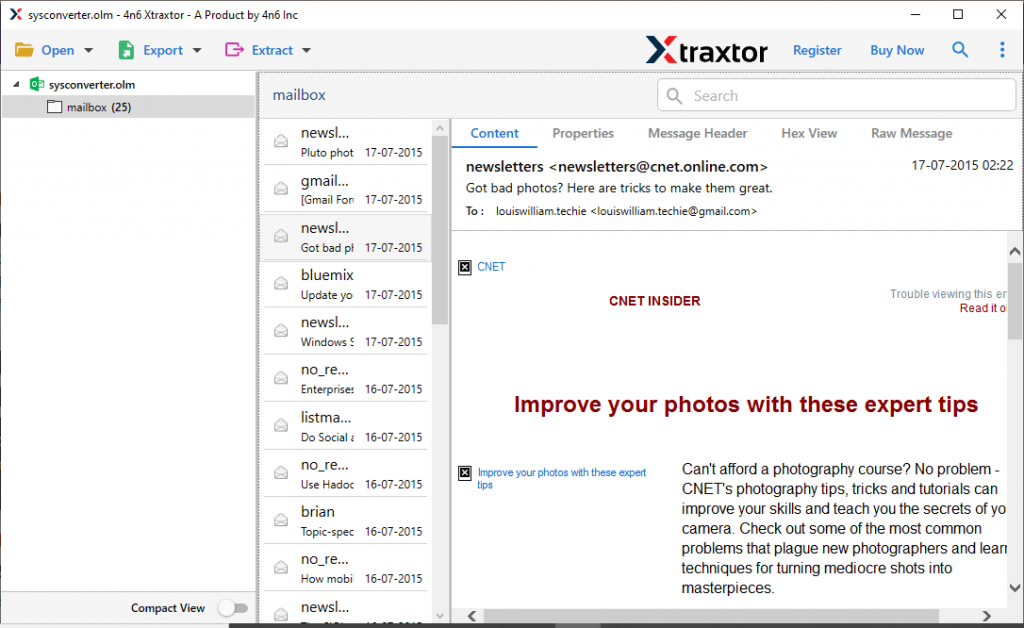
- Here you can read your Outlook messages and select which one you need to import.
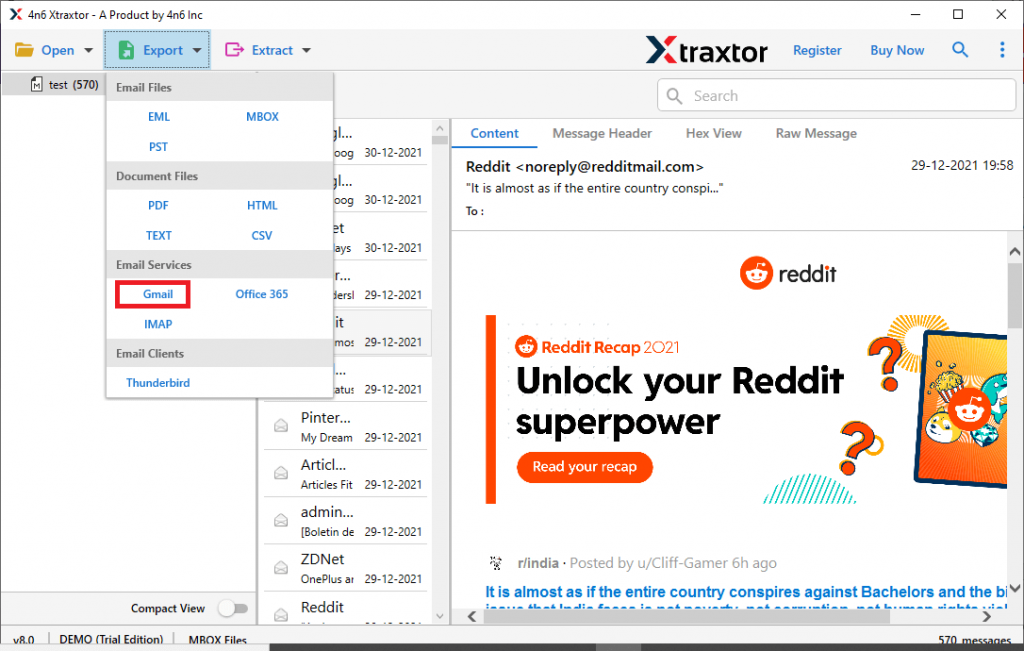
- After that click on Export and opt for the Gmail option.
- In the last step, enter your Gmail login details and at last click on the Save button.
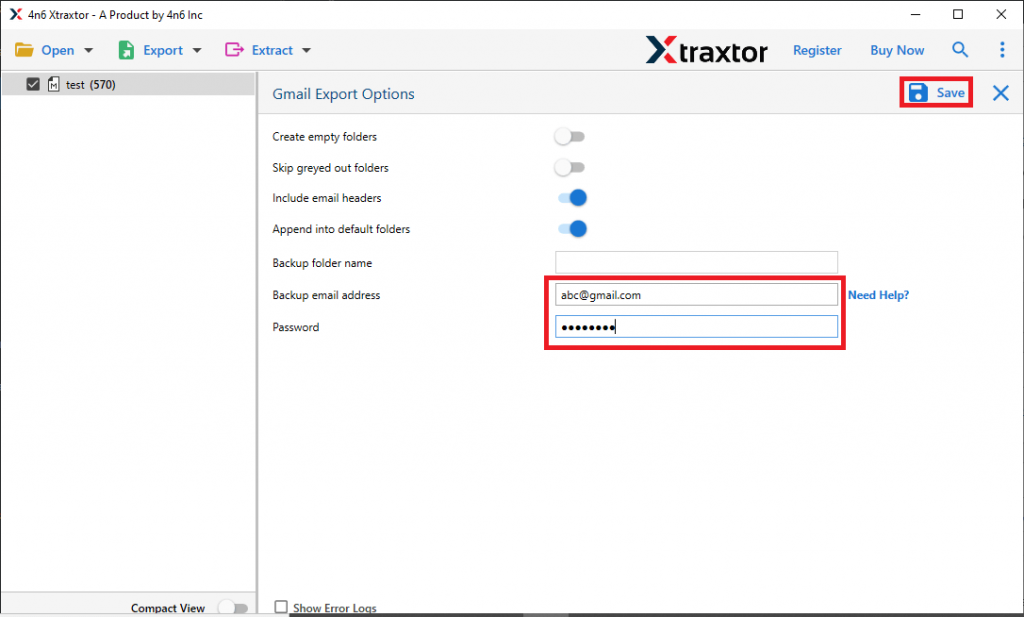
Here completes the process. Using this stool you efficiently import MSG to Gmail with complete messages.
Although this method is itself is enough to perform MSG to Gmail import process, still, if you want to use a freeway process then read the next section for it.
How to Transfer MSG Files to Gmail Via Gmail – Outlook Configuration?
To perform this process manually, you need to set up your Gmail account to the Outlook email client. Before we move ahead make sure to install the Outlook application on your system. Here we divide this manual process into two sections.
Step 1: Configure Gmail to Outlook
- Firstly open your Gmail account and go to Setting >> See all settings.

- In the new window click on Forwarding and POP/IPMAP.
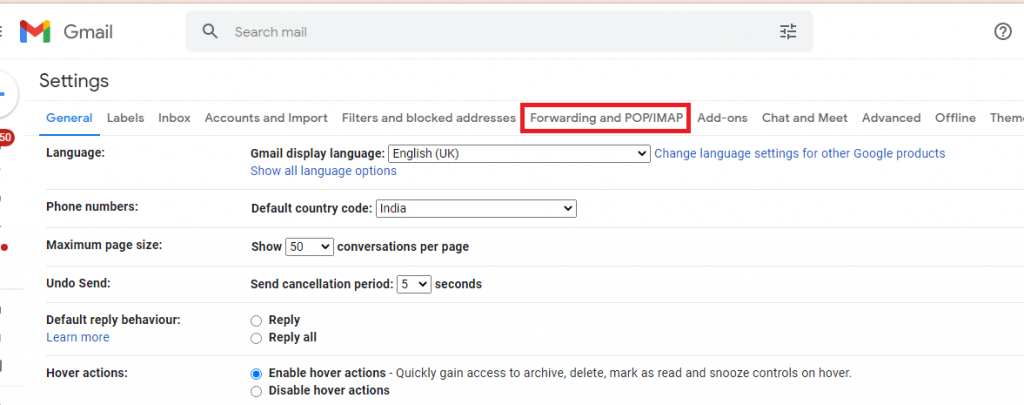
- Enable IMAP radio button under the IMAP Access label.

- Then click on Save Setting.

- After that open the Outlook email client.
- Now go to File >> Account Setting.
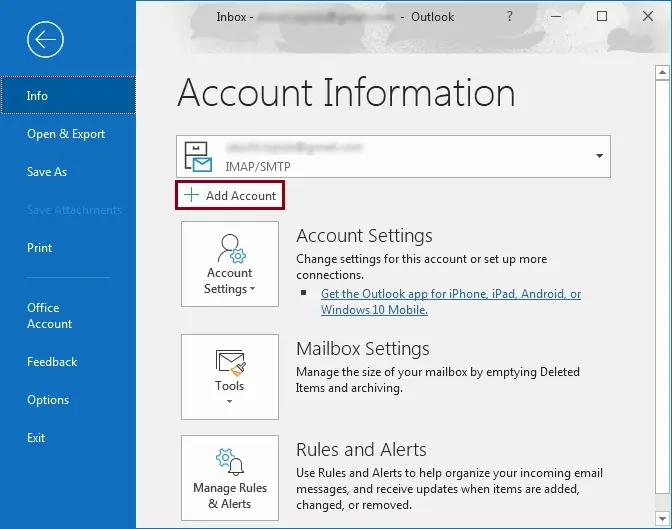
- Enter your Gmail email address and clcik on the Connect button.
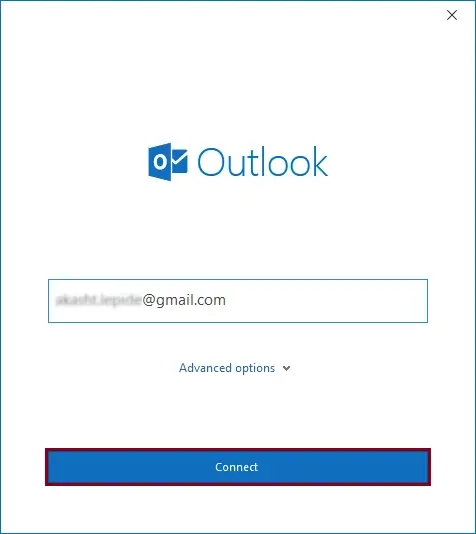
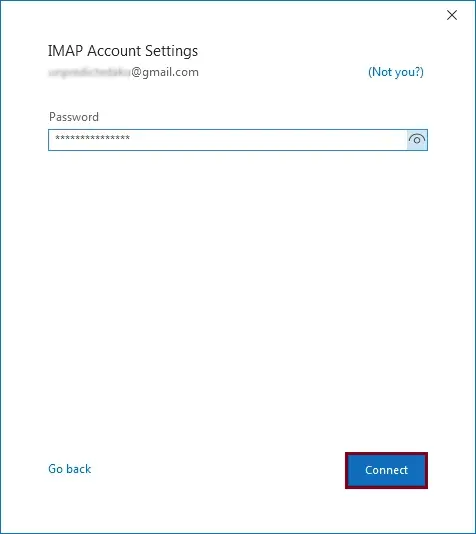
- Now put your mail account password and hit on connect.
- After that you will get the notification that shows that you successfully add your Gmail account.

Step 2. Import MSG to Gmail
- In Outlook, create a new folder under your Gmail email address label and name it.
- Go to the location where MSG files are saved. Copy all the messages.
- Paste them into the newly created folder under the Gmail email id label.
Here you move MSG files to Gmail with the native method. However, there are a few limitations to this approach.
Drawbacks With Manual Method
This free solution can save Outlook messages to Gmail account, but there are restrictions that limit its import process. Some of them mention here,
- To perform this task manually you need to install the Outlook email client on your system.
- This method is limited to certain message imports, it is not suitable for batch imports.
- Users need the technical knowledge to configure Outlook to Gmail accounts. A single mistake and your crucial data are lost.
- There is no option to import selective MSG files into Gmail.
- To perform all the steps you require lots of time and patience.
- There is no search option to locate specific messages and import them into Gmail.
If you want to overcome these limitations, it is recommended to use the automated tool mentioned in the previous sections.
Why Choose MSG to Gmail Import Tool?
To import MSG to Gmail using this automated tool, you can allow using the following features of this tool. Read to know them.
Move MSG to Gmail in Bulk: This software offers two options to add MSG files into its interface – Select File or Folder. By selecting a folder sure can import multiple MSG files into Gmail account without any data loss.
Import MSG to Other Webmail Accounts: Using this MSG to Gmail Import tool, sure can import MSG to Office 365, Yahoo, Google Workspace, Yandex, and all other cloud-based email servers. The user just needs to add the .msg files and enter their webmail account login details and done.
Search Option: With this tool comes a search option, where sure can find messages from any particular field. It offers various search options such as – to, from, subject, cc, bcc, date and time range, and many more.
Support Windows OS: This MSG to Gmail Import tool can easily install and run on any Windows OS version. It can operate on Windows 11, 10, 8, Vista, XP, and all other previous versions without any technical issues.
Conclusion
Today in this write up we learn the way to move multiple MSG files into Gmail account. Here we mention two methods – Manual and Automated. However, using a manual approach you can face various limitations that can hamper your import process. Thus if you want an error-free and secure way to import MSG to Gmail, it is recommended to use the professional solution we mention in this article.