Outlook is a globally used desktop email client. It stores mailbox data in two different file formats: OST and PST. In some scenarios, the user wants to export OST file to PST in Outlook.
Today in this blog, we will tackle this situation and find a safe and efficient method to transfer OST file to PST in Outlook 2013/2010/2016. So, read the full article and find out what they are.
Overview of PST and OST File
OST (Offline Storage Table) is a file format that stores Exchange server mailbox data in offline mode when there is no Internet connection. It allows access to Outlook emails and other data without connecting to the server. Although the OST file is not easily affected, there may be several reasons that hamper it.
Regardless of whether Outlook has advanced features, it cannot restore data from OST file if it is deleted. Therefore, to avoid this situation, it is better to export OST file to PST in Outlook.
PST or Personal Storage Table is a data file that is created by Outlook to export its mailbox data. This file format is a secure way to save important data, along with this file can be transferred and accessible on any other system. PST file can easily be accessible on Outlook 2013/2010/2016 and other previous versions.
Note: You can’t directly export data from the OST file, for that you need to log in to the profile from which this file belongs. After that, you can export OST file to PST in Outlook 2013/2010/2016.
Now without further delay let’s discuss the process to convert OST to PST without Outlook installation.
How to Export OST File to PST in Outlook 2013/2010/2016?
Before you export OST file, you should know that there is no official method to extract data from the OST file to PST format. To transfer Outlook OST file into PST format you need to use automated professional software
However, if you are connected to an Exchange Server, then you can apply the given technique to move OST file data to Outlook PST.
Method 1: How to Transfer OST File to PST Manually?
To copy OST file data into PST format, follow the given instructions.
- Open Outlook that has that particular OST data file.
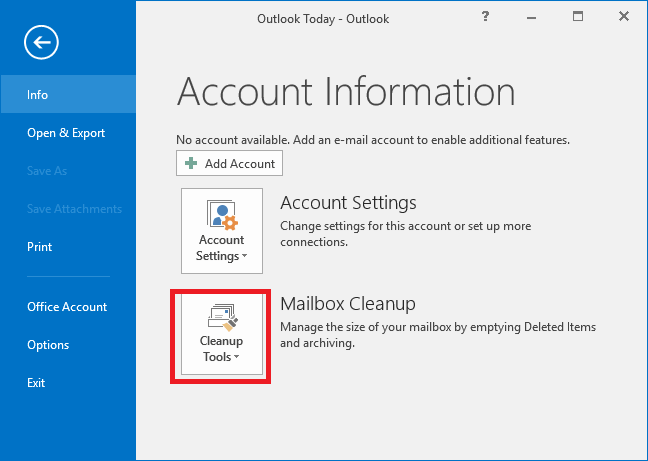
- After that clcik on File >> Info >> Clean-up Tools.
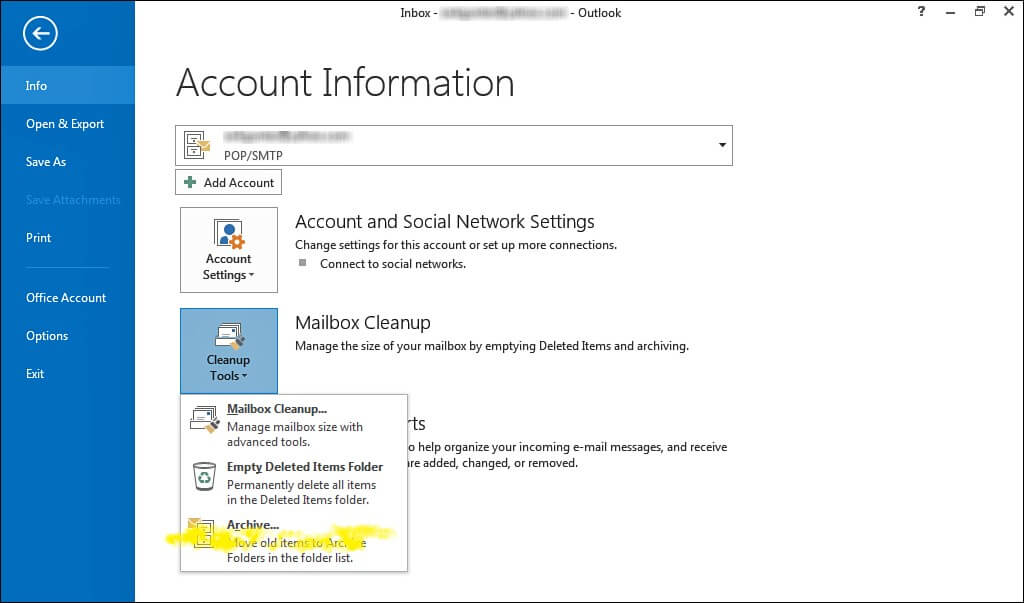
- Then select the Archive option from the given list.
- Select the Archive this organizer and all subfolder alternative is chosen.
- Next to it, choose the email folder that you want to export (inbox, sent, etc.).
- > Browse the destination location to save the PST file.
- At last, clcik on the Save button and start the export process.
Here completes the export process. Now you can use this .pst file in Outlook 2013/2010/2016 without any issue. However, this manual solution may not be that effective and more extremely you can also lose your important data.
Thus to transfer OST file into PST format it is best to rely on the expert approach that sole purpose to save OST file data in PST format. Let’s check out what it is.
Method 2: How to Efficiently Export OST File to PST in Outlook 2013/2010/2016?
Although there are many indirect ways to transfer mailbox emails, however using the secure and efficient tool is best for this export process. Use OST Converter an all-in-one solution to export OST to PST in bulk that too without any data loss. This software is programmed with an advanced algorithm that allows this tool to export orphan OST file to PST format without facing any glitches. With its simple user interface, you can easily backup Outlook OST to PST format with ease.
In addition to all these features, this utility also offers to transfer OST file data into cloud servers in a few simple steps. Along with that it also export OST to MBOX, PDF, CSV, ICS, vCard, and other file formats.

Follow the Simple Steps to Export OST to PST in Outlook –
- Download and launch the SysConverter for OST software on your machine.
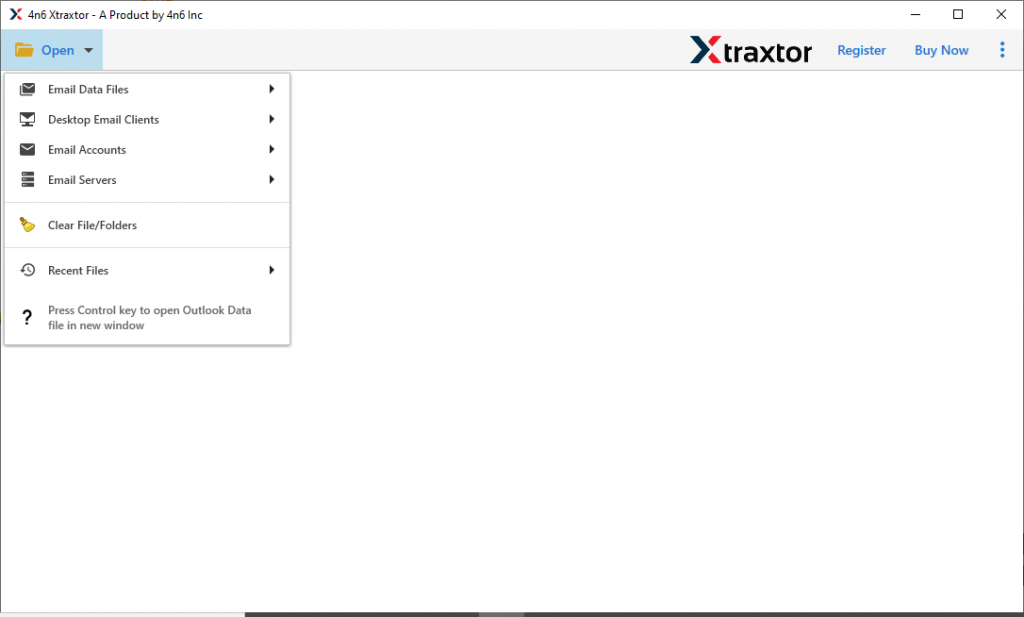
- After that click on the Open button to start the export process.
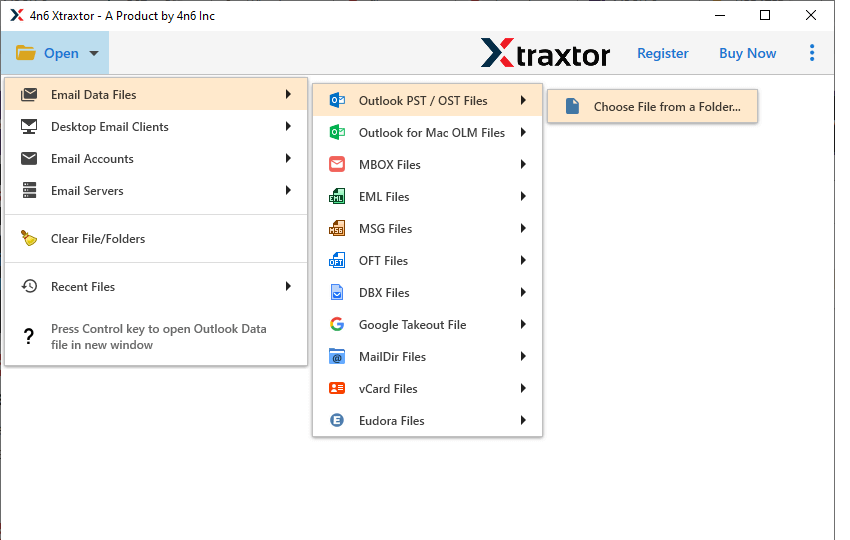
- Now select Email Data File >> OST File >> Select File or Folder.
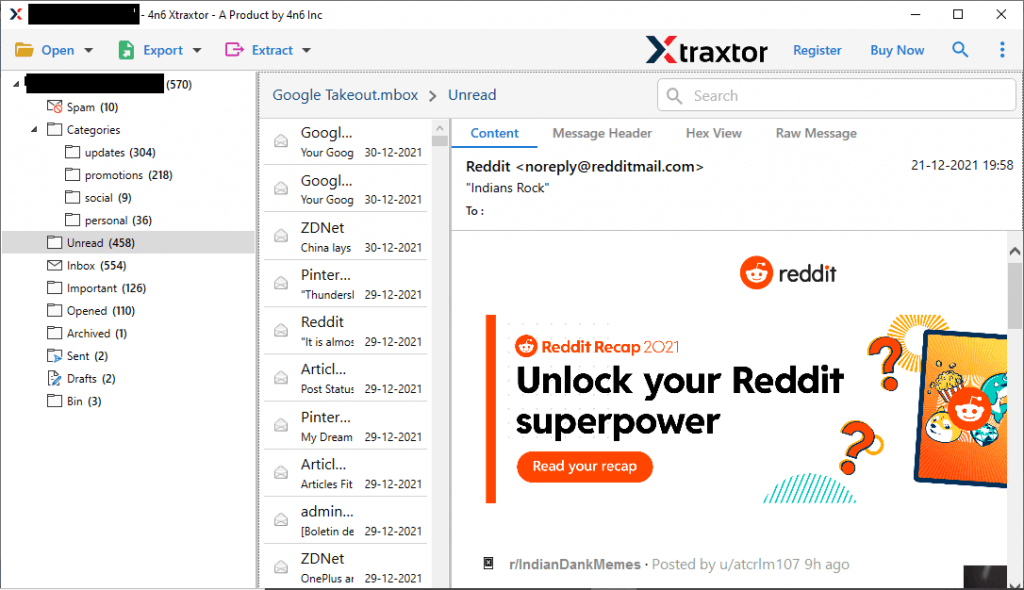
- Here you can read the OST file emails and select the email folder that you want to export.
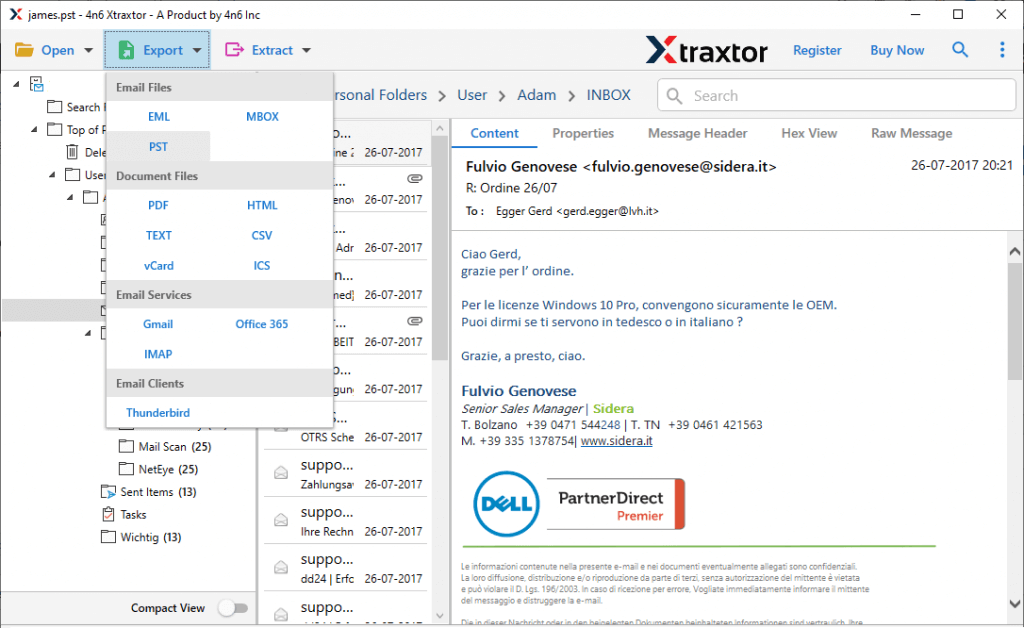
- At this stage, click on the Export button and opt for PST file format.
- In the last step, browse the location to save the .pst file and then click on the Save button.
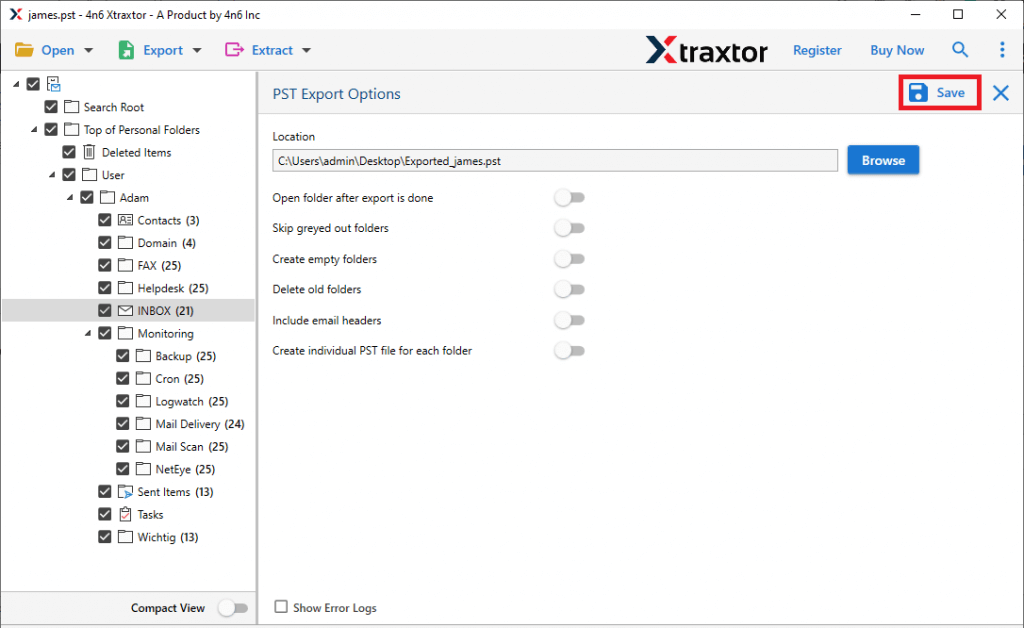
All Done! Here you move OST file to PST in Outlook 2013/2010/2016 and all other previous versions. Along with that using this tool you can backup Outlook OST to PST that too without any data loss.
Conclusion
In this article, we discuss two methods to export OST File to PST in Outlook with ease. You can choose any of the given solutions to move your OST file data. You can also try the demo version of this tool to perform the export process. Hope we are able to solve your OST to PST export query in this article.