We are all familiar with the HTML file format used to create web pages. This file can be opened in any web browser. Because of this, many users are looking for a reliable solution to save their Thunderbird emails in .html format. Therefore, in this article, we will address the question “How to convert Thunderbird emails to HTML with attachments?”. and offer the best possible solution for this conversion.
I use Thunderbird to manage my company email. For a few days I’ve been trying to save my Thunderbird emails in .html format so that it can be open in any web browser. But I am not able to find any suitable solution for this. Can anyone suggest me a reliable solution to export Thunderbird emails with attachments to HTML?
After going through this user query, we know that the user wants to convert Thunderbird emails to HTML format with attachments. However, the question is – Why HTML format?
Reasons to Opt for HTML format
There can be various reasons for Thunderbird to HTML conversion depending on the user’s requirement. Some situations are mentioned here,
1. HTML files can be open in Google Chrome, Mozilla Firefox, Internet Explorer, and all other web browsers.
2. This file can be accessed with no internet connectivity required.
3. It is easy to edit on any text editor program.
4. Above all, you can send/transfer this file to another system over the network.
How to Convert Thunderbird Emails to HTML Format With Attachments
There are several solutions to save Thunderbird emails in .html format, some of them mention here. Therefore read this article to the end to perform better email conversion.
#1. Export Thunderbird Emails to HTML with Attachments Instantly
To save mailbox data in .html format, you can opt for an expert solution Thunderbird Converter. Using this tool you can easily export all emails from Thunderbird to HTML with attachments. Along with that, it is capable enough to batch convert Thunderbird emails to HTML format with no data loss and alteration. It guarantees to complete the conversion process with 100% accuracy and efficiency.
This Thunderbird to HTML Converter has a simple graphical interface that allows non-technical users to perform the conversion with ease. Additionally, there are various advanced email filters (to, from, cc, bcc, name, subject, date, time, etc).

Steps to Save Thunderbird email in HTML format using a professional solution
Follow the instructions mention below for better and more accurate Thunderbird to HTML conversion.
Step 1. Download and run this software on your system.
Step 2. Click on the Open button to add the mailbox data.

Step 3. Select Desktop Email Client >> Thunderbird Account >> Open Thunderbird Configured Account.

Step 4. Read your mailbox emails and decide which need to convert.

Step 5. Click on the Export button and choose HTML from the given formats.

Step 6. If you want to convert specific email folders, then you can choose them.

Step 7. At last, choose a location to save the .html file and click on the Save button.

This is the simple procedure to convert Thunderbird emails to HTML format using this tool. Now you can open this file on any web browser or share it over the internet as per requirement.
#2. Convert Single Thunderbird Emails as HTML Format
Using this method user can save Thunderbird emails one at a time. If you only need to save a limited number of emails then you can use this approach. However, it is not suitable for batch conversion, for that use Thunderbird to HTML Converter tool.
Step 1. Open Mozilla Thunderbird on your machine.
Step 2. Select the email that needs to be exported.
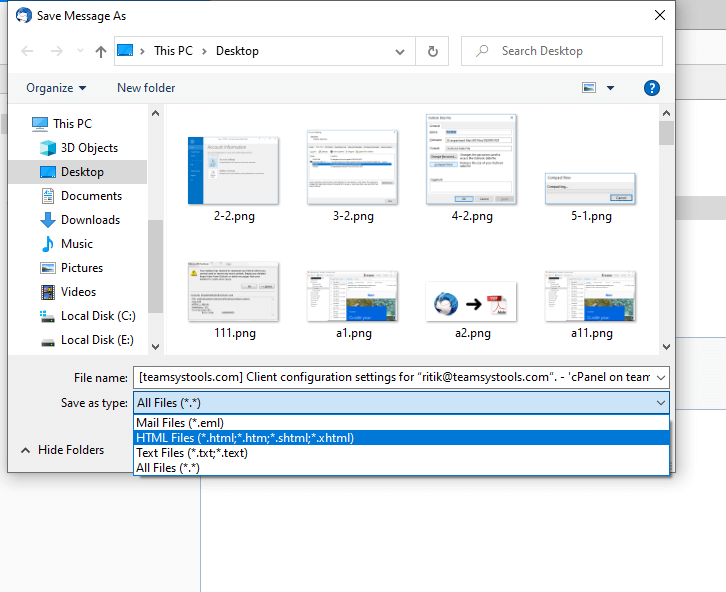
Step 3. Right-click on the selected email and click on Save As option.

Step 4. Choose the location to save the file and change Save as type as .html.
#3. Export Thunderbird email Folder to HTML with Attachments
This method will save the email folder into .html format. However, for that, you need to install ImportExportTools NG add-ons in your mailbox interface. After installing this tool, follow the given steps;
Step 1. choose the folder you want to export.
Step 2. Right-click on the folder after that, ImportExportTool >> Export All Messages in the folder >> HTML Format (with attachments).

Step 3. Browse the location to save the .html file and click on the Select Folder option.

However, these manual methods will be a lengthy process, if you have thousands of emails to convert. Therefore it is recommended to use the Thunderbird to HTML Converter tool mentioned in the above section of this write-up.
Conclusion
In this blog post, we mention three methods to convert Thunderbird emails to HTML with attachments. We mention two manual solutions and one automated approach. However, we recommend using a professional tool to save multiple Thunderbird emails in HTML format with attachments.
Also Read: Convert Thunderbird Emails to PST