Are you looking for a secure and reliable way to perform Zimbra to Office 365 Migration? If your answer is Yes, then you are in right place. Read the complete article and migrate Zimbra to Office 365 account with complete mailbox data.
Zimbra collaboration, formerly known as the Zimbra Collaboration Suite before 2019, is a collection of software suites that includes an email client, a webmail server and a web client. It is a world-leading open source email platform, powering hundreds of millions of mailboxes in 140 countries.
However, sometimes users want to switch their mailing platform to Office 365, In that case, they want their old emails in their O 365 account. To do that they need to migrate Zimbra to Office 365.
In this blog, we will discuss the reliable method for Zimbra to Office 365 migration. To know more about it, read the complete article. Before that, let’s check a user query to understand why users want o move Zimbra to Office 365 account.
Analysing the above mention query, we conclude that users use a Zimbra email client and sitch it to Office 365 webmail account. If you are facing the same situation, then the next solution is for you.
Method To Migrate Zimbra TGZ to Office 365
To perform the Zimbra to Office 365 migration, we will learn two different methods for this.
#1. Manually Migrate Zimbra to Office 365
#2. Use Zimbra to Office 365 Migration Tool (Third-Party Software)
Let’s discuss these mentioned solutions in detail. Without any further delay, let’s dive in.
Solution 1: Move Zimbra Emails to Office 365 Account
For Zimbra to Office 365 IMAP migration, you need to export Zimbra mailbox data into TGZ file format. After that extract the emails from that zip file, you will get .eml files in a folder. Then import .eml files into Thunderbird and then configure it to Office 365 account.
Let’s discuss the process in step by step manner. Fo that follows the given instructions.
Note: To perform this process, you need to install the Thunderbird email client on your system.
Step 1. Firstly, open the Zimbra client on your system.
Step 2. After that got to Preference >> Import/Export.
Step 3. In the export section select Type as Account.
Step 4. Make sure Source display All folders and then click on Export.
Step 5. A dialogue box will appear, select Save File and choose where to save the file.
Here your mailbox data is saved in .tgz format. Extarct the emails from the .tgz file, you will get .eml files. Now import EML files into the Thunderbird account. Before that configure your office 365 account.
Step 6. Open the Thunderbird application, While creating a new account, choose “Skip and use existing email”.
Step 7. Now enter your Office 365 login details and click on Continue.
Step 8. Then click on the “configure manually” option and enter the following details.
Outgoing: SMTP, server name – smtp.office365.com, port – 587, SSL – STARTTLS,Authentication – Oauth2 , username – your O365 email id
Step 9. At the end, click on the Done button to finish the configuration.
Step 10. Now open the Thunderbird email client on your system.
Step11. To import EML files you need to install Import/Export Add-on in your interface.
Step 12. After installation, right-click on Local Folder and create a new folder.
Step 13. Now click on Tool >> ImportExportNG >> Import Messages >> Select All EML files.
Now you have EML files on the Thunderbird account. After that move the newly created folder that has .eml files under your Office 365 account label. Here completes the Zimbra to Office 365 migration.
Limitation With Manual Solution
Although this manual solution can migrate Zimbra to Office 365, it has some restrictions. If you use this method with a large amount of Zimbra mailbox data, then there are high chances of data loss. Moreover, to perform this manual procedure you need technical knowledge and technical assistance. In addition to these, you will not able to perform selective Zimbra to Office 365 migration.
Thus, for instant and easy migration, use an automated tool that can easily migrate Zimbra to Office 365 in bulk with no data loss.
Solution 2: Zimbra to Office 365 Migration Instantly
For quick and instant migration, you can use Zimbra Migrator wizard. Using this utility you can easily transfer emails from your Zimbra account to Office 365 in a few simple steps. Along with that, if you have a large amount of data in your mailbox and want to migrate required emails only, then this tool offers an option for selective migration. In addition to these, you can also apply the various filters option such as – to, from, subject, date range, time, and many more to choose from.

Steps to Migrate Zimbra to Office 365 Webmail Account
Follow the given instructions and save Zimbra emails into your Office 365 account.
Step 1. Download and run the software on your system.
Step 2. Now click on the Open drop-down button.
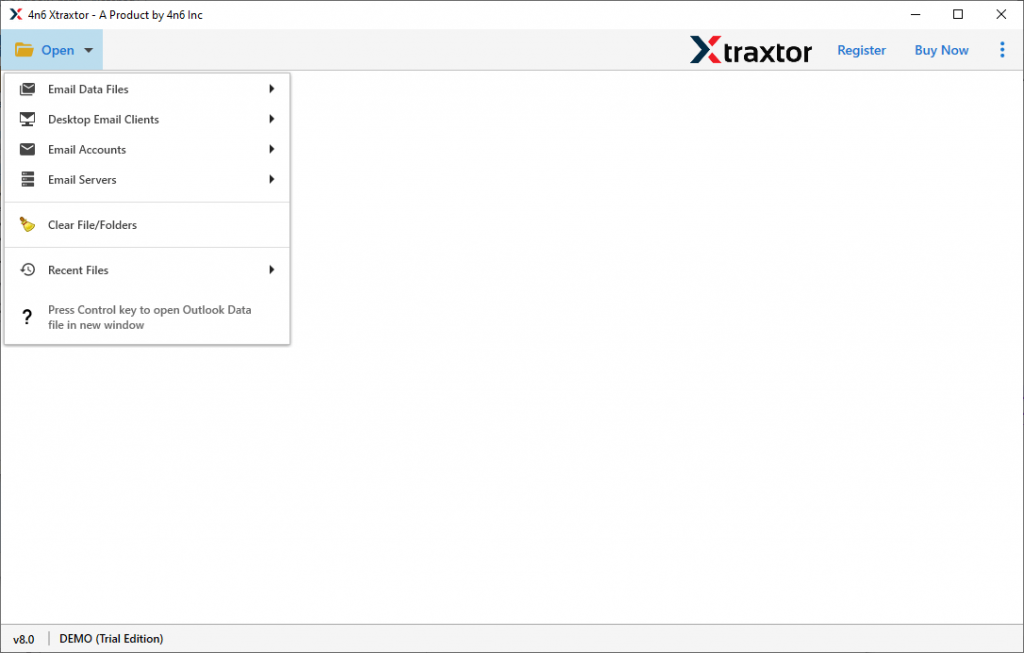
Step 3. After that Email Server >> Zimbra File >> Select File or folder.

(Note: If you have a .tgz file, then you can proceed with the next step. If you don’t have it, then you can export the file from the Zimbra mailbox. We mention the above section to perform this export process.)
Step 4. Here you can read your emails and select the email folder that needs to migrate.

Step 5. Click on the Export button and choose Office 365 option.

Step 6. At last, enter your Office 365 account login details and hit on the Save button.

All Done! using this automated tool you directly migrate Zimbra to Office 365 without any data loss.
Why Choose Zimbra to Office 365 Migration Tool
There are various features of this automated tool that make it a standalone entity among other tools. Some of them mention here.
Selective Email Migration: Using this stool you can select the email folders that have important emails and migrate them. In this way, you can avoid unwanted migration and move only relevant emails.
Transfer Zimbra Emails to Cloud Server: With the help of this Zimbra to Office 365 Migration tool, you can also move emails to another webmail account. You can migrate Zimbra to Gmail, Exchange, google Workspace, and many other accounts.
Easy to Use Utility: This Zimbra to Office migration Tool is designed in a way that even novice users can this software for migration. With its simple interface, you can migrate Zimbra to Office 365 without any technical assistance.
Windows OS Support: The migrator is designed for Windows-based OS. You can use this tool on Windows 11, 10, 8, Vista, XP, and all other previous versions of OS.
Conclusion
In this blog post, we address the user query where he wants a solution to migrate Zimbra to Office 365 account. In response to that, we mention two different methods – Manual and Automated. Both the solution can perform Zimbra to Office 365 migration, but with the manual method there is a certain limitation, thus it is recommended to use Zimbra to Office 365 Migration Tool.