Here in this article, we will discuss teh secure and efficient ways to import EML to Outlook. If you are looking for a secure and efficient way to import your emails to Outlook, then you are at the right place. Read the complete post and perform EML to Outlook import process.
If you are looking for a secure platform to manage your crucial emails, Outlook is the answer to all your questions. Due to its increasing demand, many users opt for this email client.
When switching from one email client to another, old emails need to be moved there. To access old .eml files in Outlook, the user needs to move EML files to Outlook without any data loss.
This article is all about the way to import EML to Outlook 2019/2016/2013 and all other previous versions. Thus without further delay let’s begin with.
How to Convert EML File to Outlook Instantly?
If there are unlimited .eml files on your system and want to import them, then EML Converter is all you need. This smart utility allows users to move single or multiple EML files into an Outlook account without any data loss. The tool will convert your EML to PST and then you can easily import them into Outlook profile. Most importantly, this tool performs the import process without affecting the data integrity.

Additionally, this software has some interesting features such as – a search option, selective email import, preserving email key elements and properties, and many more. Using this tool you can also import EML to Gmail, Office 365 and other webmail accounts. Now know how this software works and copy .eml files into the Outlook interface.
Steps to Import EML to Outlook With Attachments
- Download and load the SysConverer for EML tool on your Windows OS.
- Click on the Open button and choose the required field.
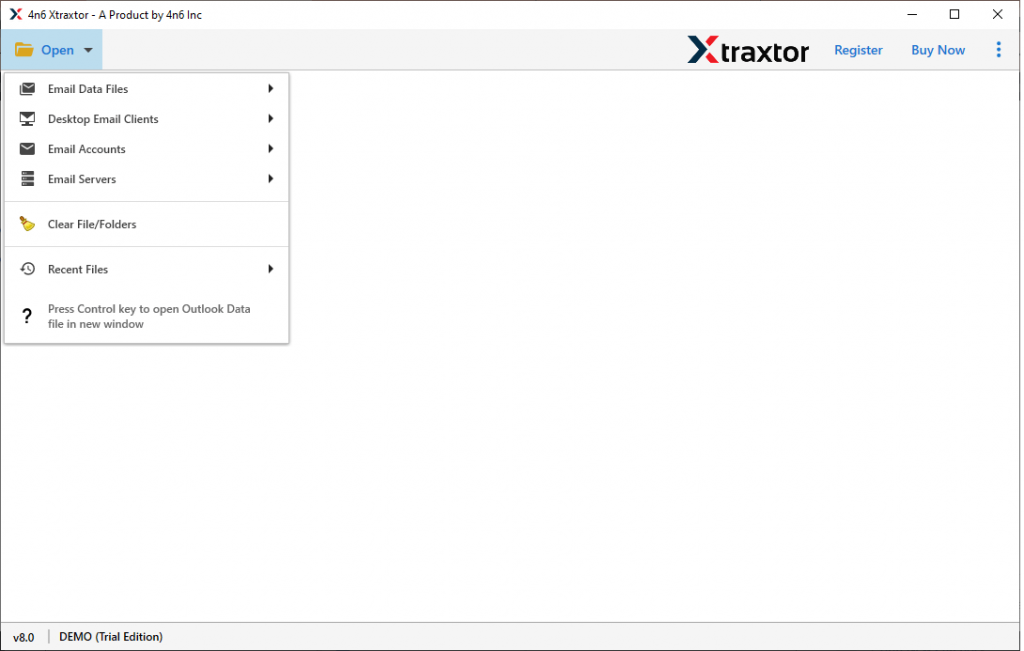
- Select Email Data File >> EML Files >> Select File or Folder.
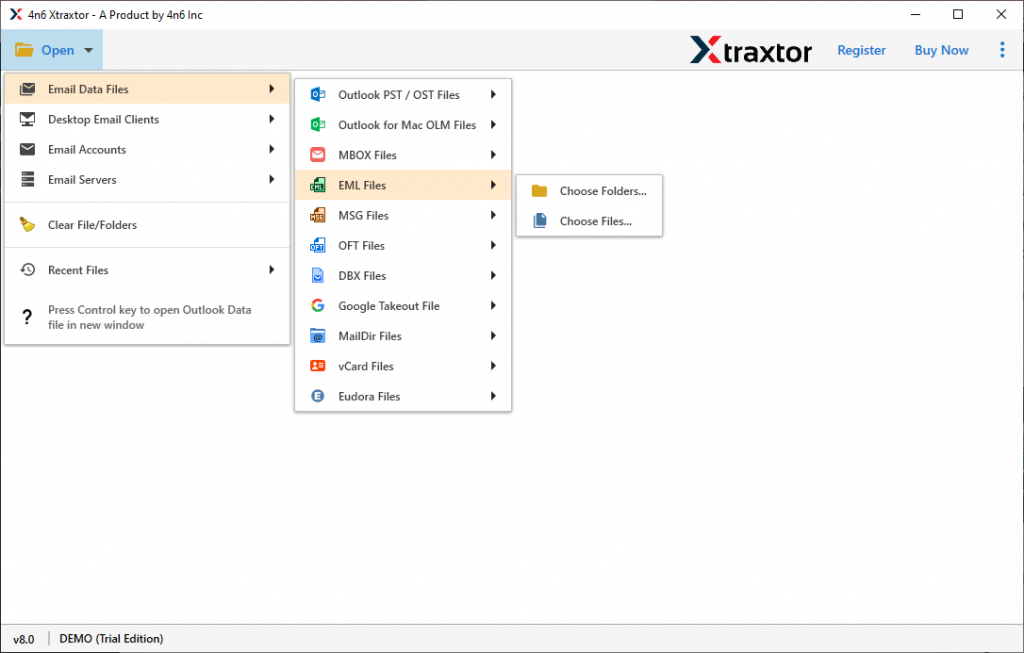
- Here view your emails and select the important one to import.
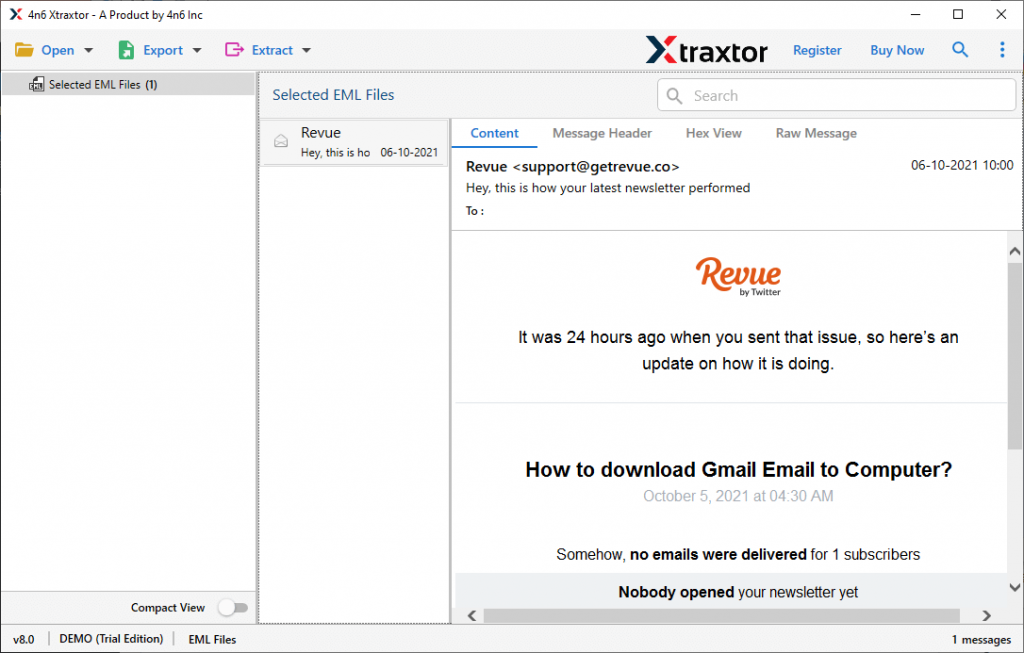
- Now click on the Export option and choose PST format.

- At this point browse the location to save the exported file and hit on the Save button.

- Open your Outlook interface and click on File >> Open & Export >> Import/Export.
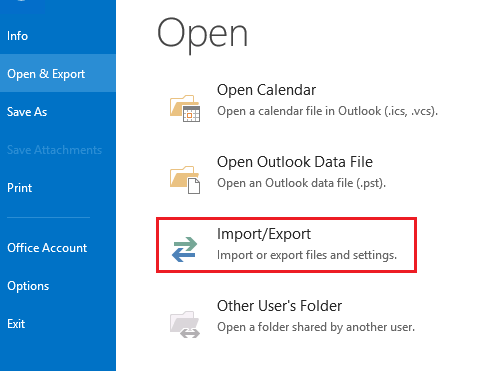
- Select Import from another program and file >> Outlook data file.

- Locate the file from the system and click on the Finish button.

Here completes the process. Using this tool you import multiple .eml files to Outlook. Users can use this method for unlimited email import. However, there are freeware approaches to perform the same. I
If you are looking for a manual way to import EML files to Outlook 2021, then read the next section of this blog.
How to Upload EML to Outlook Manually?
In this section, we will discuss two different native methods to perform this import process. Let’s know what are they.
Step 1: Import EML to Outlook Using Outlook
Note: To perform this process, you need Outlook installation on your system. If not installed, then configure it. After that follow the given instructions.
- Open the Outlook application and create a new folder and name it.
- Navigate the EML file or folder and open it.
- Drag the .eml file and drop the emails into the newly created folder.
- Repeat these steps for each .eml file you want to import.
Here you move all required EML files to Outlook. However, this native method is fine if users have limited .eml files to import. It will become a long and tiring process if you have thousands of emails.
Step 2: Open EML to Outlook Using Windows Live Mail
Note: This method works only if you have Windows Live Mail installed on your system and your Outlook is connected to Exchange Server. If you can fulfil both the requirements, then you can opt for this native method.
- Open Windows Live Mail and Outlook email client on your system.
- In WLM go to File >> Export >> Email Messages.
- Choose MS Exchange and click on Next.
- A confirmation pop up message will appear – “all emails will be exported to Microsoft Exchange Server or MS Outlook“, click Ok on it.
- Seelct the Outlook profile and then Ok.
- Choose the folder that you want to move.
- after clicking on the Ok button, the import process will start. It takes time as per your data file size.
- At last, click on the Finish button.
Note: To add EML files into Windows Live Mail Simply drag and drop them. Before that create a new folder, so that it will be easy to identify which folder needs to import into Outlook.
Limitations Of Manual Approach
These native approaches can import EML to Outlook interface, however, users can face some restrictions while using these solutions.
1. Time-consuming and lengthy process.
2. High chance of data loss, if there will be multiple .eml files.
3. Users need Windows Live Mail installation.
4. Most important, your Outlook must be connected to Exchange Server while using these native ways.
To avoid these restrictions we highly recommend using the automated tool we mention in the above section. Using that you can perform unlimited EML file import in a single attempt without any data loss.
Conclusion
In this article, we discuss two different solutions to Import EML to Outlook with complete data. We mention manual and automated tool to transfer email files into Outlook interface with proper step-by-step descriptions. You can choose any of the given solutions and move EML files to Outlook any version with ease.