Overview: This article will demonstrate the process of uploading EML files into Exchange Server account. If you want to import EML to Exchange Mailbox, then read the article to the end. At the end of the article, you will efficiently import EML files to Exchange online.
Microsoft Exchange Online is a mailing and calendaring server. It runs on Windows Operating System. Exchange works with an email client like Outlook which can connect to and manage email from a variety of sources.
Today, Exchange has emerged as one of the premier sources of organizational-based communication objectives. Thus many users want to import EML to Exchange Mailbox. In this write-up, we will discuss one such tool that will help you to upload EML files into Exchange Online account.
How to Import EML Files to Exchange Mailbox?
To directly move EML files to Exchange Online account will be an easy task with the EML Converter tool. This utility very efficiently transfers all the .eml files into Exchange without facing any glitches. If you want to transfer multiple emails in a single attempt, then this tool offers to select the folder option for bulk importing.
Along with that, you can also use this software and import EML to Gmail, Office 365, Yahoo, and other webmail accounts with ease. In addition, you can also get other advanced features, such as – email filters, uphold mailbox structure, selective email transfer, and many more. With the import process, this utility also convert EML to CSV, PDF, PST, MBOX, and other file formats.

Follow the Steps to Import EML to Exchange Online Instantly –
- Install and run SysConverter for EML on your Windows OS.
- Select Open >> Email Data File >> EML Files >> Choose Files or Folder.

- Here you can view your emails and read them.

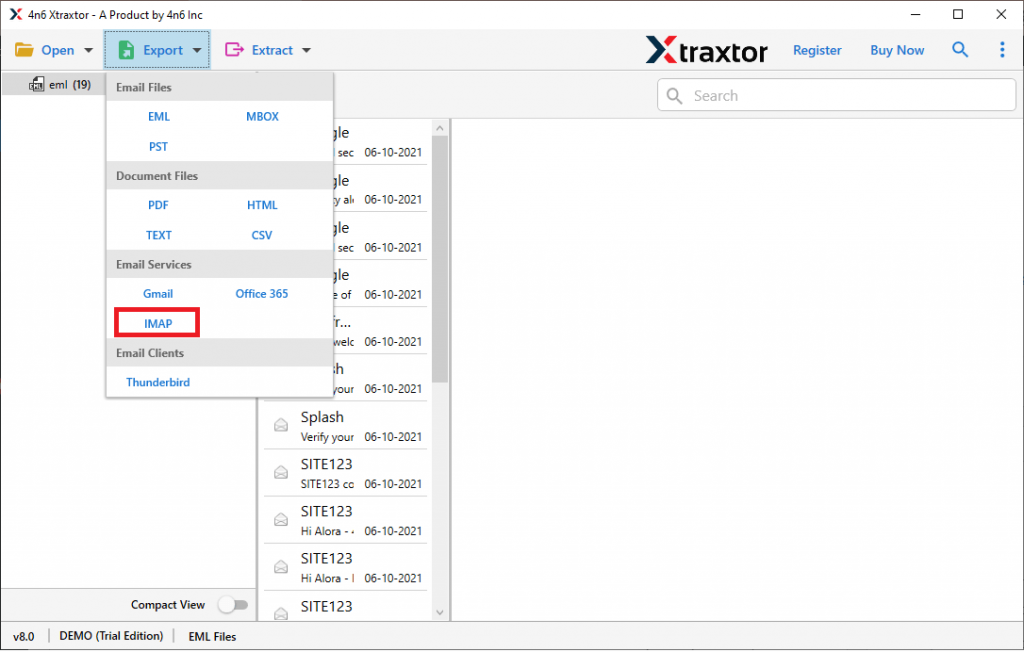
- After that click on Export and select IMAP as a saving option.
- At last, enter your Exchange account login details and hit on the Save button.
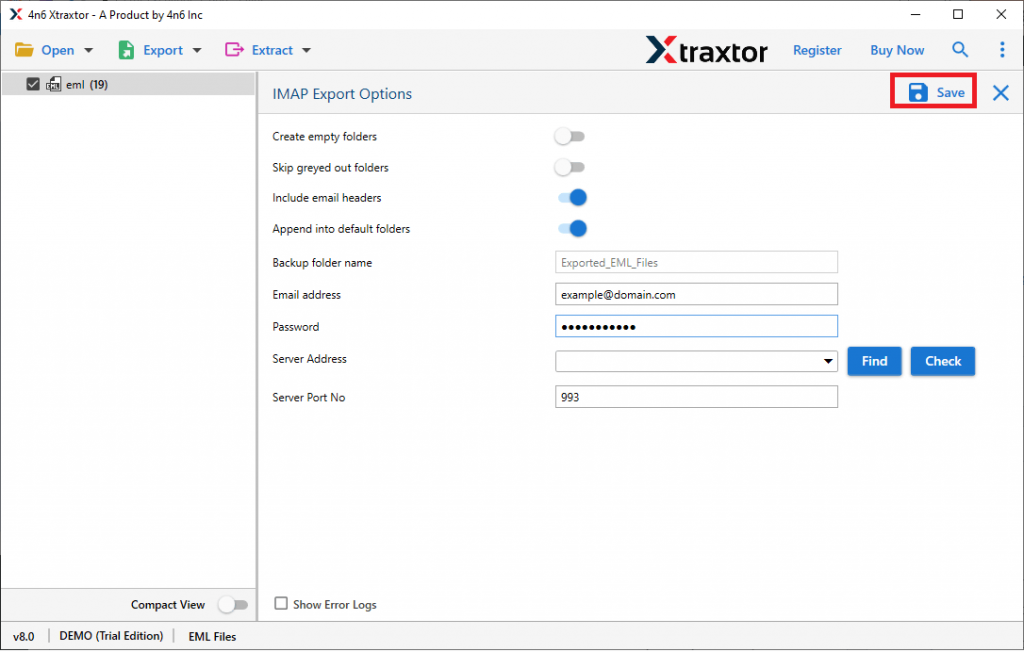
All Done! Here you directly import EML to Exchange Mailbox without any data modification.
Features of EML to Exchange Import Tool
This automated tool has many outstanding features, some of them mention here –
Email Filter Option: The import tool offers an array of filter options to search and transfer specific emails. One can apply filters such as – to, from, subject, cc, bcc, has attachments, date range, time, property id & name, and many more.
Maintain Email Attributes: While importing EML files into Exchange Online, this tool preserves email key attributes and properties. It imports emails with to, from, subject, inline images, hyperlinks, and other key elements.
Import EML to Webmail Accounts: This smart utility not only upload EML to Exchange but to other webmail accounts also. You can import EML to Office 365, Gmail, Yandex, Yhaoo, GoDaddy and other cloud based email accounts.
Windows-Based Utility: The import tool is specially designed for Windows-based OS. One can operate this utility on Windows 11, 10, 8, Vista, XP, and all other previous versions.
Easy to Use Tool: This automated tool is designed with a simple graphical interface so that it can be easily operatable by both technical and non-technical users. Even novice users can use this tool without any assistance.
Conclusion
Importing emails from one platform to another has become a common practice nowadays. Most users looking for a secure way to import EML to Exchange Mailbox. In this write-up, we mention one instant solution to transfer .eml files onto Exchange account without affecting the data integrity.