Summary: In this article, we will learn a safe and workable solution to extract OST file contacts. If you are among those who are looking for a solution to extract contacts from OST file, then this article is for you. At the end of this post, you will easily extract contacts from Outlook offline data file, even if it is corrupted or orphan.
Outlook creates an OST file to store your mailbox data which is the replica of the Exchange server. This file stores email messages, contacts, calendars, journals, tasks, and other components. When the user is not connected to the Exchange server, through the OST file, one can access his email. contacts and other data. If there are changes to the .ost file, it is automatically synced when the Exchange server connection is restored.
Now the question is How do I extract contacts from OST File? You can use Outlook Import/Export tool and export contacts into CSV file. Select your contact folder and save all the details in the .csv file in your system. Without any further delay, let’s dive in and learn the best ways to export contacts from OST file.
Methods to Extract OST File Contacts
To save contacts from the OST file, we have two different approaches. Let’s know them and how they work in OST contact extraction in detail.
#1. Extract Contacts Via Import/Export Tool
#2. Download Contacts From Orphan OST File.
Let’s discuss these solutions with step by step instructions with respective screenshots.
Approach 1: Export Contacts From OST File Manually
Before proceeding, you should note that this solution only works when your Outlook is connected to Exchange Server. Then only you will be able to access the .ost file and extract your contact details. If you are connected, you can follow the instructions given. If not, another method will be useful.
- Open the Outlook email client on your system.
- Now go to File >> Open & Export >> Import/Export.

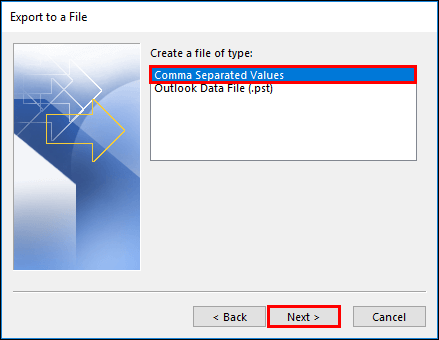
- After that, select Export a file >> Comma Separated Value.
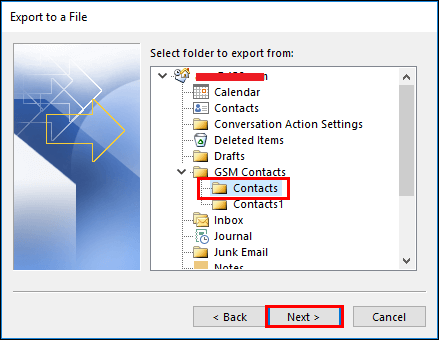
- Select the Contacts to export and click on the Next.
- At last, browse the location to save extracted file and hit on Finish button.
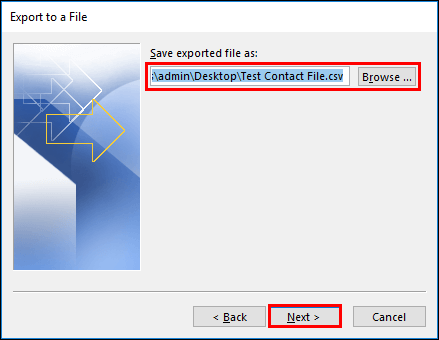
Here completes the process and you extract contacts from OST file.
However, there are certain restrictions with this manual solution. Some of them are mentioned below.
Limitations With Manual Method
1. To extract contacts from OST file using this solution, you need Exchange Server connectivity. It will only work when your Outlook is connected with Microsoft Exchange Server.
2. If there is an orphan or damaged OST file, then this method is not appropriate to perform this extraction process.
3. Trying the manual method to extract contacts from multiple data files, then there are high chance of data loss.
4. There will be no selective OST file contact extraction as there is no filter option present in this manual process.
To overcome these limitations and to save the contacts from the orphaned .ost file, a third-party solution will be required. One such tool is mentioned in the next segment, check it out.
Approach 2: Direct Way to Extract Contacts From OST File
When trying to extract contact data from a damaged or corrupted file, Outlook does not allow access to the damaged .ost file. Therefore, to save contacts, use the OST Converter tool, a safe and easy-to-use tool that allows you to extract contacts from one or multiple .ost files in one try. Users can use this tool and save their contacts without affecting their data integrity.
This tool simply uploads the OST file in its interface and convert OST to vCard format. As vCard or VCF is the standard format o sav contact details that can be easily shareable. With its simple user interface, it will be an easy task to perform this extraction process.


Steps to Export Contacts From OST File Using Automated Tool
Follow the given instructions to perform OST file contacts extraction with complete data.
-
-
- Downlaod and launch SysConverter for OST software on your system.
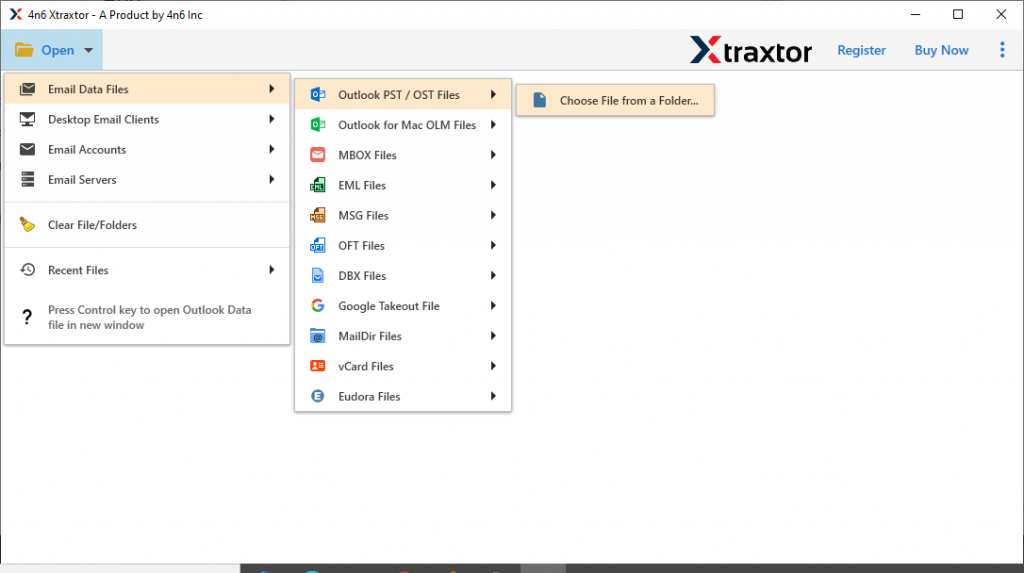
- Click on the Open drop-down menu and choose from the given option.
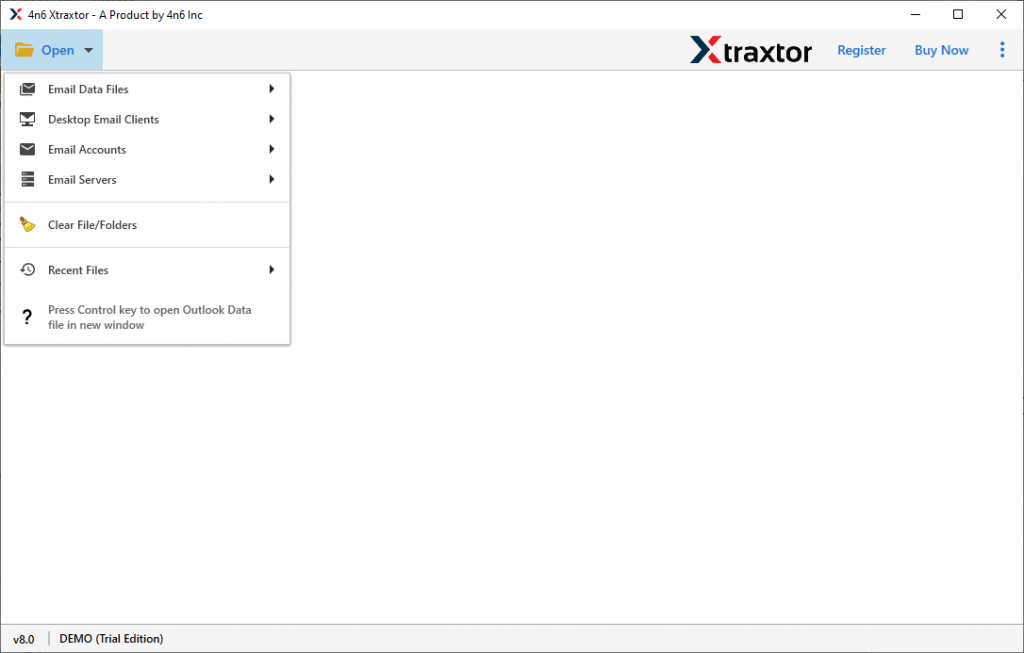
- Now select Email Data File >> OST File >> Select File or Folder.
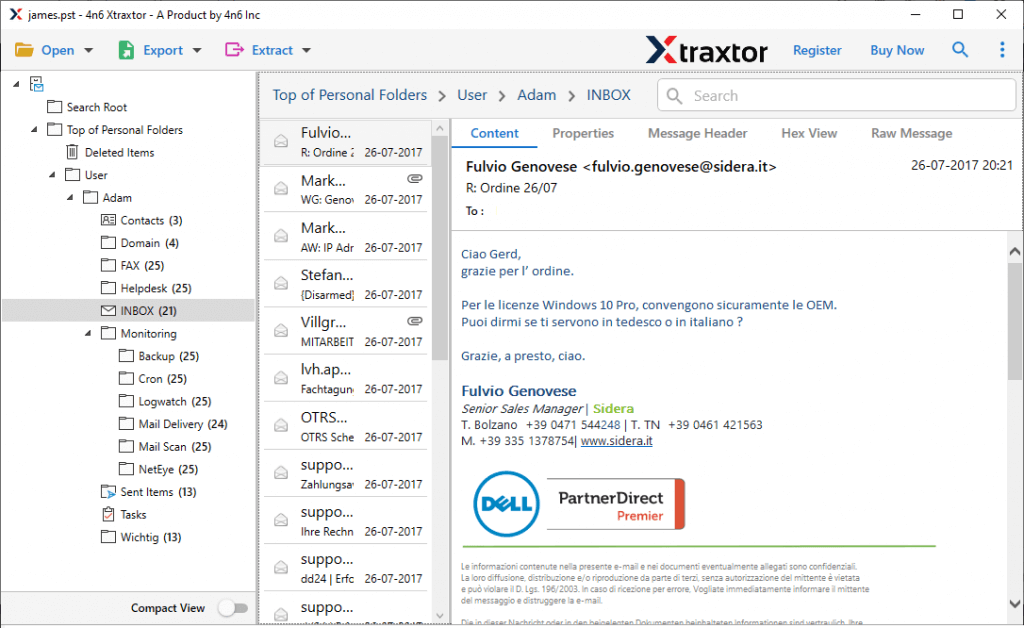
- Here you can preview all your emails and select the contact folder to extract.
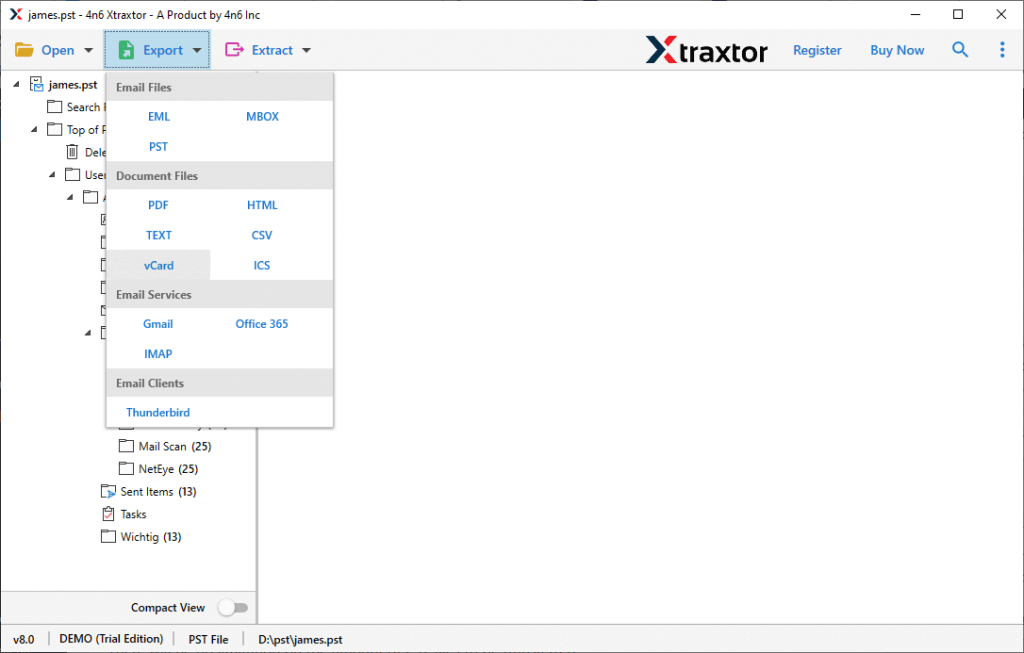
- Click on the Export and opt for vCard format.
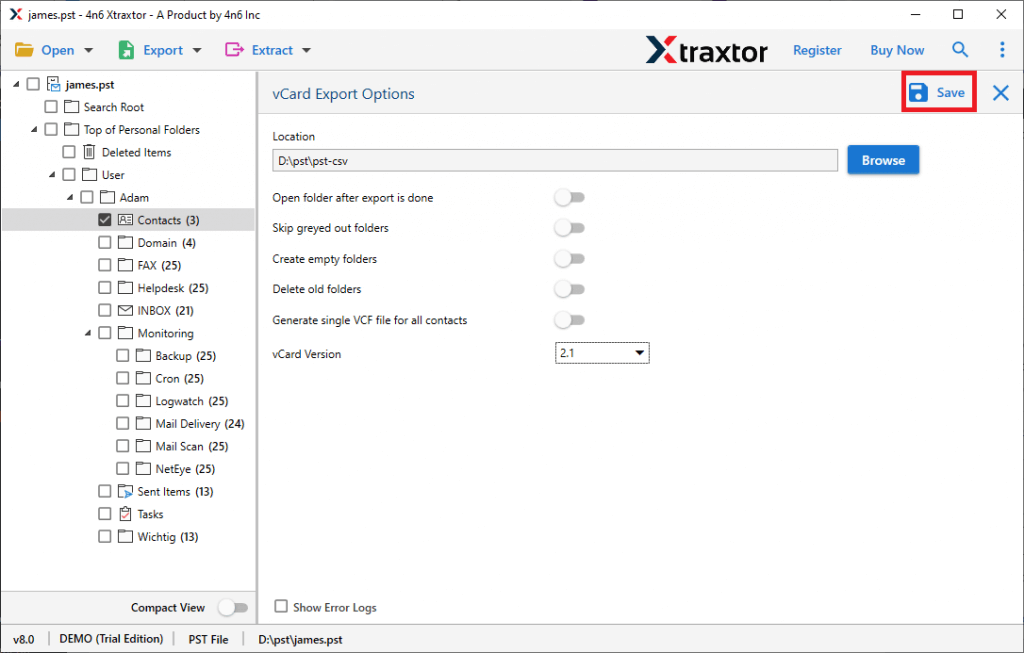
- At last, browse the location to save contacts and hit on the Save button.
-
All Done! Here complete the contact extraction from OST file.
Reasons To Choose OST Contact Extraction Tool
Among various benefits of using this automation tool, some of them are mentioned here.
Export Contacts From Multiple OST File: This tool offer two-mode to select OST file. Users either choose a single file or a folder of multiple .ost files. By selecting a folder, the user can extract contacts in bulk without facing any glitches.
Filter Option: This OST Contact Extraction tool offers various filter options to find contacts from a specific field. Users can apply different filters such as – full name, company, department, property id, country, state, postal code, and many more to choose from.
Extract Contacts From Other Data Files: This software not only saves OST file contacts but also extract contacts from PST file. Most importantly all these options are presented in the same interface.
Simple User Interface: While keeping novice users in mind, this OST Contact Extractor tool is designed with easy to use interface. This utility can be used by both non-technical and technical users to save contact data from OST files.
Conclusion
In this blog, we describe two workable solutions to extract contacts from OST file with complete data. With the manual method, you can save contact data only if Outlook is connected to Exchange Server. Along with that, if you want to access contacts from orphaned OST files, then this native method is not workable. For that, you need to use the automated tool mentioned in this blog. Try the trial version of this tool and know how it works.