Summary: This write-up is about exporting Opera Mail data to Office 365 account. If you are Opera Mail users and want to convert your emails into Office 365, then this post is for you. Read till the end and learn – How to convert Opera Mail to Office 365 account.
Are you trying to export your emails from the Opera Mail account to Microsoft 365? However, worry about losing important data?
Email conversion is a common practice by many users, but it is a risky process. That’s why it is important to adopt a secure and reliable process.
In the coming blog section we will learn about Opera mail and Office 365, reasons for the conversion and process to export Opera emails to Office 365.
If you are among those users who are also facing a similar scenario, this is the guide you needed.
Without further delay, Let’s start the email conversion.
Overview of Opera Mail and Office 365
Opera Mail is a free email client that includes email, contacts, spam detection, newsgroups, and feeds. This desktop application saves your mailbox data in MBS format and supports POP3 and IMAP protocols. Opera Mail was last updated in 2016 after that it was discontinued, which means no features and security updates. That is the main reason why many users switch to another platform.
For that, what will be better than Office 365? The most important benefit of using Microsoft 365 is its web-based email services. You can access all of its services, such as sending/receiving emails, contacts, calendars, journals, tasks, events, advanced security, remote accessibility, and many others.
How to Export Opera Mail to Office 365 Manually?
Since Opera Mail is the email client that can configure any email account efficiently. Therefore, in order to convert Opera Mail emails to Office 365 account, first add your Office 365 account to it and then move your emails.
1. Open your Opera Mail application, click on Menu and select Mail and Chat Access.

2. Clcik on the Yes button and choose Emails from the options.

3. Then enter your Office 365 login id and name and click on the Next button.
4. Now enter your login details and select the IMAP option.
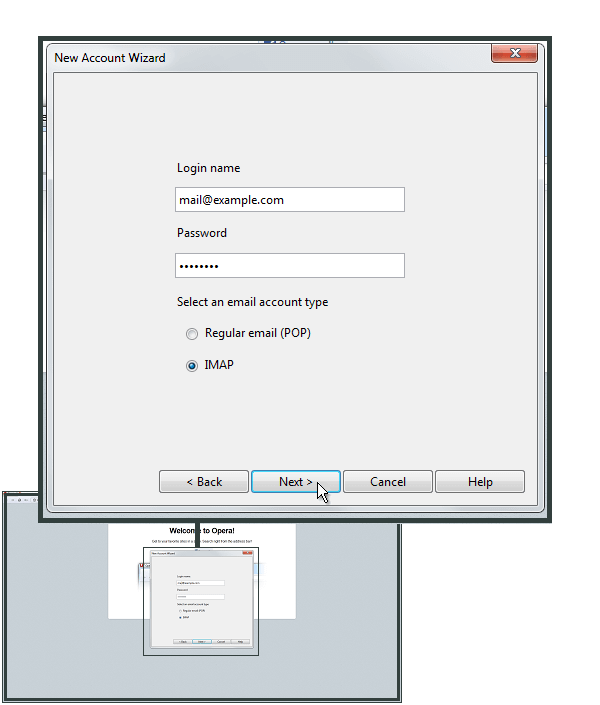
5. Enter the Incoming and Outgoing server settings.
6. Now again go to Menu >> Mail and Chat Account and select your account.
7. Click on Edit and enter your Office 365 IMAP settings details.
8. Now your Office 365 account is added to the Opera Mail profile. Now move the emails you want to export to Office 365 account.
How To Transfer Opera Mail to Microsoft 365 Account
The safe and reliable solution is Opera Mail Converter, which allows you to export multiple emails from Opera Mail account to Office 365 account without data loss. With a simple user interface, it is an easy task for any technical or non-technical user to convert Opera Mails to Office 365 account without any hassle. Most importantly, this software detects the configured email client account and uploads your mailbox data for conversion.
Apart from these, this utility has amazing features like advanced email filter, selective email conversion, folder structure and hierarchy maintenance, dual option to upload mailbox data and many more.

Process to Convert Opera Mail to Office 365 Account
Follow the given instruction and export your emails from the Opera Mail account to the O365 account with complete data.
Step 1. Download and launch the Opera Mail to Office 365 Converter.
Step 2. Click on the Open button and choose the required field.
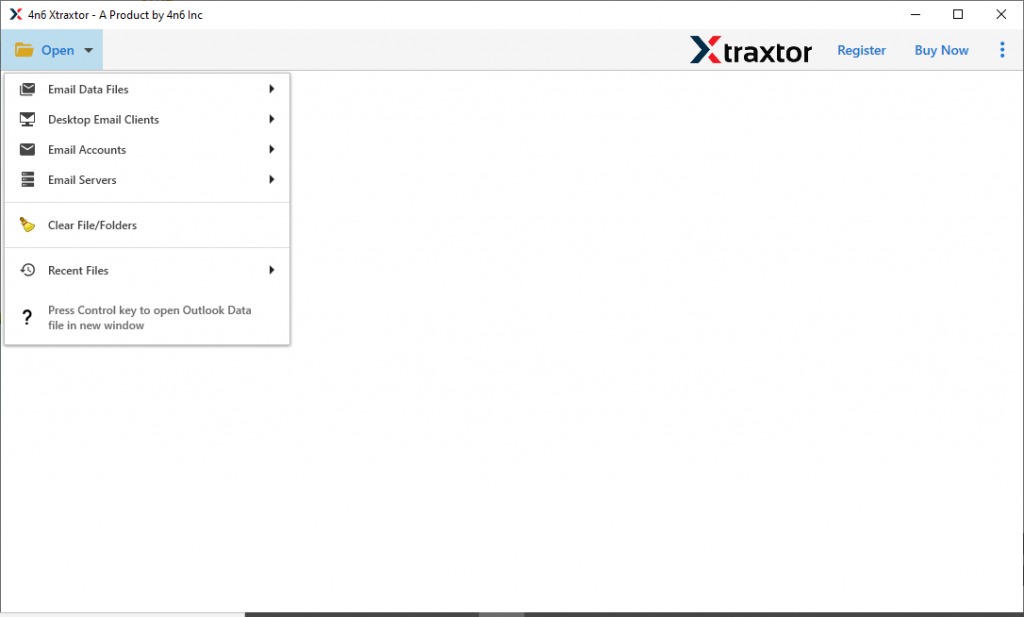
Step 3. After that, Desktop Email Client >> Opera Mail Account >> Open Configured Account or Select File/Folder.
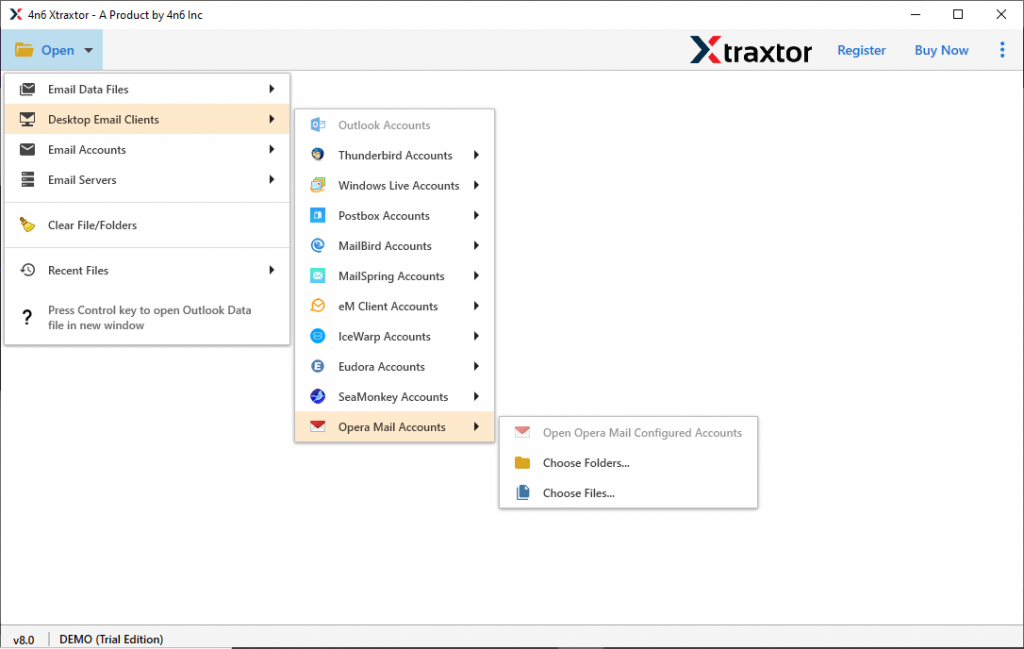
Step 4. All the mailbox emails will be shown here, select the email folder that you want to export.
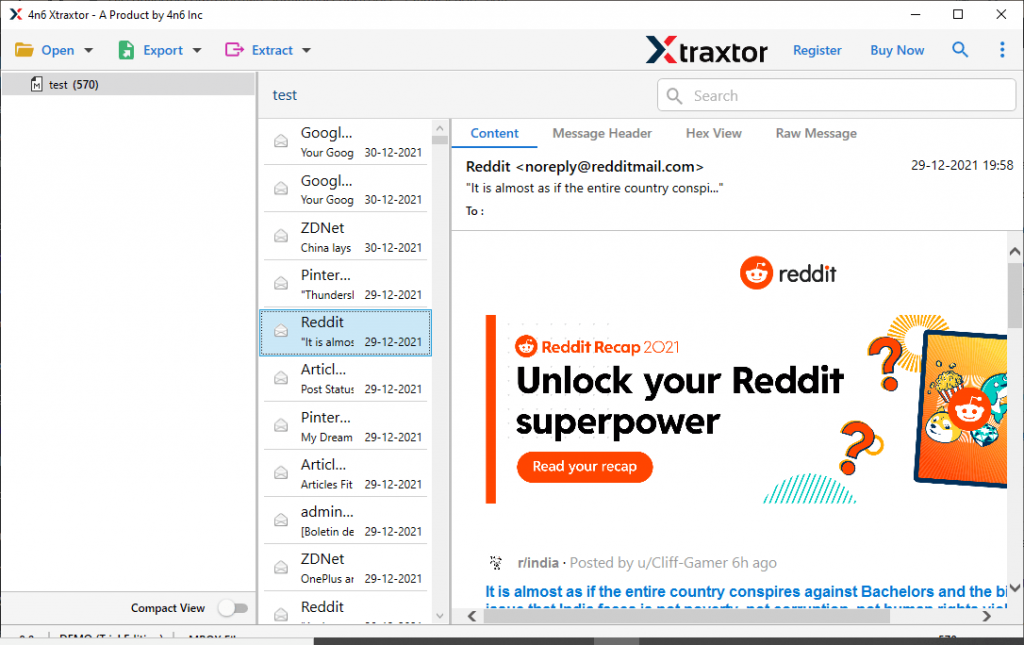
Step 5. Now, click on the Export and select Office 365 from the list.

Step 6. At last, enter your Microsoft 365 account login details and hit on the Save button.
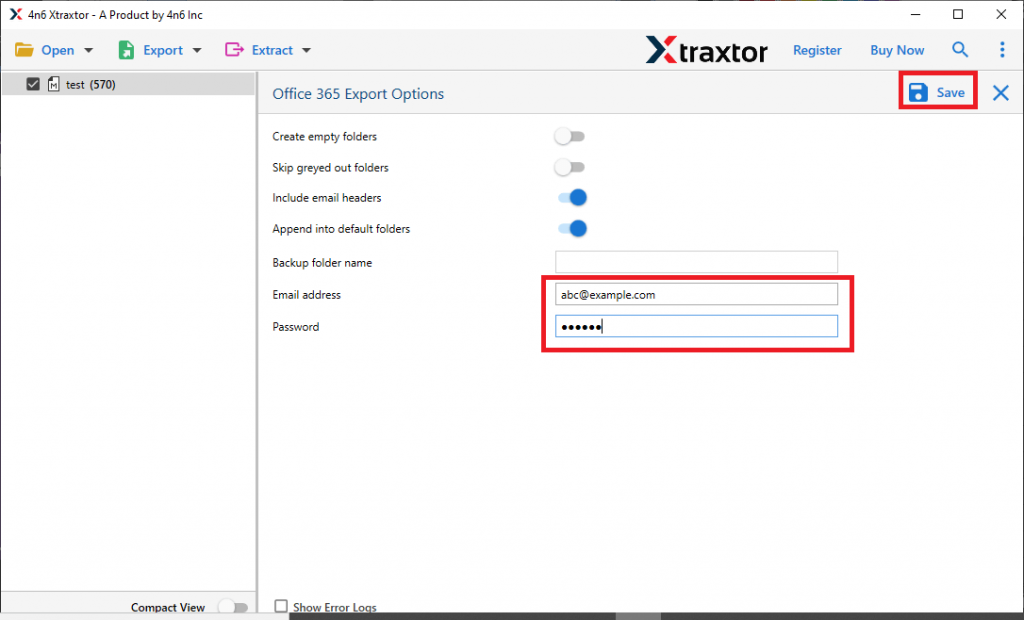
Here complete the Opera Mail to Office 365 conversion process. Your emails will be present on your Office 365 account with proper structure and hierarchy.
Why Need to Use Opera Mail Converter
Various reasons to use this email converter to export mailbox data to Office 365 account with complete data. Check them out.
- Automatic detection of configured accounts: This smart utility has the ability to automatically find the configured email client on the system. After that, it scans the mailbox data and uploads it to its interface. It makes converting from Opera Mail to Office 365 an easy process.
- Batch Convert Opera Mail: Provides a dual option to export Opera mails. The user can select a single data file or choose an entire folder. To export multiple emails, you can select the folder from the save location and easily go through the bulk export process.
- Selective Email Conversion: After uploading emails, this conversion tool shows a preview of all emails on its interface. Users can read emails and select the email folder that needs to be converted and prevent spam email transfer.
- Preserve mailbox structure: After the conversion process is complete, this tool exports all mailbox data the same as the original. This tool makes sure to maintain the structure and hierarchy of email folders or subfolders during the export process.
- Export Opera Mails to Other Email Servers: Using this utility you can also convert Opera Mails to Gmail, Yahoo, Yandex, and other web-based email servers with ease.
Conclusion
Opera Mail to Office 365 Conversion may seem frightening, but do not worry, with a reliable approach, it is an easy task to perform.
Opera Mail Converter is the best way when transfer mailbox data to Office 365 account. It efficiently performs the conversion process without affecting your data integrity. You can try the demo version of this tool and switch to the licensed version after that.