This technical guide will help you import MBOX emails to FastMail account. If you want to import MBOX to FastMail mailbox, then this post is for you.
FastMail is one of the independent email service providers that is used by users worldwide. It is mainly focused on delivering fast, secure and reliable email management services. It is mainly known for its strong belief in user privacy, thus there will be no ads or scanned email data. Thus it makes a strong choice for the users that prioritize confidentiality.
Now the question is – How to import MBOX to FastMail account? Well, there are manual as well as automated ways to transfer MBOX emails to FastMail account. Here in this post, we will discuss both solutions in detail.
How to Import Emails from MBOX to FastMail Manually?
FastMail has an Import tool that allows its users to upload MBOX file manually. If you want to manually import MBXOX to FastMail, follow the instructions –
- Log in to your Fastmail account.
- Open the Settings → Migration → Import screen.
- Click Proton and Hey, MBOX files.
- Click Upload files and select the MBOX files you wish to import.
- Then choose the destination where you want to import the file.
(Note: By default, it remains Inbox folder) - At last, click on the Start import button to begin the process.
Here you manually migrate MBOX emails to FastMail account. However, you can also automate the import process.
How to Transfer MBOX File to FastMail Automatically?
With the help of SysConverter for MBOX tool you can effortlessly import your MBOX file data without any hassle. This MBOX Converter tool is an efficient and reliable solution for importing without affecting data integrity. Moreover, with the help of the tool you have the liberty to import only selective email folders from MBOX file. Additionally, you can import multiple MBOX files into FastMail at once without any data loss.
Download the demo version of the software to know its working process.

Steps to Import MBOX to FastMail
1. Run the SysConverter for MBOX tool on your machines.
2. Add the MBOX File (Open >> Email Data File >> MBOX file).
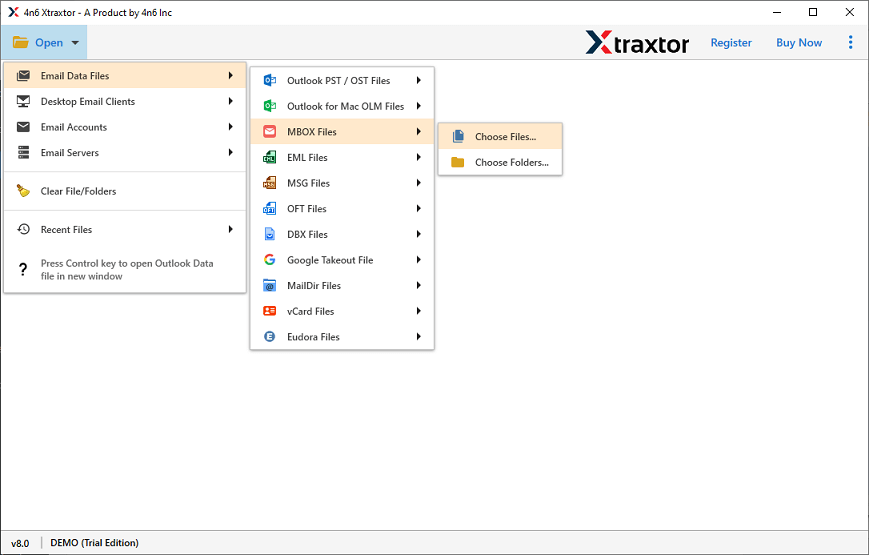
3. Here you can view your emails.

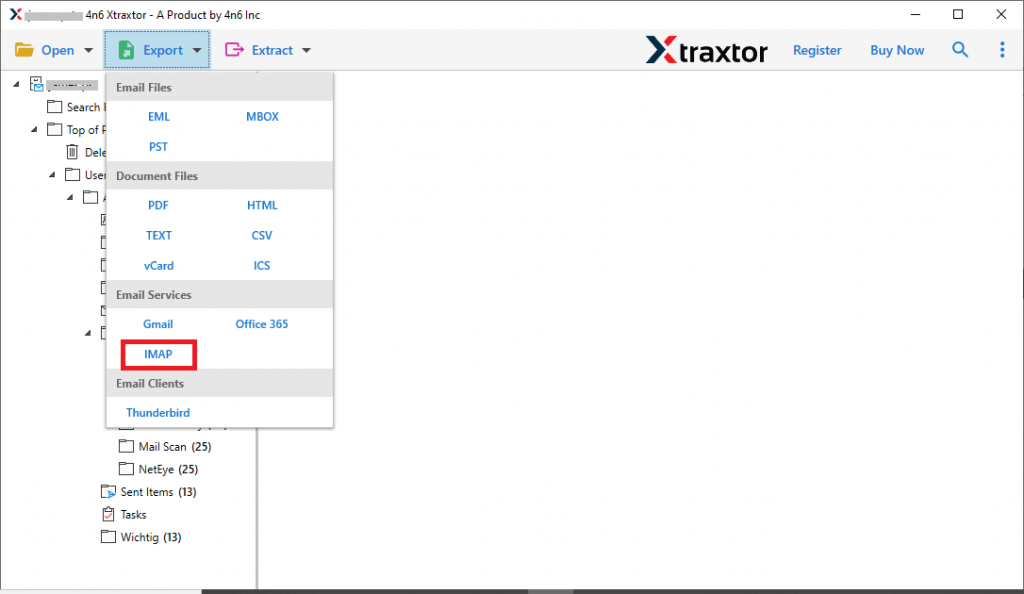
4. Click on export >> IMAP option.
5. Enter your FastMail login details and hit the Save button.
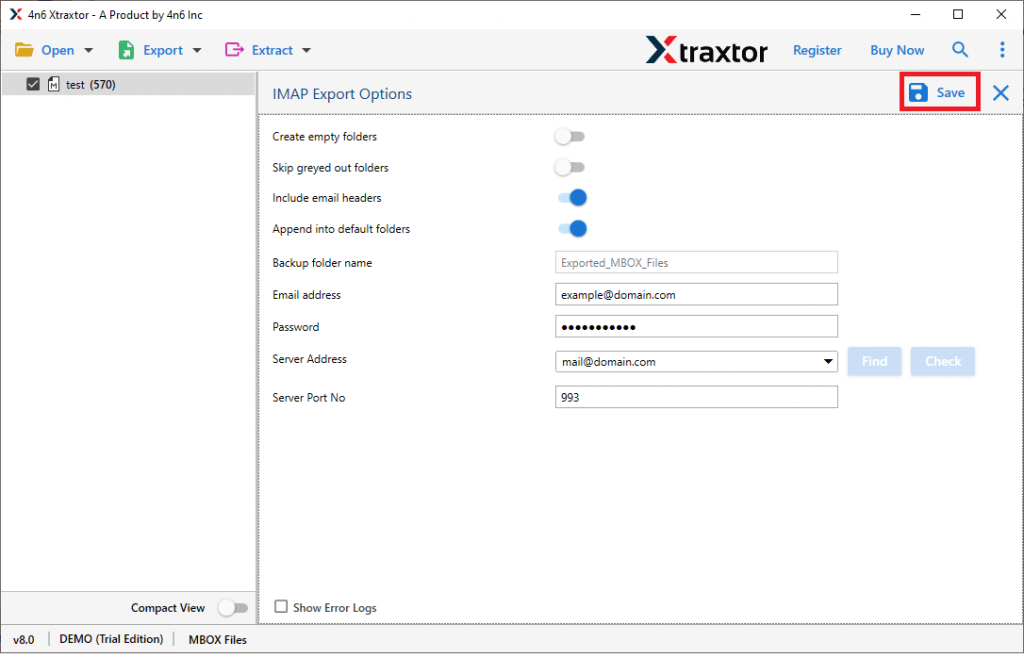
Done! Here the tool will start importing MBOX emails to the FastMail account.
Why Use MBOX to FastMail Import Tool?
This tool offers various prominent features that help in efficient email importing. Some of them include –
- Preserve data integrity whole importing MBOX file to FastMail account.
- Advance filter options – to, from, cc, bcc, name, date, time, etc.
- Option to select email folders that you want to import from the MBOX file.
- Maintain email folder and sub-folder hierarchy and structure.
- A free demo version of the tool is also available.
- Works on Windows 11, 10, 7, Vista, XP and all other versions.
Conclusion
Here in this article, we explain the simple and secure process of importing MBOX files to FastMail. Here we discuss manual as well as automated tool to import MBOX to FastMail account. However, using the automated tool you can complete the import effortlessly without any risk of data loss. Try the tool’s trial version to see how it works.