EML file is the standard format used by many email clients to save their emails. When a user receives these files, they often worry about how they will access them on their iPhone devices. If you are among those who want to read EML file on iPhone, then this blog is for you. Here in this post, we will describe the step-by-step process to access your .eml files on your iPhone device with ease.
Before delving into the complete process of reading emails on your phone, let’s first explore what EML files are. EML files typically contain the full content of an email message, including the email body, sender and recipient information, subject, date and time stamps, and any attachments. EML files can be opened and viewed using various email client applications, such as Microsoft Outlook, Mozilla Thunderbird, or Apple Mail, among others.
Now without any further delay, let’s move ahead and learn the step-by-step process to read multiple .eml files on your iPhone device with ease.
How to Read EML File Using iPhone?
One can easily access .eml file data on their iPhone devices using an EML Converter tool software. The tool will effortlessly convert EML to PDF format. After that, you can easily transfer the exported .pdf file to your iPhone device. Now it is easy for you to access the portable file on your iPhone without any hassle.
Additionally, using this solution you can also export EML to TXT, Excel and many other formats that can be accessed on your phone. It also offers batch mode, which helps in exporting multiple EML files at once.

Steps to Read EML File on iPhone Effortlessly
1. Run the software on your system.
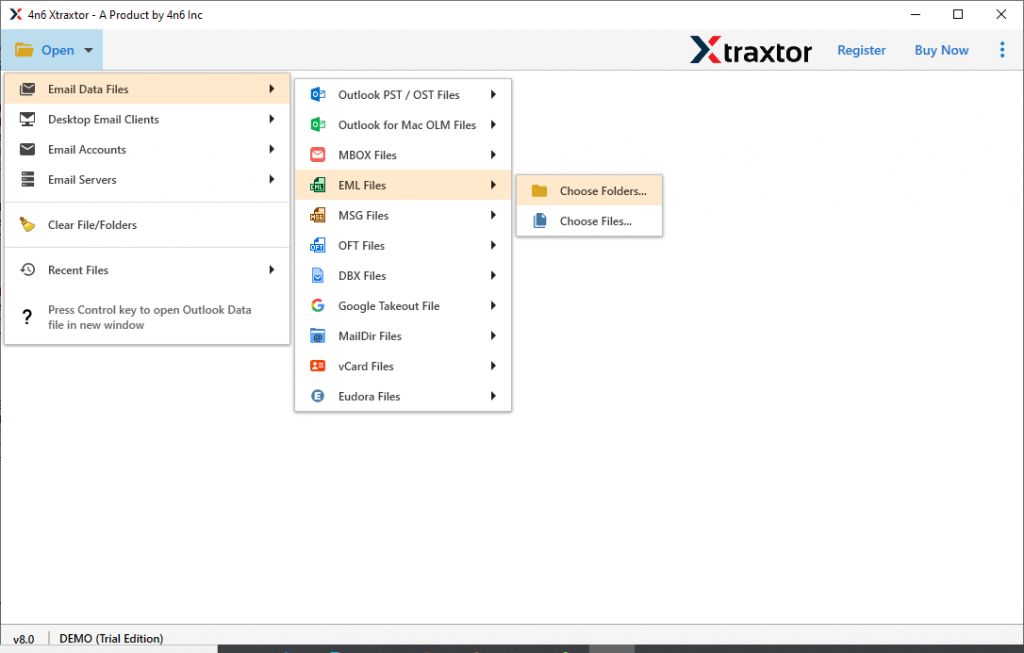
2. Then, Open >> Email Data File >> EML Files >> Select Files or Folder.
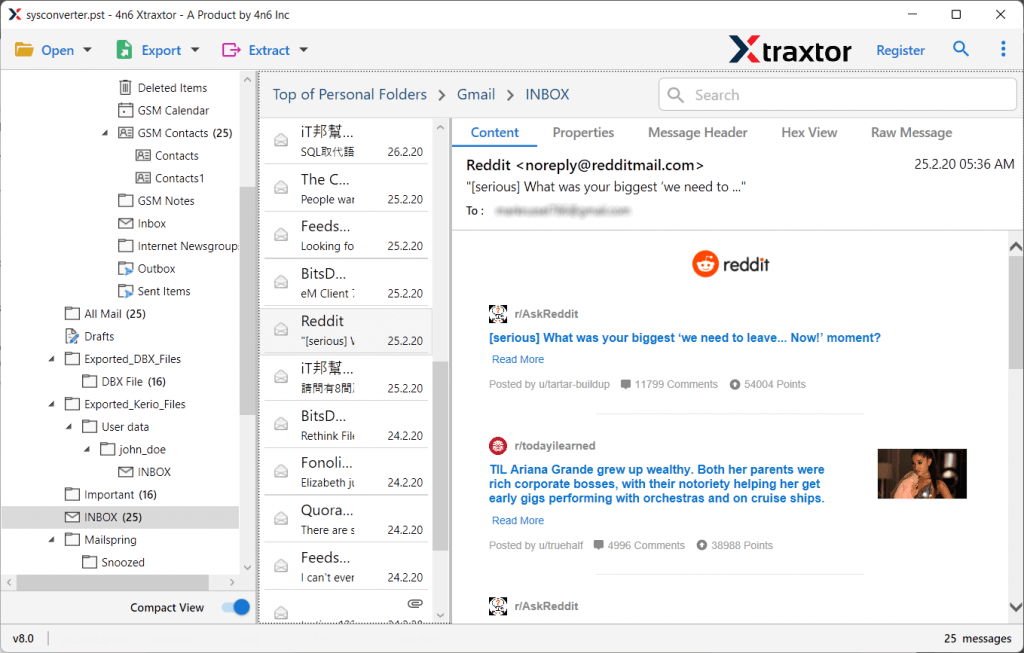
3. Here you can view your emails before converting them.
4. Click on Export and choose the PDF option.

5. Browse the targeted location and hit the Save button.

6. Now connect your iPhone to your system and transfer the exported data file.
Now you can easily read EML file on iPhone device without any hassle. With this tool, there are various other prominent features, some of them are –
- It will help to access EML file on iPhone effortlessly.
- Email Filets to for selective conversion.
- Maintain email key attributes and meta-data.
- Allow to export EML to PST and many other file formats.
- Simple and Easy-to-use interface.
- Allow to convert multiple EML files at once.
Conclusion
Here in this article, we discuss the secure and efficient way to read EML file on iPhone with ease. Try the tested solution and access your emails on your Apple phone without any hassle.