Are you looking for a reliable and potential solution to transfer email from Outlook to Thunderbird? If yes, then this post will guide you to transfer Outlook emails to Thunderbird profile with attachments.
Transferring emails can be stressful especially when you are switching from one email client to another with your complete data. There are various users who want to transfer their emails and other data from Outlook to Thunderbird account.

Here the users want to transfer its Outlook emails to TBird account without losing important data. So, let’s begin and know teh transfer process.
How to Export Outlook Emails to Thunderbird Manually?
Thunderbird has an inbuilt feature that allows users to upload emails directly from their Outlook account to their Thunderbird mailbox. Follow the steps for that –
1. Open your Thunderbird application.
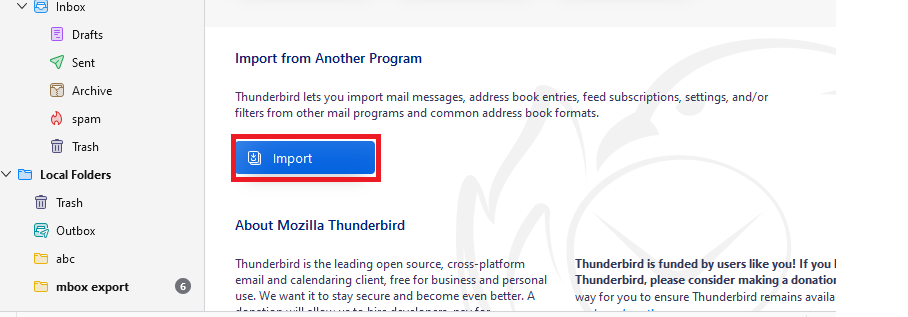
2. Then click on the Import button.
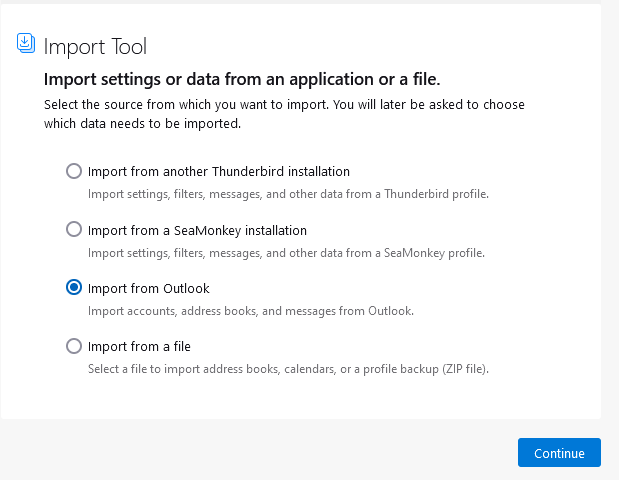
3. Then click on teh Import from Outlook option and click on the Continue button.
Now your Thunderbird will start importing your data. Depending on your mailbox size it will take time.
How to Transfer Email from Outlook to Thunderbird Automatically?
Download Outlook Converter for Windows on your system. The software will instantly export emails from the Outlook profile to the Thunderbird profile. The tool automatically detects your configured Outlook profile from your system. After that, it will effortlessly export the emails to your system where your Thunderbird data is saved. Now you can access Outlook email in your Thunderbird account.
Try the software for free and know its working process.

Steps to Export Emails from Outlook to Thunderbird
Step 1. Install and Run SysConverter for Outlook on your Windows OS system.

Step 2. Click on Open >> Desktop Email Client >> Outlook Account >> Accountlook Profile.

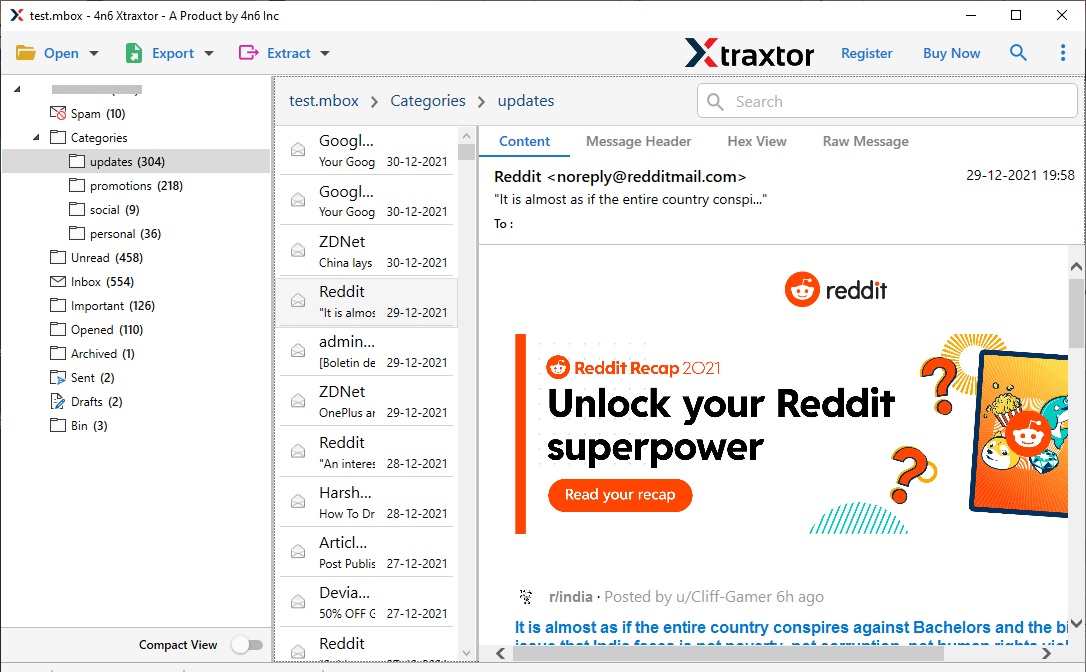
Step 3. Here you can view your mailbox data before moving them.
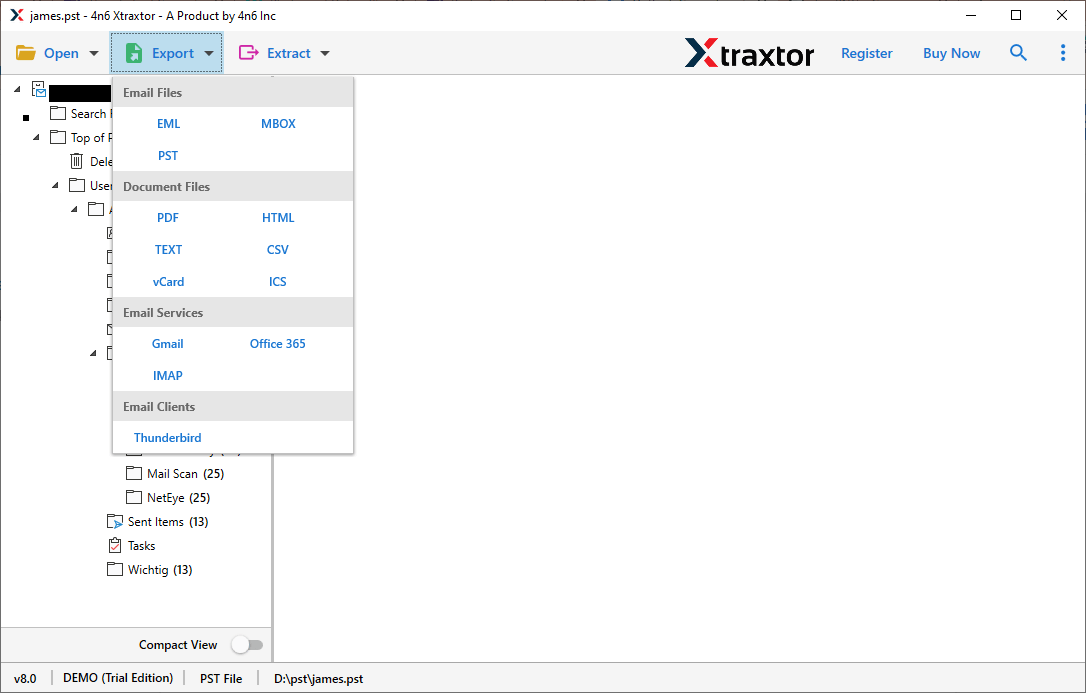
Step 4. Click on Export and choose Thunderbird from the given options.
Step 5. If you want to transfer selective email folders, then you can select them here.
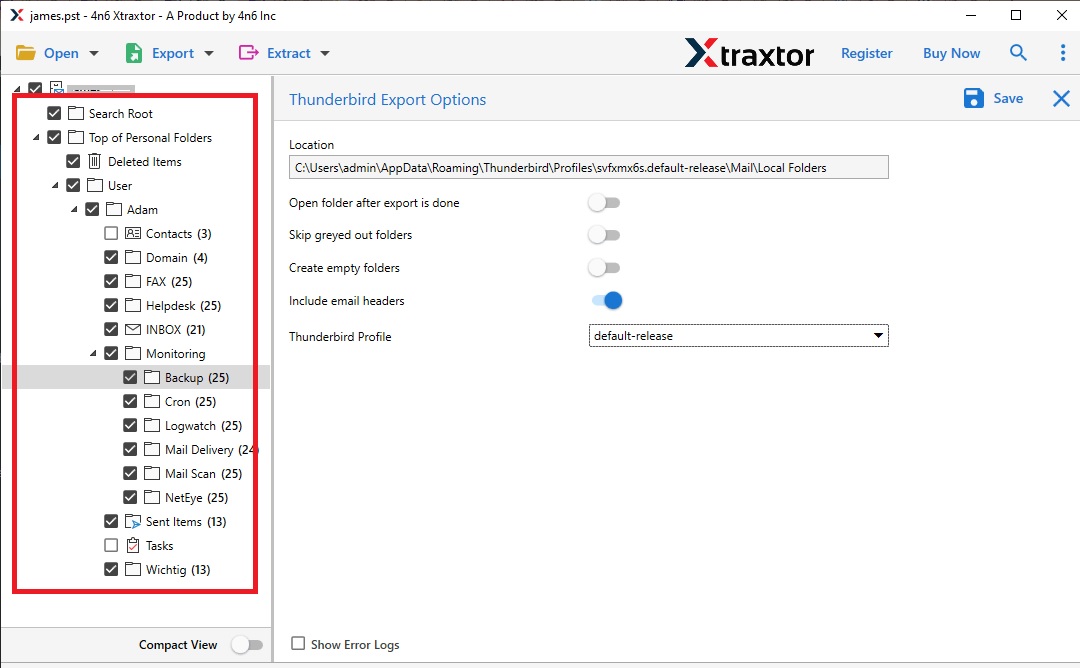
Step 6. You can also apply the different filter options if you want to export selective emails.
Step 7. At last, click on the Save button and all your emails will be transferred to your Thunderbird account in a few simple clicks.
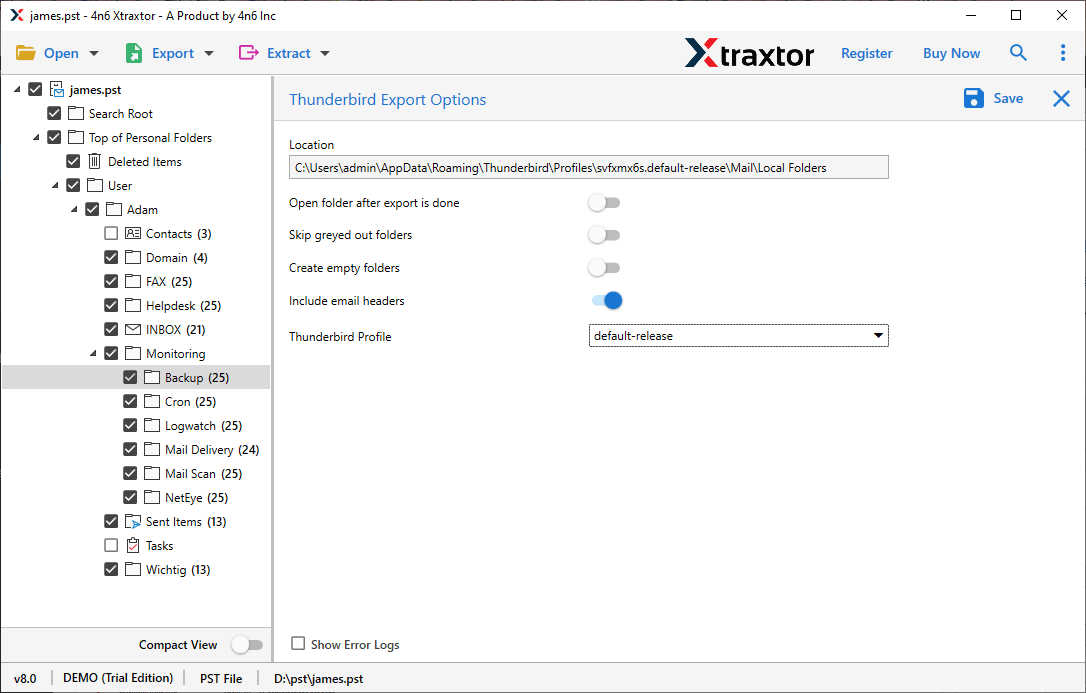
Here complete the process to transfer email from Outlook to Thunderbird with attachments. One can also try the demo version of this tool and import email from Outlook to Thunderbird.
Features of Outlook to Thunderbird Import Tool
Some of the outstanding properties of this professional tool –
- Multiple Saving Options: This application allows to export Outlook emails to excel and also into different file formats as well. Along with that, one can export Outlook emails to PDF, EML and many other file-saving options.
- Complete Import Process: The software is smart enough to transfer Outlook mailbox to Thunderbird along with contacts, calendar, etc.
- Advanced Filter Options: With this tool, there are various filter options such as – to, from, cc, bcc, date, time, name, etc.
- Windows OS Application: This utility will work on all Windows OS systems without any errors. You can instal this software on Windows 11, 10, 8, Vista, XP and all other previous versions.
Conclusion
Here in this post, we discuss the manual free and automated approach to transfer emails from Outlook to Thunderbird account. Hope the solutions mentioned in this post will helps you to migrate Outlook emails to Thunderbird profile.