Do you have EML files and want them to be secure on another platform? If it is a situation, then you can try to import EML to Google Workspace webmail account. This article will guide you to import emails from EML files into G Suite account in bulk.
Before we move ahead let’s know about EML and Google Workspace.
EML is a file format that saves a single message with an attachment of the mailbox data. This format is supported by many email clients – Windows Live Mail, Thunderbird, eM Client, Zimbra, etc. While another hand Google Workspace is a cloud-based emailing service by Google. With the help of G Suite, you can access several powerful applications such as calendar, doc, slides, and many more. Moreover, all the data is stored in the cloud which provides security to your data that can be remotely accessed on any device.
However, there is a problem with the import process. Google Workspace exports or downloads a single message in .eml format, but does not offer the option to import EML into Google Workspace mailbox.
Worried about your email import process? Don’t worry! This post will tell you an efficient and secure approach to import EML to Google Workspace in bulk.
How to Move EML files into Google Workspace Mailbox?
To transfer multiple EML files into G Suite account you can use EML Converter software. This utility is specially designed to transfer .eml files into Google Workspace account without affecting its integrity. Along with that, you can also apply filters and search for a specific email and import it to webmail account. In addition to it, you can also import EML to iCloud, Gmail, office 365, and all other cloud-based email accounts.
Furthermore, this utility offers different file formats to save .eml file data. One can convert EML to MBOX, PST, PDF, CSV, HTML, and other formats. There are dual options to upload data file either EML files or the entire folders.

Follow the Steps to Import EML to Google Workspace instantly –
- Install and Run SysConverter for EML on your system.
- Select Open >> Email Data File >> EML Files >> Select File or Folder.

- Here you can view your emails and read them.
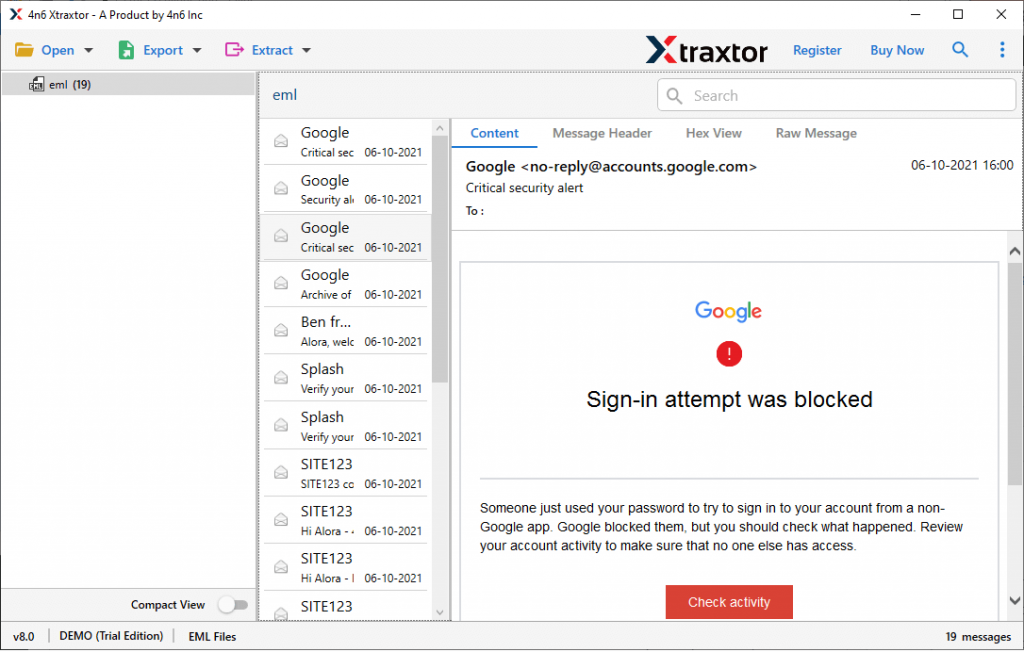
- Click on the Export and Choose IMAP option from the given list.

- At last, enter your Google Workspace account login details and hit on the Save button.

All Done! here you import EML to Google Workspace webmail account without losing a single bit of data.
Why Choose EML to Google Workspace Import Tool?
There are various advantages of using this utility to perform the import process. Some of them mention here –
Preserve Email Integrity: While importing .eml files to G Suite account, this software makes sure to uphold the integrity of the email. It means your email message will be transferred with attachments, to, from, date, and all other header information.
Email Filter Option: With its automated tool you will get various email filter options to search and import specific emails. You can apply from given filters – to, from, subject, name, content, date range, time, has attachments, property id & name, cc, bc, and many more.
Move EML to Cloud Server: Using this software one can swiftly transfer emails into webmail accounts without any data loss. You can import EML to Gmail, Yahoo, GoDaddy, Yandex, iCloud, and other IMAP servers.
Windows-Based Utility: This tool is designed for Windows Operating System. It can easily install and operate on Windows 11, 10, 8, Vista, XP, and all other previous operating systems with ease.
Dual Option to Import EML: The EML to G Suite import tool allows you to upload .eml files in two different ways- one can either Select Files or choose Folder. By selecting a folder user can perform bulk EML to Google Workspace import.
Conclusion
In this blog, we present you with an instant secure way to import EML to Google Workspace account. Using this utility you can swiftly move EML files into Google Workspace account in a few simple steps. You can also use the demo version of this utility and perform the import process without any assistance.