Summary: Today in this write up we will discuss the secure and reliable solution to import SeaMonkey mails to Gmail account with complete mailbox data. Read the complete article and know the error-free approach for transferring emails from the SeaMonkey account to Gmail.
What is the one thing you want from your email client?
Security and advanced email management. Whether it is an email client or email server, every user wants a secure environment for their important data.
The problem with SeaMonkey is its poor email management and security feature.
However, if you are facing these problems, then it’s time to change your application to a secure one. What is more secure than, Gmail.
Wouldn’t it will be great if you use a professional tool that not only provides advanced email services and high security.
Well all these, are possible with Gmail. Let me tell you how can you import SeaMonkey mails to Gmail. Before that let’s understand what this importing means.
What is SeaMonkey to Gmail Import Means
As we already know that SeaMonkey is an email client that supports many email accounts to configure. It is used to manage emails from different email addresses in a single interface. On the other hand, Gmail is a web-based email server that provides email services at both personal and professional levels.
A situation where the user wants to export SeaMonkey emails to a Gmail account. In that case, the user wants to transfer all the mailbox data to Gmail. In that case, one needs to import all the emails and other data to a Google emails account.
Here in this blog we will discuss this import process and transfer SeaMonkey emails to Gmail with complete data.
What Are the Benefits of SeaMonkey to Gmail Import?
Although, there is various perk of using Gmail instead of SeaMonkey. Here are a few results based on user experiences.
- It offers various advanced features and an interactive user interface.
- Gmail offer you to create, send, manage email, search emails, and many more options in a single window.
- This web-based email server provides many advanced resources such as unlimited storage, spam detection, threaded conversion, security, and many more.
- Offer calendar, contacts, journal, automatically email filter and categories, and other additional features.
How to Import SeaMonkeyMails to Gmail
When transferring emails from one platform to another, the main concern of all users is the integrity of their data. Well, SeaMonkey Converter is a solution to all your questions.
This email conversion wizard is designed for the sole purpose of transferring emails from SeaMonkey to Gmail without data loss or alteration. The highlight of this tool is its automatic detection of the configured SeaMonkey account and importing your emails to Gmail. When importing emails from mailboxes, this tool preserves the key elements and properties of the email. It offers a secure and error-free solution to import emails from SeaMonkey to Gmail account.
Apart from these, it offers other amazing options like email filter, ad search, a dual option to import emails, etc. Above all, it is designed in such a way that novice users can easily handle this tool and transfer their mailbox data.

Steps to Export SeaMonkey Emails to Gmail Account
Carefully follow these instructions and transfer your emails from the SeaMonkey account to your Gmail account with no data loss and modification.
Step 1. Download and run this software on your system.
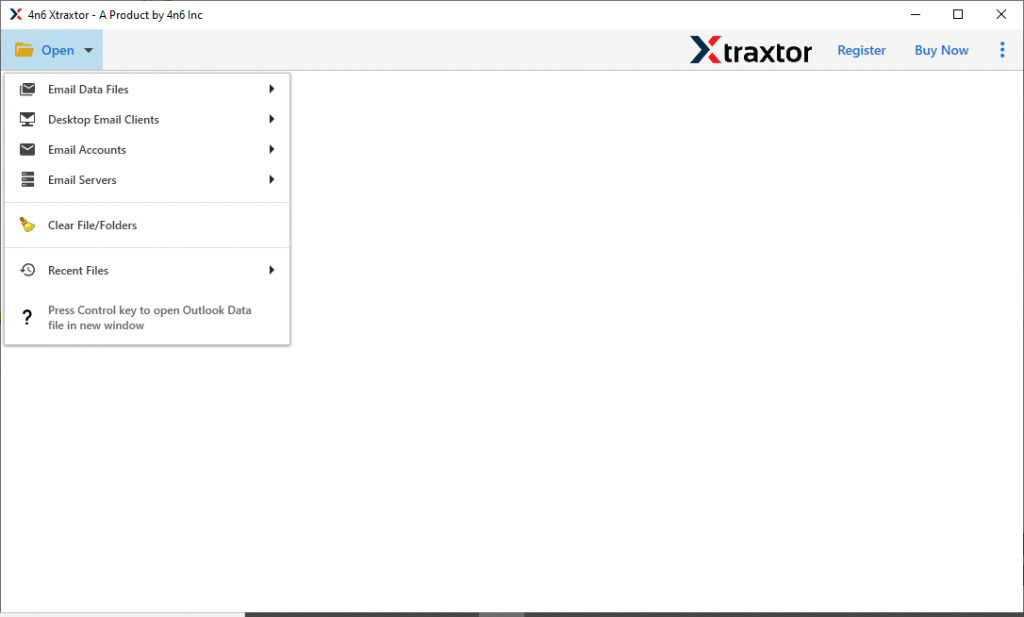
Step 2. After that clcik on the Open drop-down menu and choose the required field.
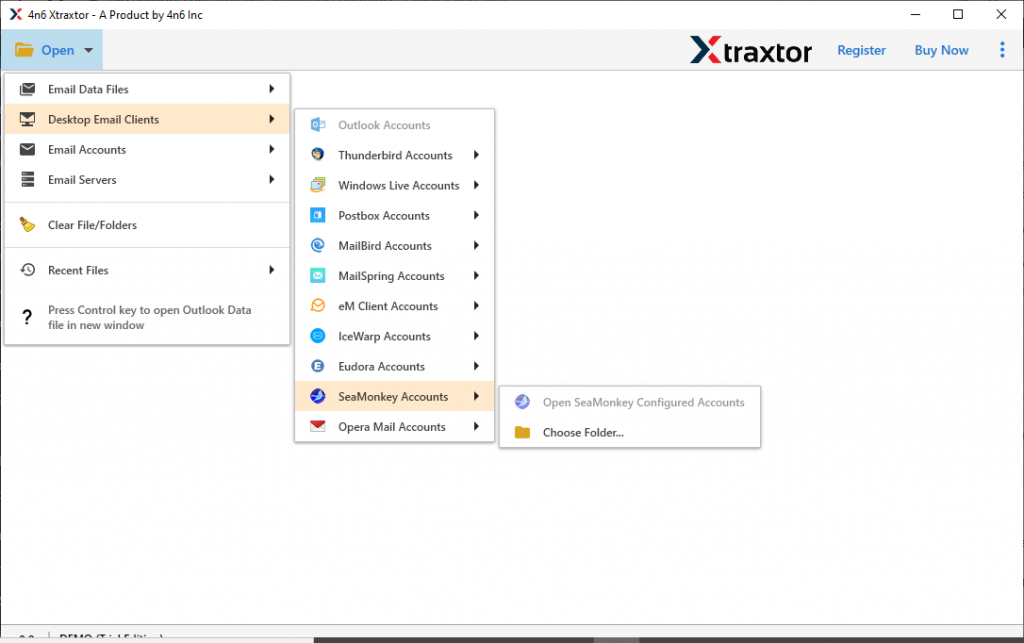
Step 3. Here select Desktop Email Client >> SeaMonkey Account >> Select Folder or Open SeaMonkey Configured Account.
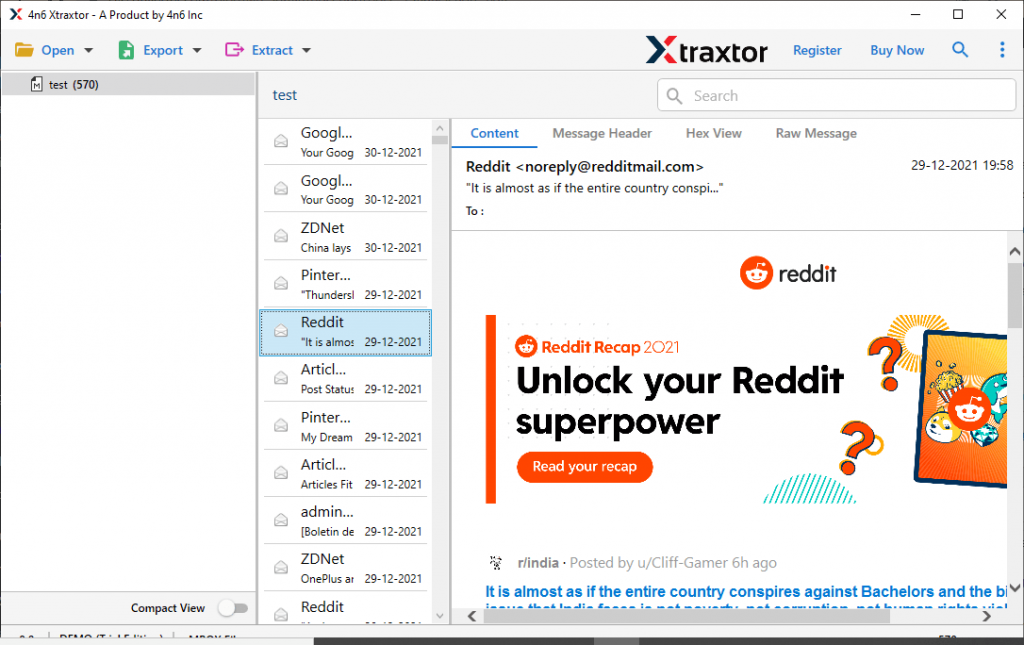
Step 4. Now, this tool loads all emails and you can view them on its interface. Here you can select the email folder that you want to import. If you want to transfer complete mailbox data then select all folders.
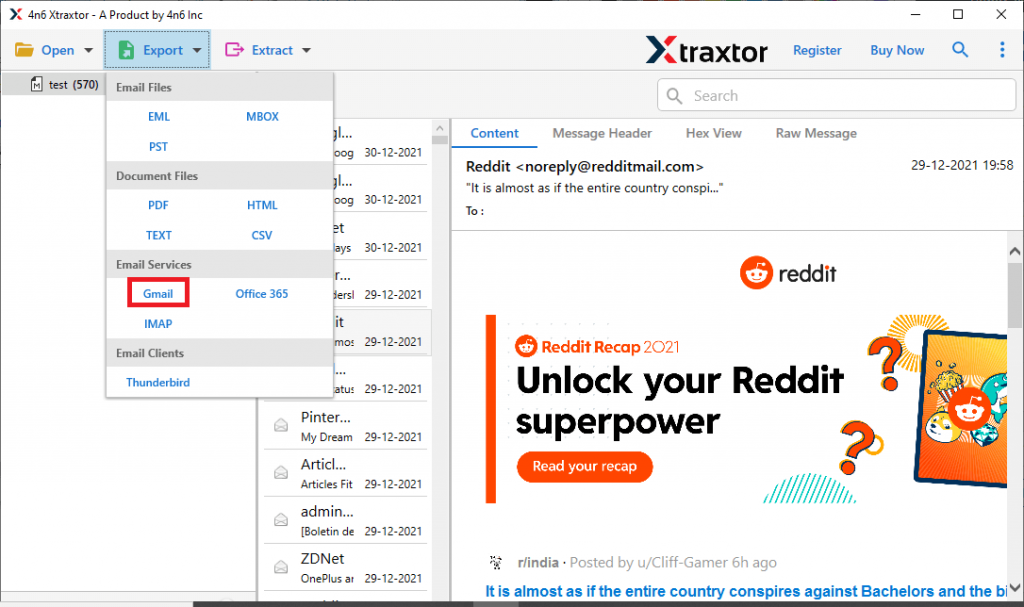
Step 5. At this point, clcik on the Export button and choose Gmail as a saving option.
Step 6. At last, enter your Gmail login details and clcik on the Save button.
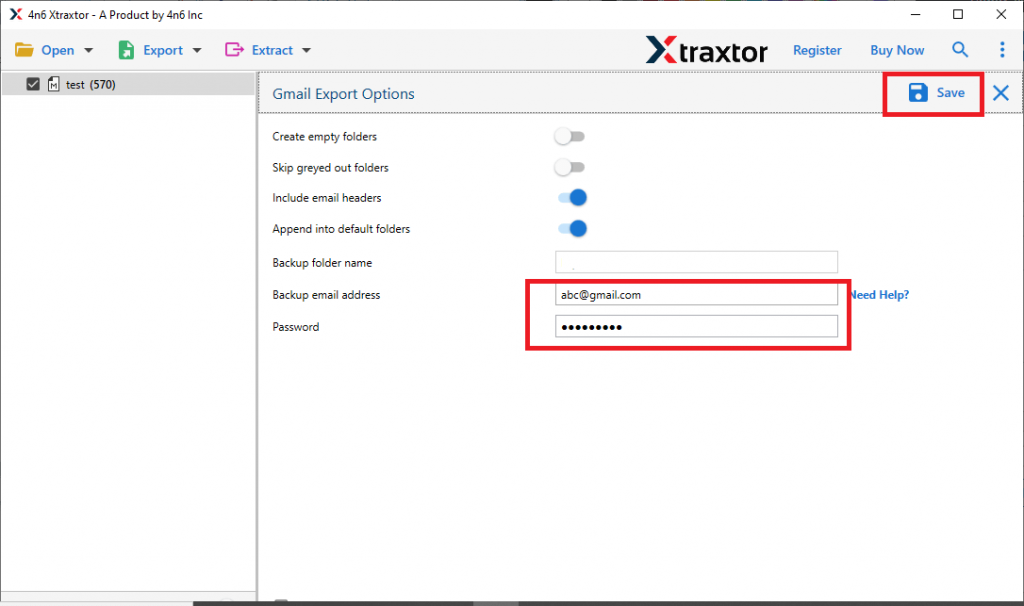
Note: Please enable less secure app access and create an app password. After that enter that password with your email id.
Here completes the SeaMonkey to Gmail import process. You will find all your SeaMonkey emails in Gmail account.
However, there is an alternative manual solution to transfer SeaMonkey emails to Gmail. Let’s check out how this native way works.
Manually Export SeaMonkey Mails to Gmail
To perform this approach, we will use Gmail inbuilt import option. For that follow the below-given instructions.
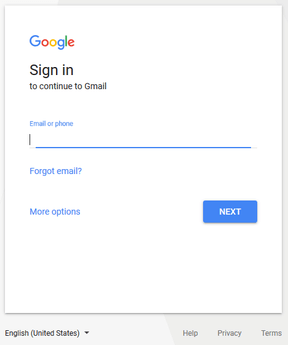
Step 1. Login to your Gmail account.
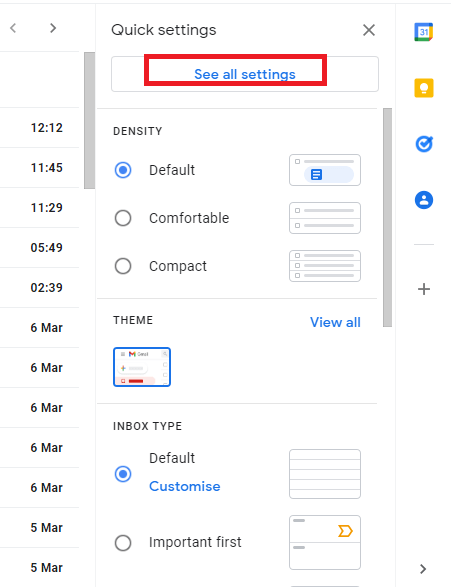
Step 2. After that click on the Setting >> See all settings.
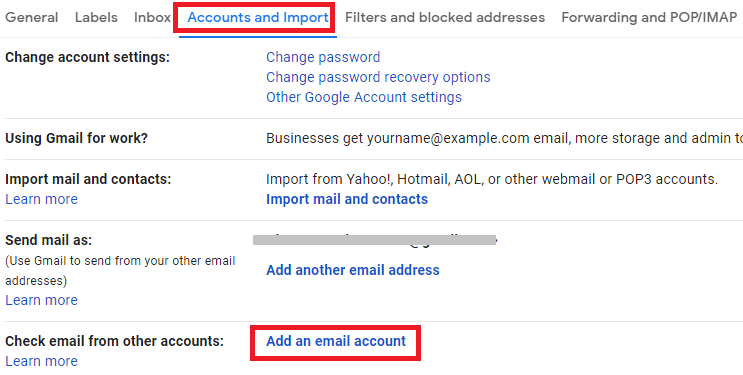
Step 3. Now select “Add a mail account” under “Accounts and Import tab“.
Step 4. A pop-up window will appear, enter your SeaMonkey email address.
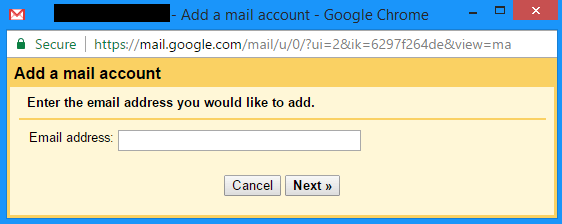
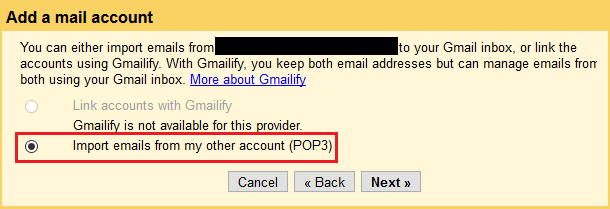
Step 5. Now in the next window, clcik on the “Import emails from my account (POP3)” and clcik on the Next button.
Step 6. Enter your SeaMonkey email address and password. Also, enter your POP server and Port.
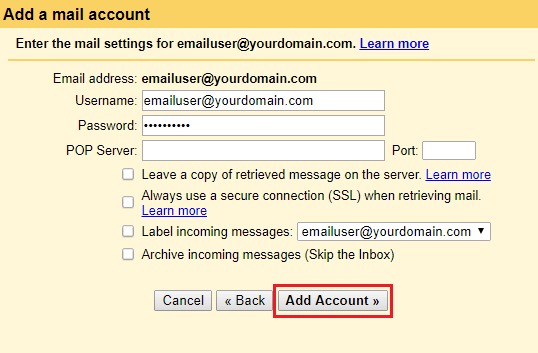
Step 7. At last clcik on the Add Account button. In the new pop-up window, check on the No radio button and click on the Finish button.
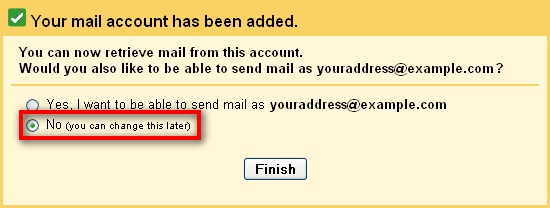
Here you manually import SeaMonkey mails to Gmail. However, there are certain limitations to this approach.
Why Should I Use Automated Tool
We learn two different methods to perform this import process. However, with the manual way, there are restrictions. To avoid that, it is best to use recommended solution.
Now the question arises – Is this tool is worth it?
Here are some features that make it a valuable asset for transferring your SeaMonkey emails to Gmail.
- Simple User Interface: With easy use function, this utility can be used by all types of users. It is easily operatable by no-technical as well as technical users.
- Different Saving Options: This software offer an array of file formats to save mailbox data. Using this tool, users can convert SeaMonkey mails to PST, MBOX, PDF, HTML, and other file formats with no data loss.
- Transfer Emails to Cloud: It not only import SeaMonkey emails to Gmail, but along with that it can also import SeaMonkey mails to Office 365, Yahoo, Yandex, and many more web-based email servers.
- Extract Data: With his utility, there is an option to save specific mailbox data. You can extract email addresses, phone numbers, attachemnts and associated email addresses and phone numbers in a single text file.
Conclusion – Import SeaMonkey Mails to Gmail
The email import process is not an easy task, but with the right techniques, it is worth a try. How to transfer emails from mailbox data to Gmail? Just use the recommended software and import without problems. The most important thing is that you will not lose a single bit of information and there will be no changes in the structure and hierarchy of your email.
If you are still not sure, try the demo version of this software and export SeaMonkey emails to Gmail.